
• Home
  • Buy Now
  • Why
  • About
  • Research
  • Help Center
  • Home
  • Buy Now
  • Why
  • About
  • Research
  • Help Center
  • Home
  • Buy Now
  • Why
  • About
  • Research
  • Help Center
Buy Now

Getting started

3
  • Quick start guide
  • Device Manual
  • Troubleshooting

Customization guides

6
  • Editing buttons/tiles
  • Organizing vocabulary
  • Customizing Folders and Pages
  • Accessibility settings
  • Backup & Restore
  • Setting Up for a Specific Learner

For SLPs & School Staff

5
  • Implementation Guide for SLPs and School Teams
  • Classroom Setup Tips
  • Modeling Tips
  • Vocabulary Consistency Tips
  • Caregiver/Staff Handoff Sheet

Best-practice setup examples

4
  • Recommended Starter Boards
  • School-Aged Student Setup Examples
  • How to Keep Vocabulary Consistent Between Home and School
  • How to Train Paraprofessionals, Teachers, and Family Members

How to tips

9
  • How to Add a Picture to Your Tiles/Button
  • How to Create a New Tile Button in TalkingTiles AAC
  • How to Upload a Custom Image to Your AAC
  • How to Add a Folder (Category) to Your AAC Device
  • How to change the grid size for your AAC board
  • How to adjust keyboard layout in your AAC board
  • How to coach your learner on the location of a certain button on your AAC board
  • Enabling Gammatical Support For Core Buttons
  • Build Vocabulary Over Time
View Categories

How to Add a Folder (Category) to Your AAC Device

1 min read

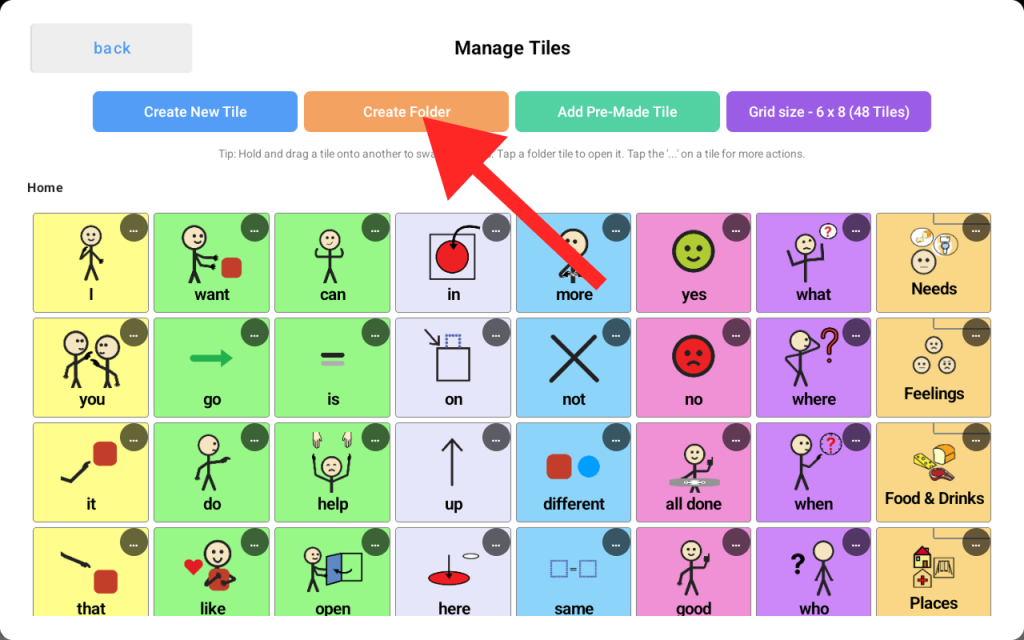
Using TalkingTiles AAC, you may add folders to your AAC board to categorize certain tiles. For example, you can create a folder called “Food” to put all food-related tiles underneath it for easier categorization and access for your loved one. Below is a walkthrough of how to create a “Food” category and create two tiles underneath it, which are “Cereal” and “Fries”.

  • From the settings menu, tap “Edit tiles”, then tap “Create Folder”.
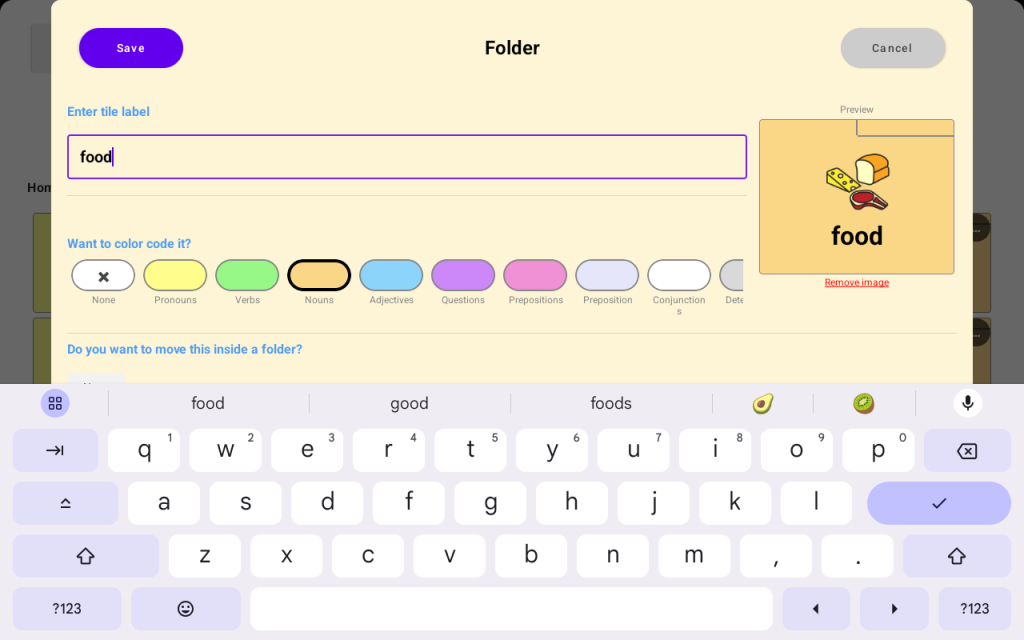
  • In the Create Folder screen, type the label as “Food” and select the first suggested symbol, then tap “Save” to save your new folder onto the board.
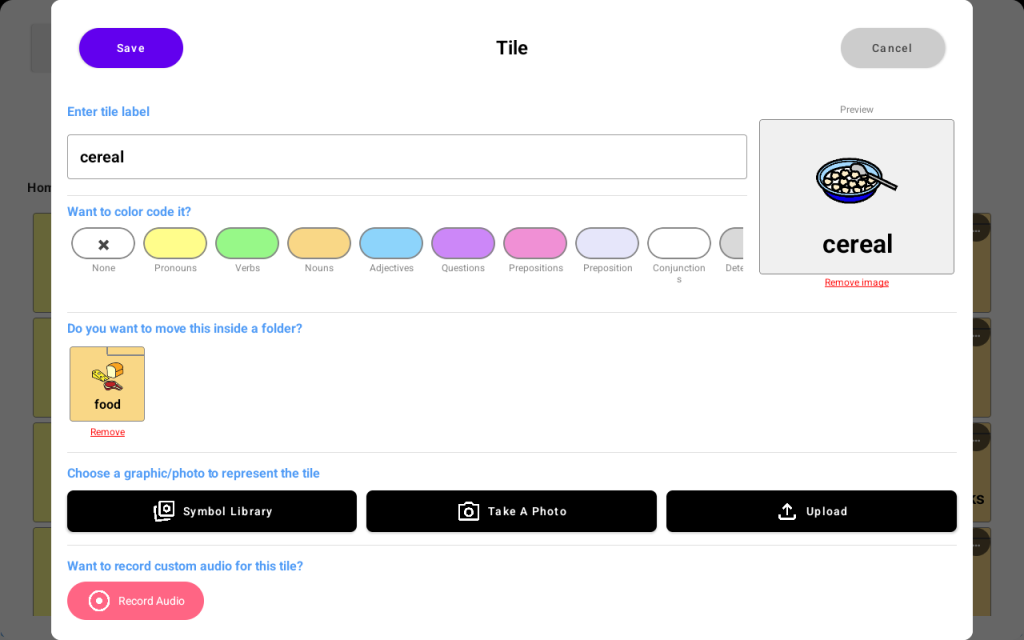
  • Once your folder is saved, tap the “Create New Tile” button on the Create Tile screen, type “Cereal” and select the first suggested symbol.
  • Tap “the Do you want to move this inside a folder” button, a folder selection menu will show up, select the newly-created “Food” folder. Tap save. Repeat the same for the “Fries” tile.
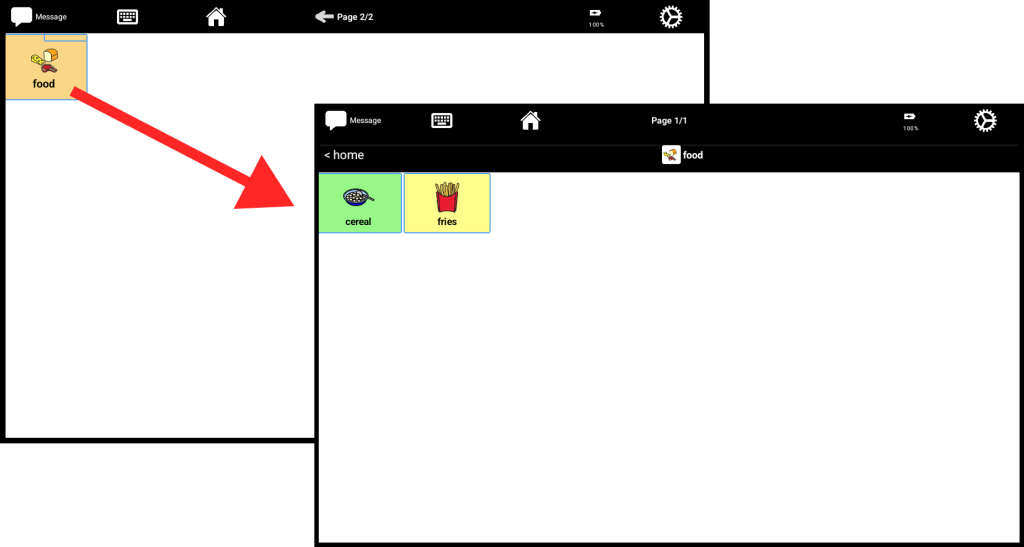
  • Go back to your Home screen, you should see the new “Folder” tile, tap it, and you will see the “Cereal” and “Fries” tiles inside of it. This allows a cleaner board and easier accessibility for your loved one to access tiles based on familiar categories.
Share This Article :

  • Facebook
  • X
  • LinkedIn
  • Pinterest

Start Communicating Today

Get Your AAC Now

Contact us

support@talking-tiles.com

  • Home
  • Buy Now
  • Why
  • About
  • Research
  • Help Center

Copyright © 2025 TalkingTiles AAC

Meet TalkingTiles: an Augmentative and Alternative Communication (AAC) tablet designed to help children with speech and communication challenges express themselves.

Facebook-f Tiktok Youtube