
For TalkingTiles AAC Generation 6. Add a short video from your phone to a tile. Once it is on the device, you can make it interactive by adding talking spots.
Before you begin #
- Choose a clear video of one familiar activity, person, or place. A short clip is easier to set up and explore.
- Connect your phone and TalkingTiles device to the same Wi-Fi network.
- Keep both the device upload screen and the phone’s upload page open until the upload finishes.
1. Open the tile editor #
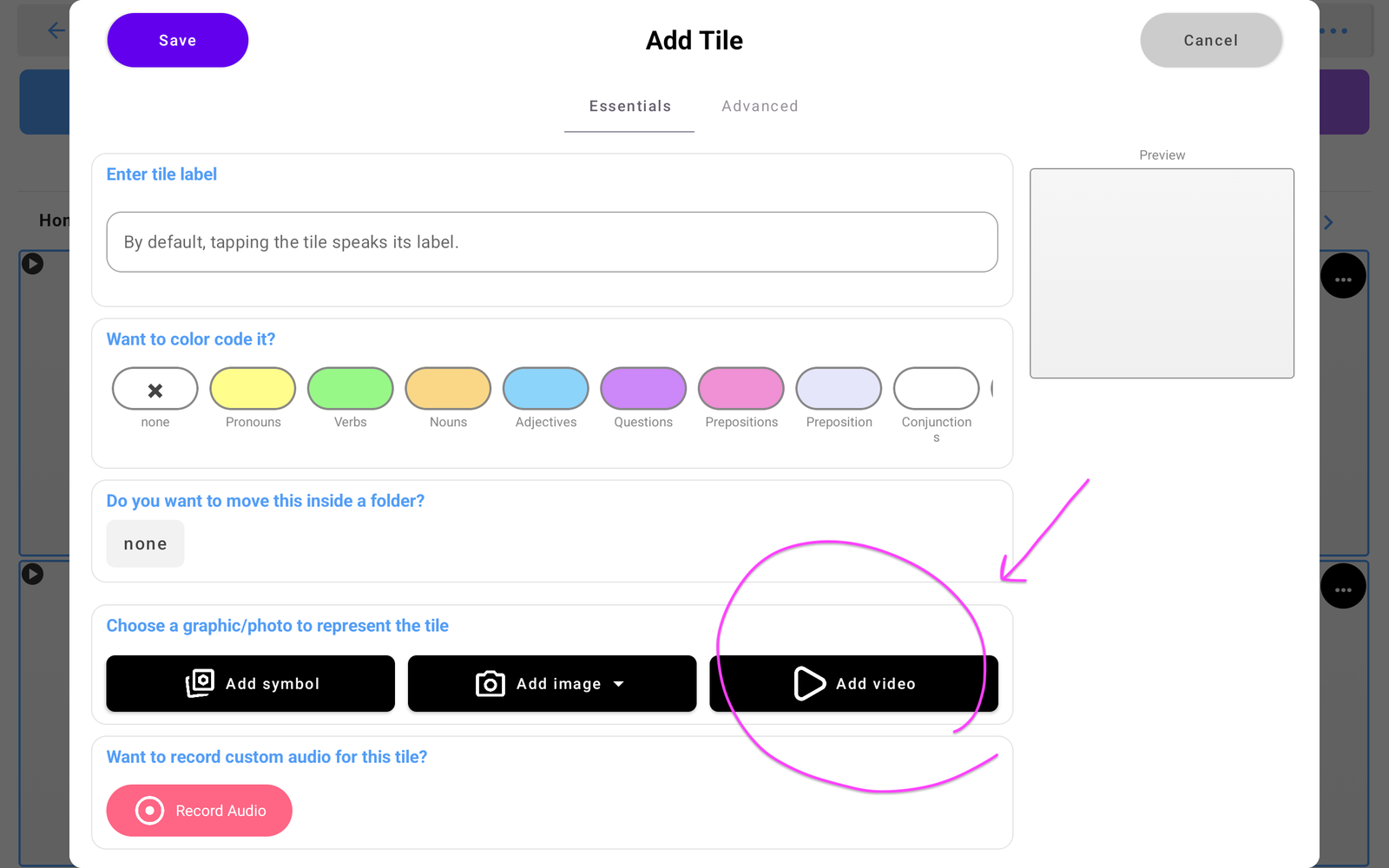
Go to Settings → Customize → Edit Tiles. For a new tile, choose Add Tile and enter a useful label, such as “Snack time.” To add a video to an existing tile, tap its … menu and choose Edit.
2. Tap Add video #
In the tile editor, tap Add video under the choices for a graphic or photo. This opens the Upload Video screen.
3. Upload from your phone #
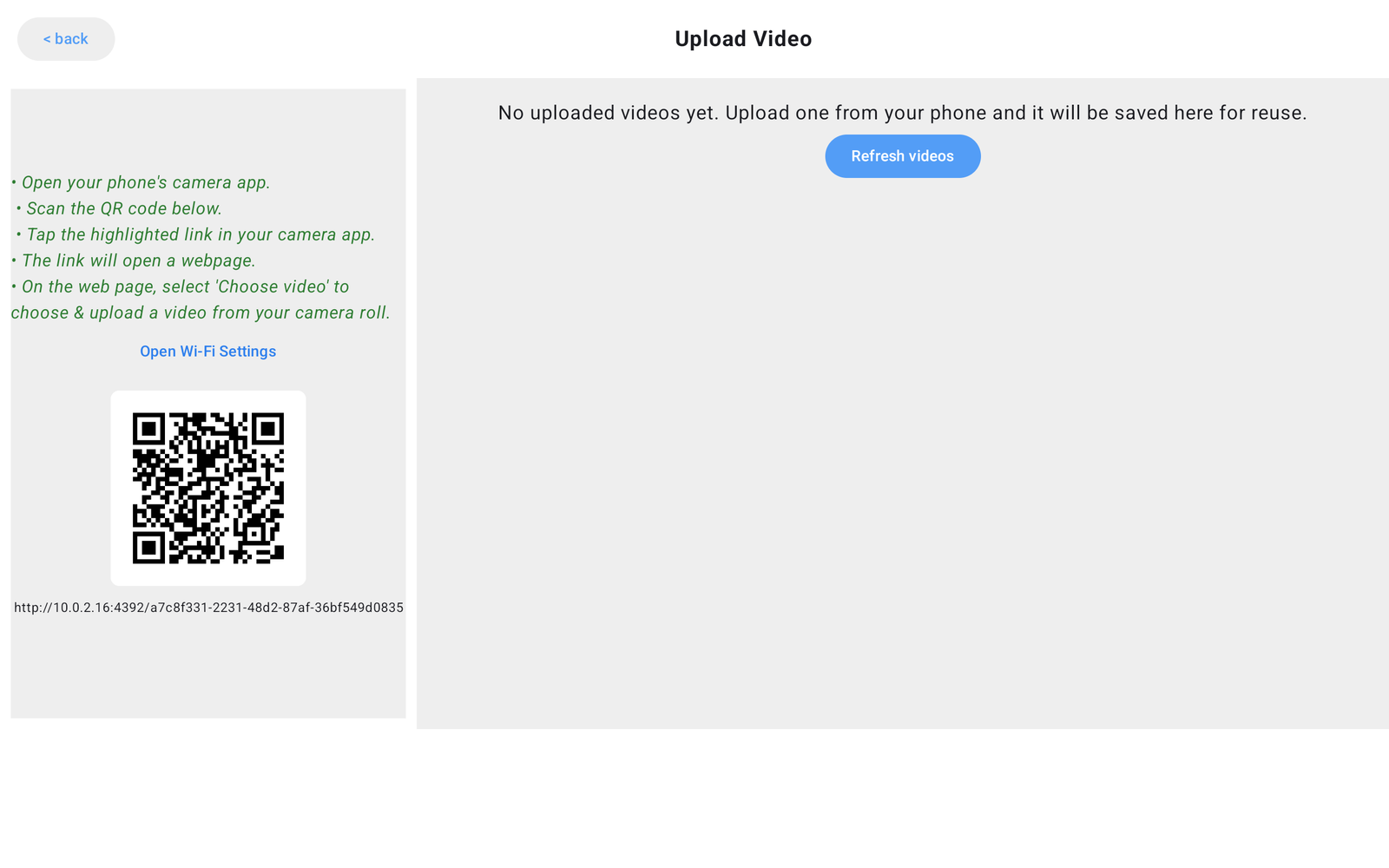
- Open your phone’s camera app.
- Scan the QR code shown on your device.
- Tap the link that appears in the camera app to open the upload webpage.
- On that page, tap Choose video and select a video from your camera roll.
- Let the upload finish. On the device, use Refresh videos if the new video has not appeared yet.
4. Choose and check the video #
Select your uploaded video from the videos shown on the device. Uploaded videos are saved there for reuse. In the Tile video editor, use Play video to check the clip.
The editor also provides Trim video and Replace video. If you need a shorter clip, trim it before adding your interactive spots so you can choose moments in the final clip.
5. Make it interactive and save #
Turn on Make this an interactive video. Then follow How to Add Interactive Spots to choose a moment, draw a box, and set its spoken message. Turning on the switch is only part of setup: add at least one spot for a talking area in the scene.
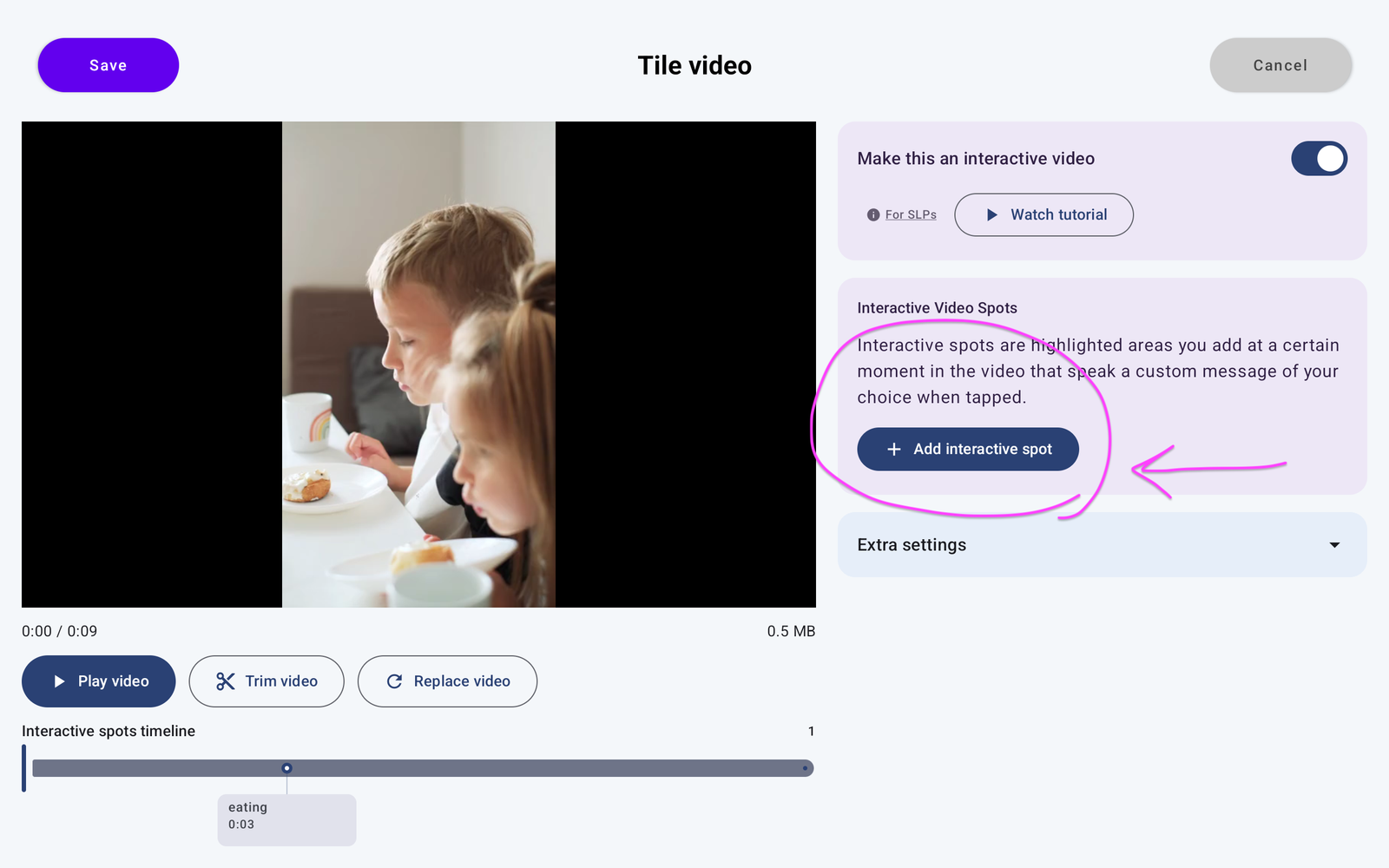
Tap Save at the top left of the Tile video editor to keep your video changes. If you return to the Add Tile or Edit Tile screen, tap its Save too to finish saving the tile. Return to the board and tap the tile to test it.
If the upload page will not open #
- Check that the phone and device are on the same Wi-Fi network. Use Open Wi-Fi Settings on the upload screen if needed.
- Close the upload screen on the device, reopen it, and scan the new QR code.
- Keep both screens open until the upload finishes.
- If the upload finishes but the library does not update, tap Refresh videos.
To understand what the highlighted areas do before adding them, read What Are Interactive Spots?.
Explore Interactive Videos #
- What Are Interactive Videos?
- How to Add a Video (you are here)
- What Are Interactive Spots?
- How to Add Interactive Spots


