
An interactive spot is a talking area inside a video. You choose a moment, draw a box around something in the scene, and choose what that box should say. In VSD research, these areas are called hotspots.
Three parts of every spot #
- A moment: where in the video the spot appears and the video pauses.
- An area: the rectangle around a person, object, or meaningful part of the scene.
- A message: the word, phrase, or voice recording that plays when the area is tapped.
The spot is tied to the moment you choose. You are setting up a highlighted area on a paused scene; you do not need to draw a box for every frame of the video.
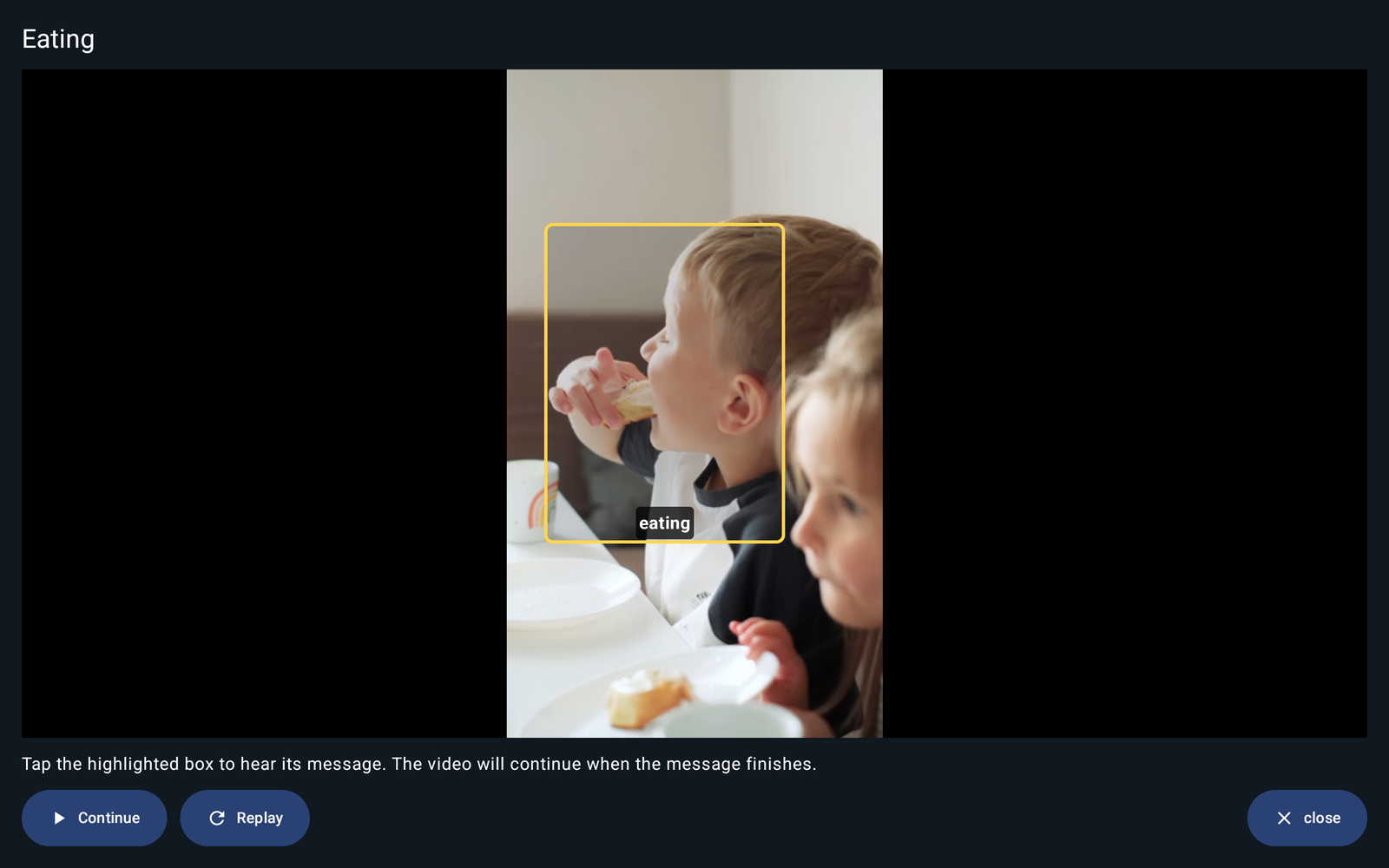
What your child does #
- Open a video by tapping its tile.
- When the video pauses, look for the highlighted box.
- Tap the box to hear its message.
- The video continues after the message finishes.
The player also shows Continue, Replay, and close. Use these controls to continue watching, replay the video, or leave the video.
What should a spot say? #
Choose words your child can use to communicate about the scene. A spot can name an action or person, make a request, or share a comment. Start with one message that fits the activity.
- A child eating: “eating” or “more, please.”
- A familiar person: “Dad” or “Hi, Dad!”
- A favorite toy: “ball” or “my turn.”
- A familiar place: “park” or “let’s play.”
The scene shows what the word relates to. Using a familiar video may help your child connect the people, places, or actions they recognize with a spoken message.
Text to speech or a recording #
- Text to speech: type a word or phrase and let the device speak it.
- Voice recording: record the message in your own voice. The recording can be up to 60 seconds; a short message is a simple place to start.
For a recording, you can also add an optional Spot label. The label names the highlighted area; the recorded audio is what plays when it is touched. You can choose a Rectangle color too.
Start small, then build #
Use one clear spot first. Model a tap yourself and give your child time to explore. Add another useful spot when you need more messages. Continue offering symbols and other communication tools alongside the video, so words can be used outside that one scene.
Ready to create one? Follow How to Add Interactive Spots. If your video is not on the device yet, start with How to Add a Video.
Explore Interactive Videos #
- What Are Interactive Videos?
- How to Add a Video
- What Are Interactive Spots? (you are here)
- How to Add Interactive Spots


