
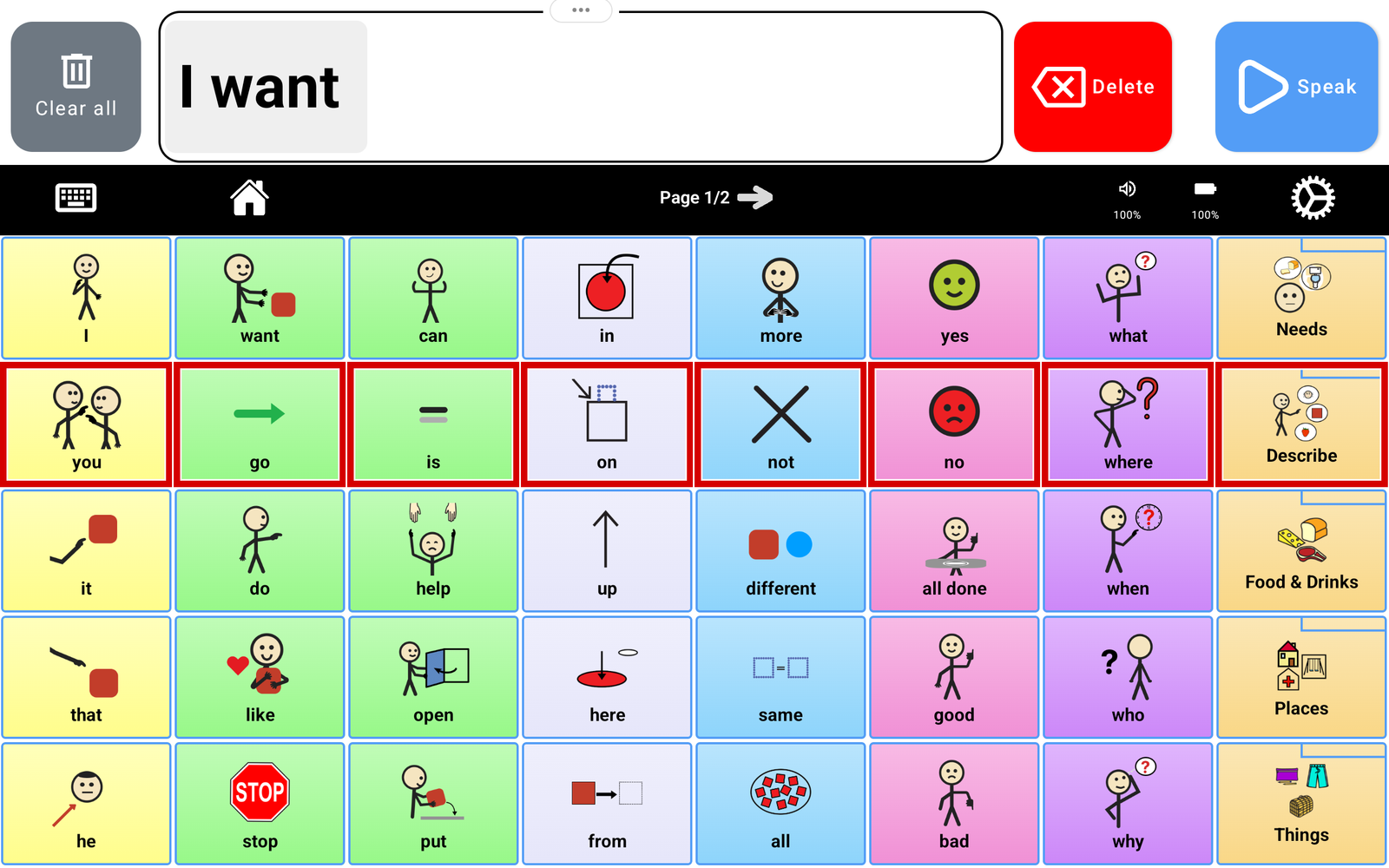
For TalkingTiles AAC Generation 6. Scanning helps a learner select a message when pointing to a particular tile is difficult. The device moves a highlight through the choices. The learner selects the highlighted choice by tapping the board or pressing a connected switch.
What scanning looks like #
Instead of aiming at each small tile, the learner watches or listens as choices are highlighted. They make a selection when the desired choice is highlighted. Depending on how choices are grouped, the highlight can move through groups such as rows and then individual tiles.
Watch a switch demonstration #
Play this demonstration to see the moving highlight and a switch being used to select. The settings below let you adjust the setup for your learner.
1. Open Touch & Scanning #
- Tap the Settings gear. Enter the caregiver PIN if requested.
- Choose Advanced.
- Expand Touch & Scanning.
- Under How will your learner choose a tile?, select Scanning.
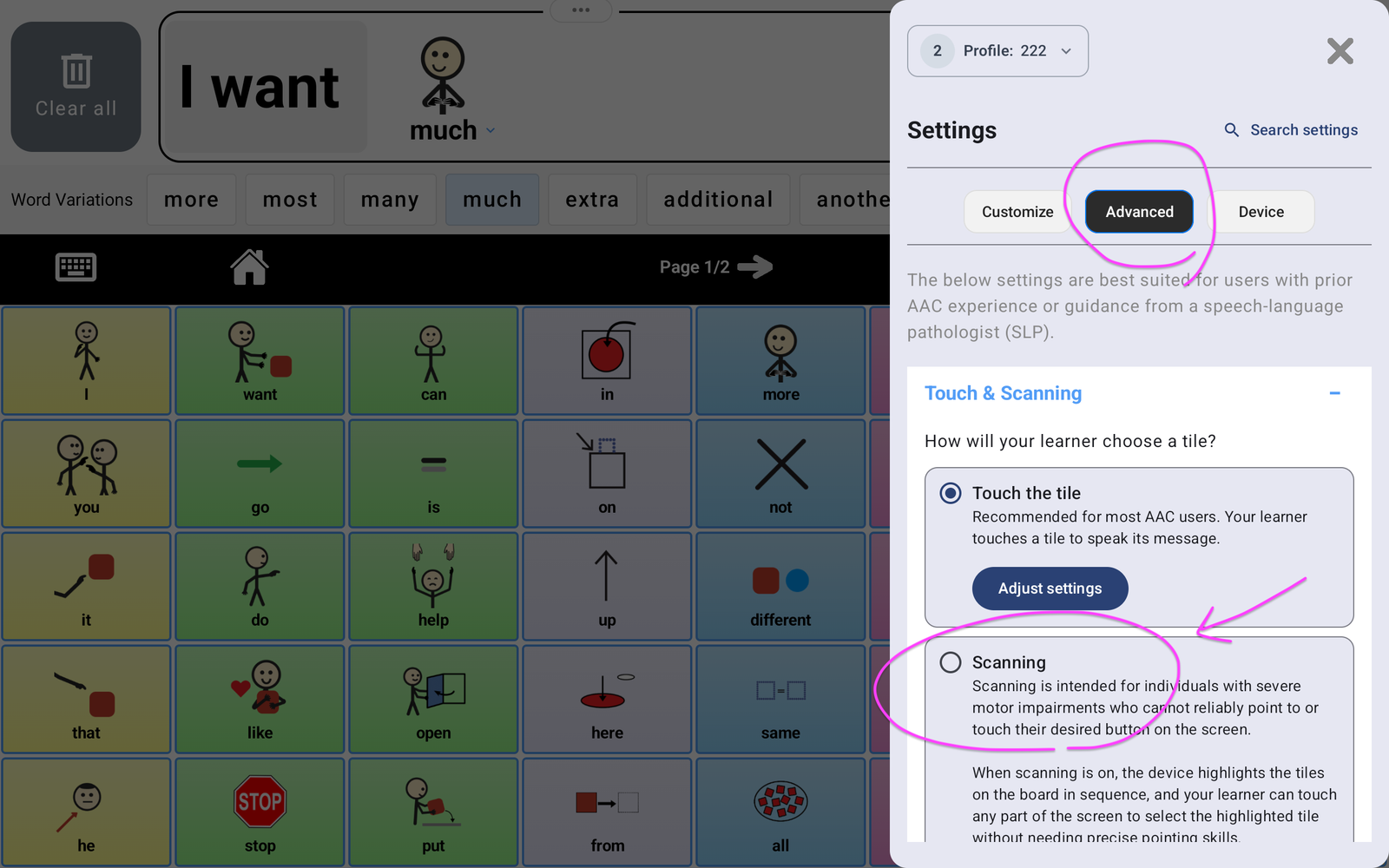
Follow the Set up scanning screens. Use Next to continue and Back to revisit a step.
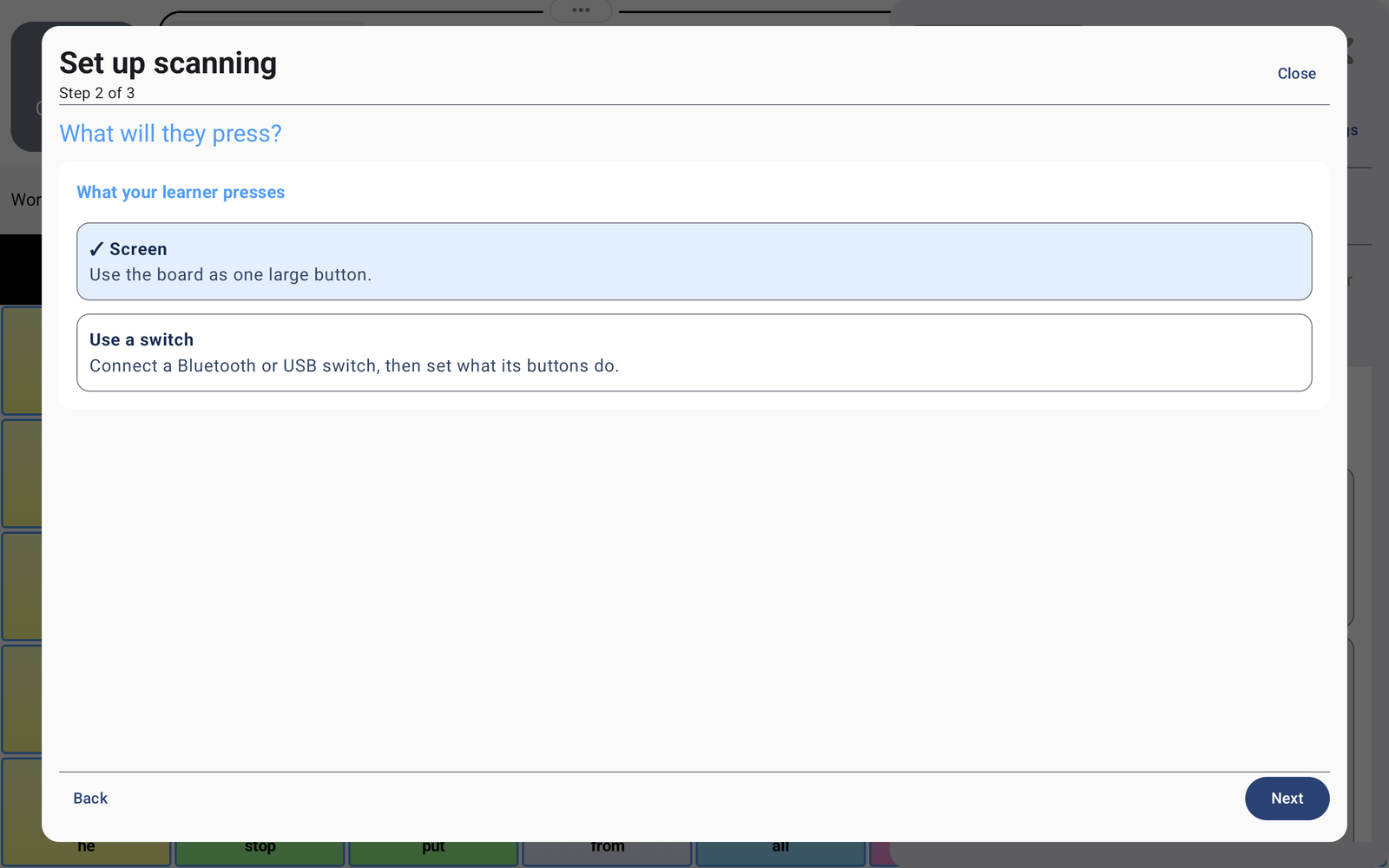
2. Choose what the learner will press #
On What will they press?, choose the input that the learner can use reliably:
- Screen: use the board as one large button. A tap selects the current highlighted choice rather than the tile at the tap’s location.
- Use a switch: connect a Bluetooth or USB switch, then set what its buttons do in the setup flow.
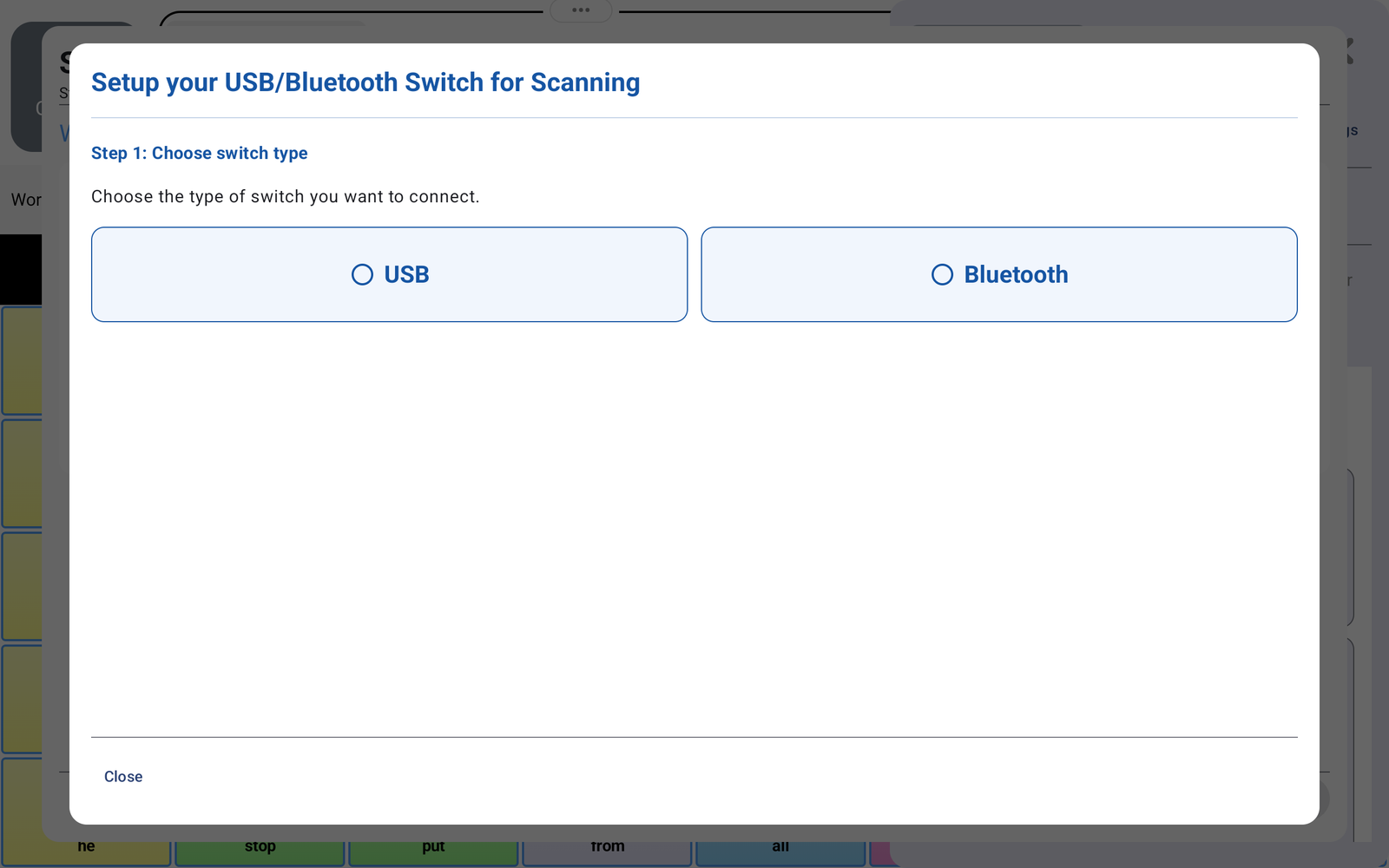
If you are using a switch #
Choose Use a switch and follow the setup. The Setup your USB/Bluetooth Switch for Scanning window begins by asking you to choose USB or Bluetooth. Select the connection type your switch uses, then follow the prompts to connect it and set what its buttons do.
Before relying on the switch, test that its button produces the intended selection in the setup preview. Connection and button behavior can depend on your switch; use the setup instructions shown for your selected type.
3. Adjust and test the scanning settings #
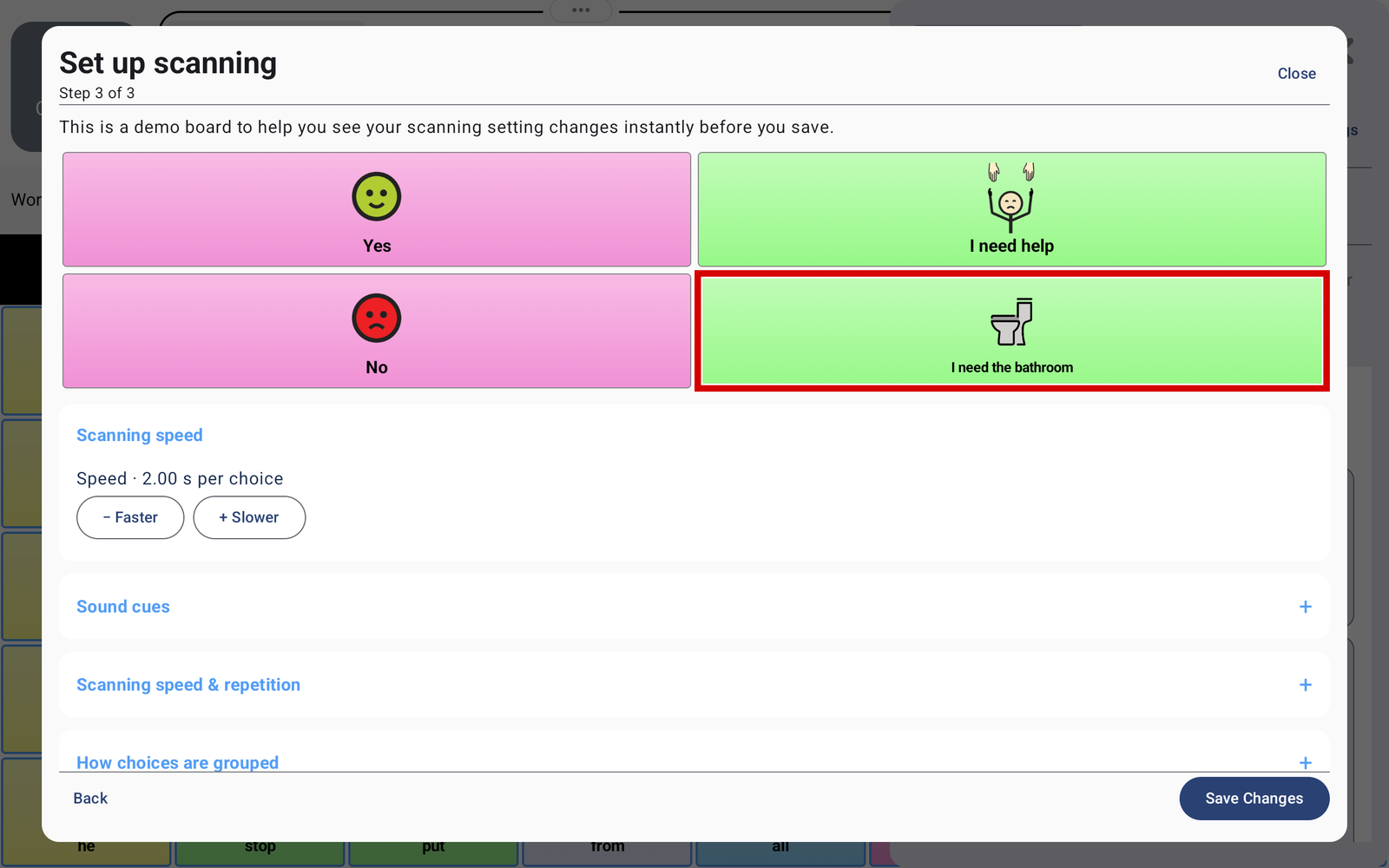
The final setup screen includes a demo board. Changes appear there immediately so you can try them before saving. Watch the highlight and practise selecting an intended choice.
Scanning speed #
The speed is shown as seconds per choice. Tap + Slower to allow more time on each choice, or − Faster to move through choices more quickly. The screenshot shows 2.00 seconds per choice as an example; choose a pace the learner can use comfortably.
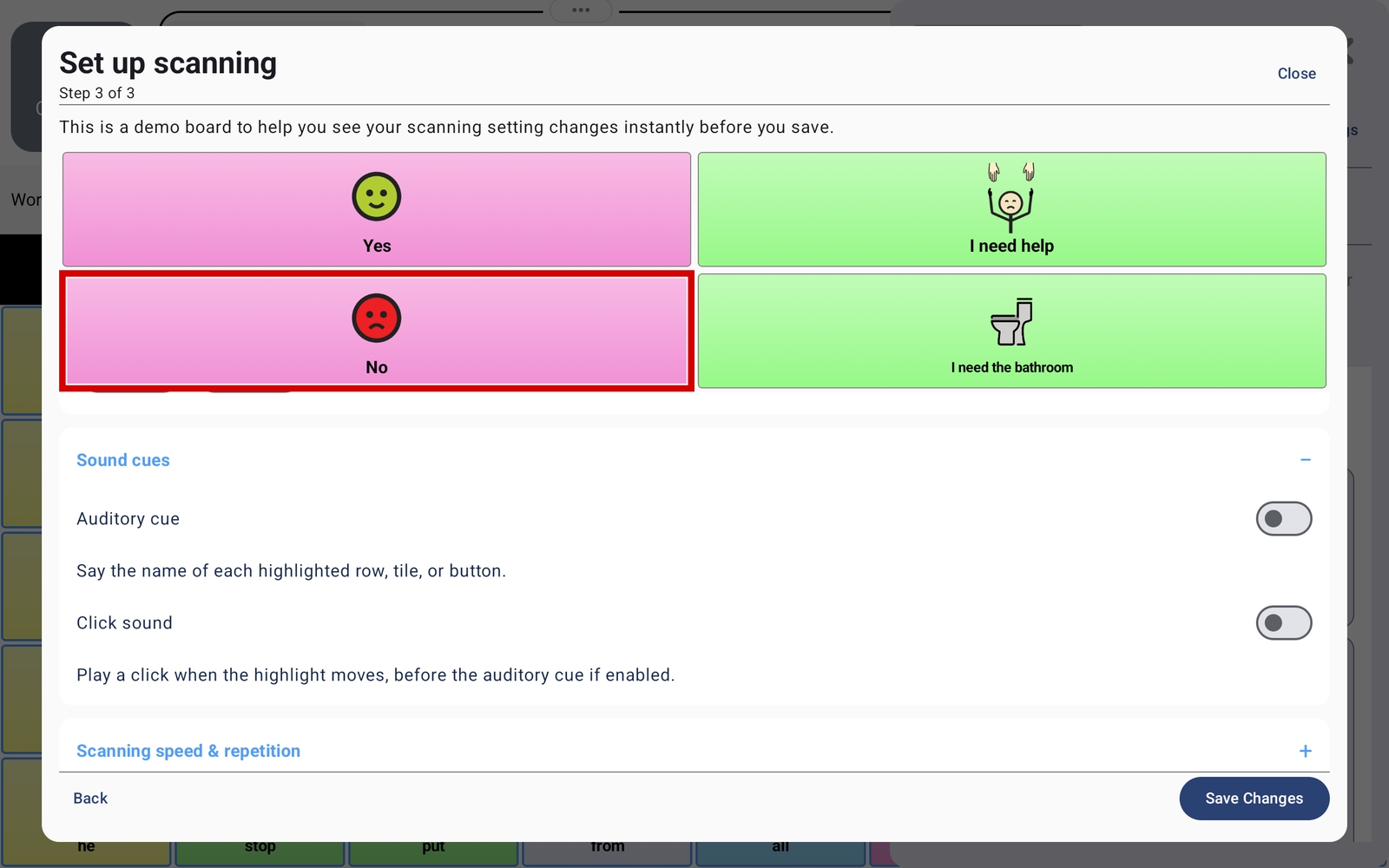
Sound cues #
- Auditory cue: says the name of each highlighted row, tile, or button.
- Click sound: plays a click when the highlight moves, before the auditory cue if it is enabled.
Turn on the cues that help the learner follow the scan. You can use the moving outline, spoken cues, or both.
Other scanning controls #
Expand Scanning speed & repetition and How choices are grouped to review the additional controls available in your setup. Use the demo board to see how each change affects the scan. Change one setting at a time so it is easier to tell what helps.
4. Save and try the real board #
- Tap Save Changes in the setup window.
- Close Settings and return to the communication board.
- Watch or listen for the desired choice. Tap the board or press the switch according to your setup when it is highlighted.
- If the scan uses groups, select the intended group first, then the intended tile as the highlight moves through it.
- Adjust the speed or cues if the learner is consistently missing the intended choice.
Return to direct touch #
Open Settings → Advanced → Touch & Scanning and choose Touch the tile. Use Adjust settings if you want to check the default tapping behavior or choose selection by lifting a finger. See Choosing by Lifting a Finger for both finger-selection options.


