
For TalkingTiles AAC Generation 6. This guide shows how to make one area in a video speak. You will choose a moment, draw a box, add a message, and save it.
1. Turn on interactive video and add a spot #
In Tile video, turn on Make this an interactive video. Tap + Add interactive spot.
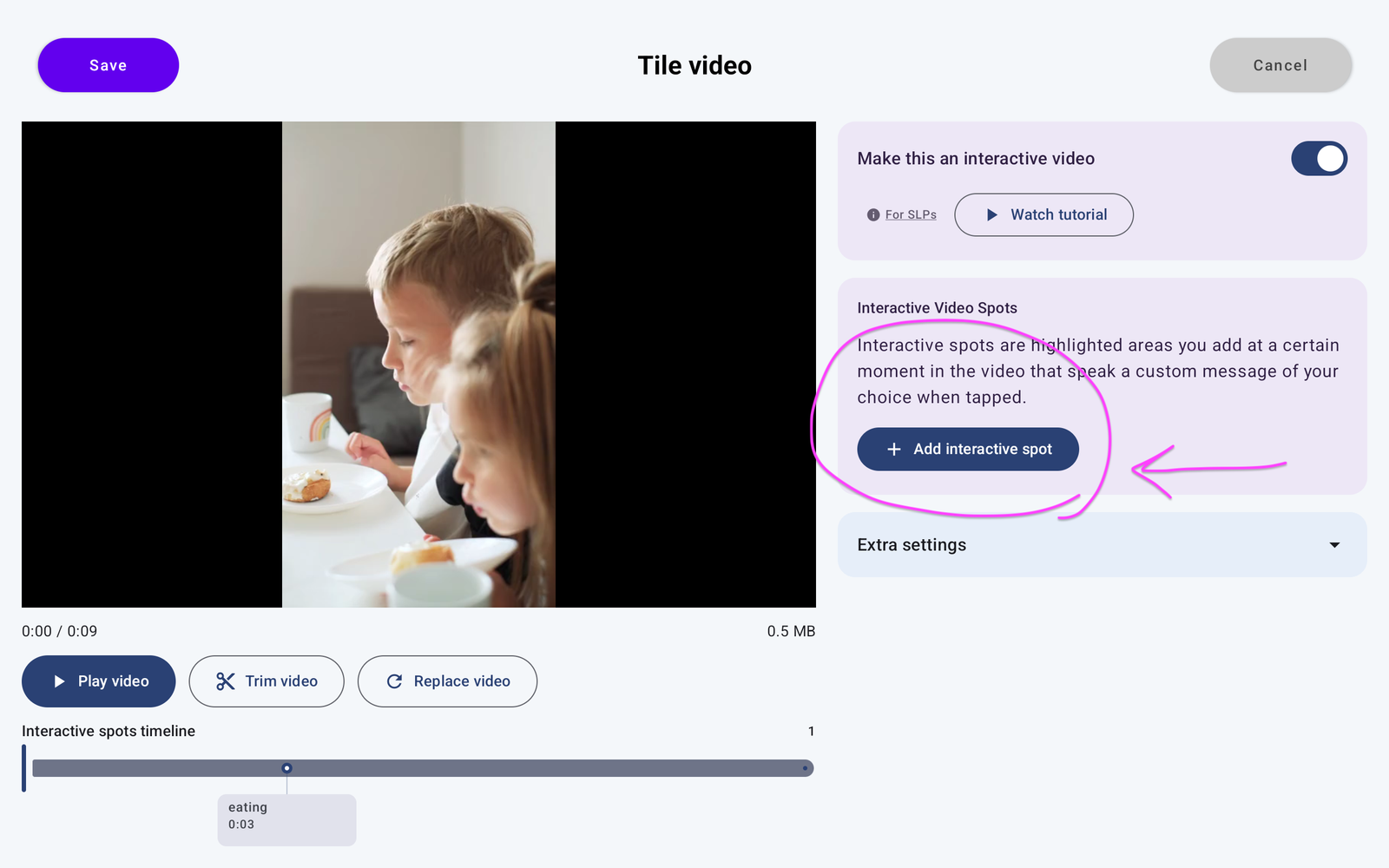
2. Find the moment you want #
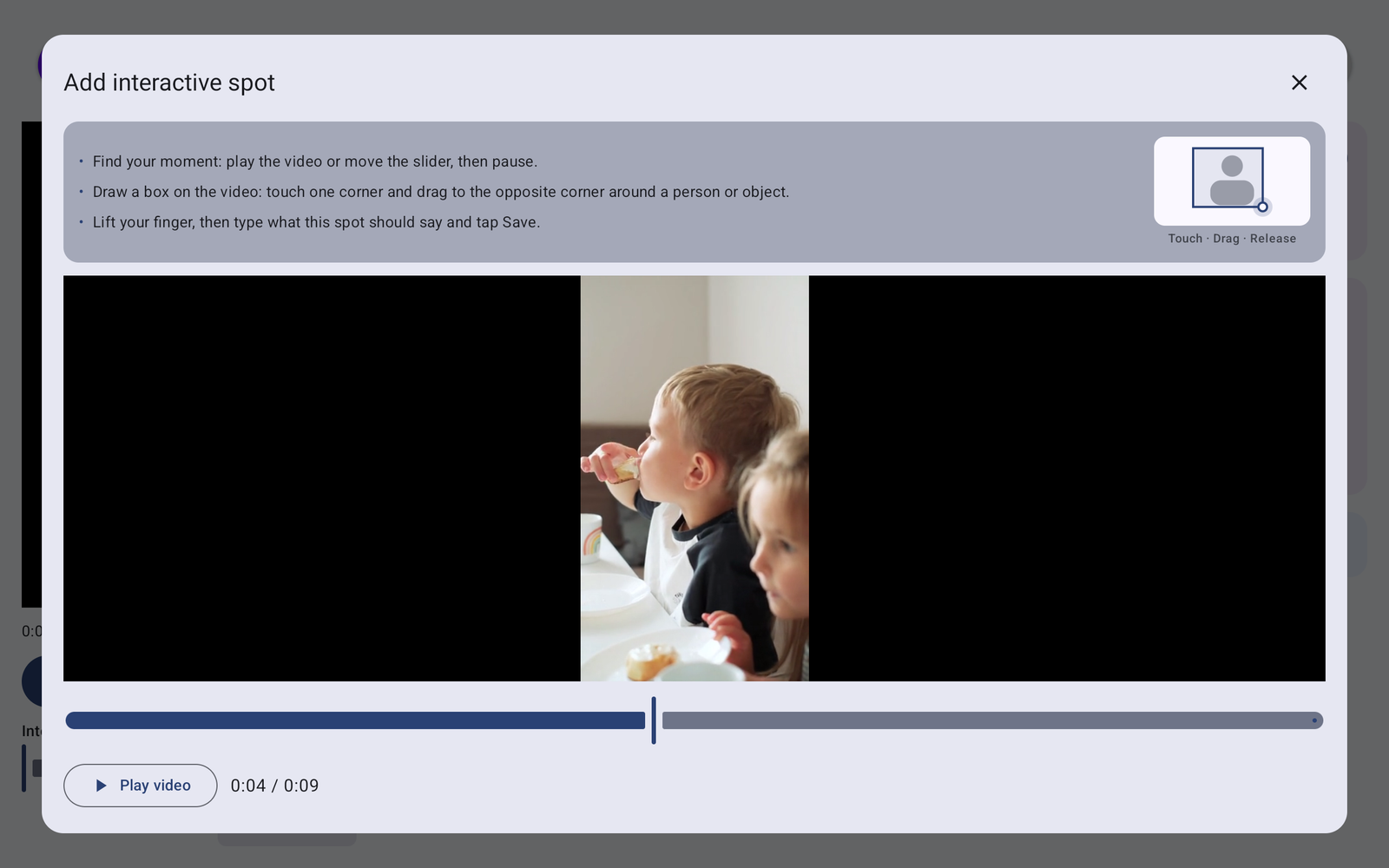
In the Add interactive spot window, play the video or move the slider to find a useful moment, then pause. Choose a frame where the person or object is clearly visible.
For example, pause while the child is taking a bite if the spot will say “eating.” The time shown under the preview helps you see where you are in the clip.
3. Draw a box around the person or object #
- Touch one corner of the area you want to highlight.
- Keep your finger on the screen and drag diagonally to the opposite corner.
- Lift your finger to finish the rectangle and open the message window.
Make the box easy to see and tap. In the example, the box surrounds the child who is eating. You are choosing the area at this paused moment.
4. Choose what the spot should say #
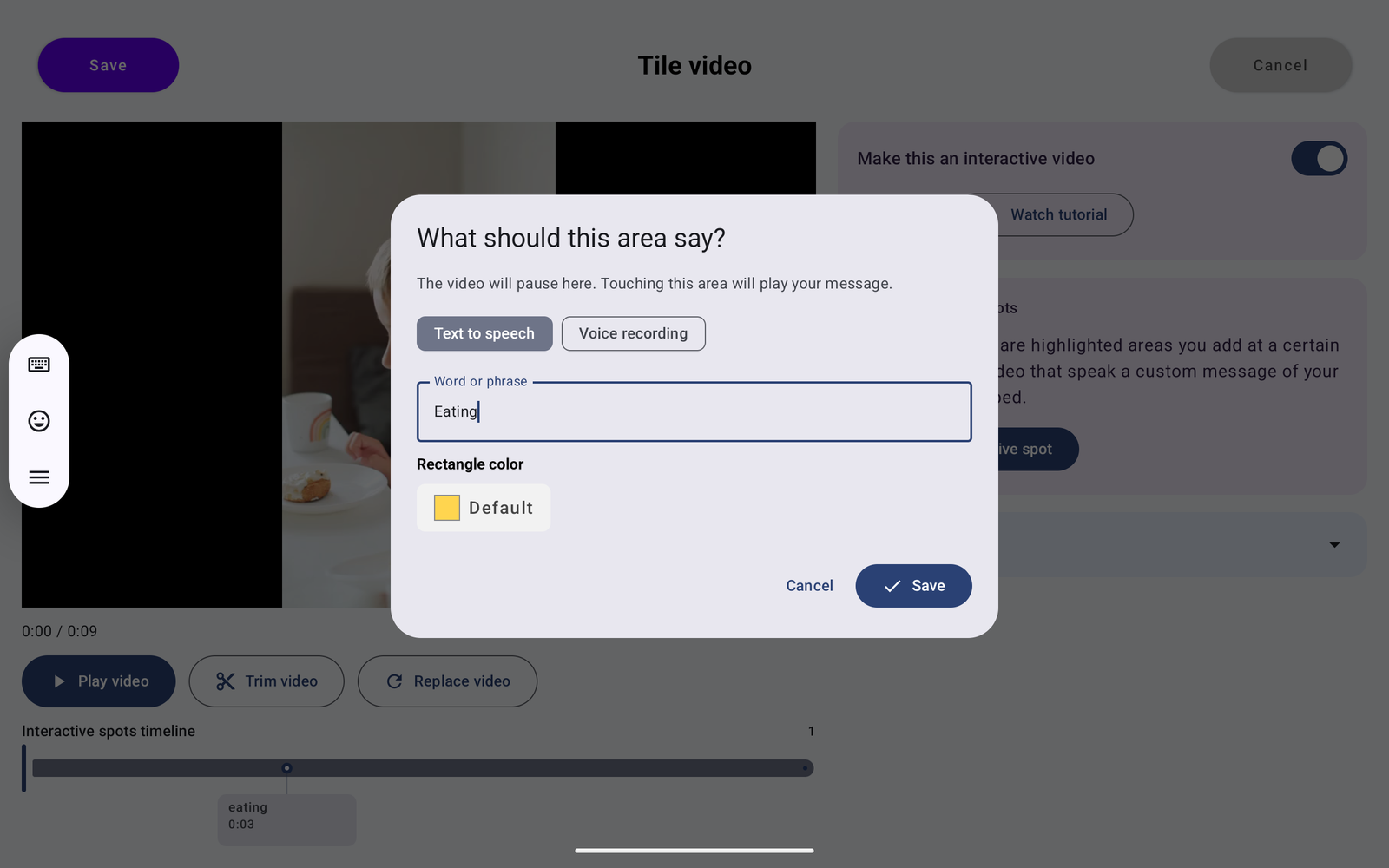
The window asks “What should this area say?” Choose either Text to speech or Voice recording.
Option A: Text to speech #
- Select Text to speech.
- Enter the Word or phrase, such as “Eating.”
- Keep the default rectangle color or choose another Rectangle color.
- Tap Save inside this window to save the spot.
Option B: Voice recording #
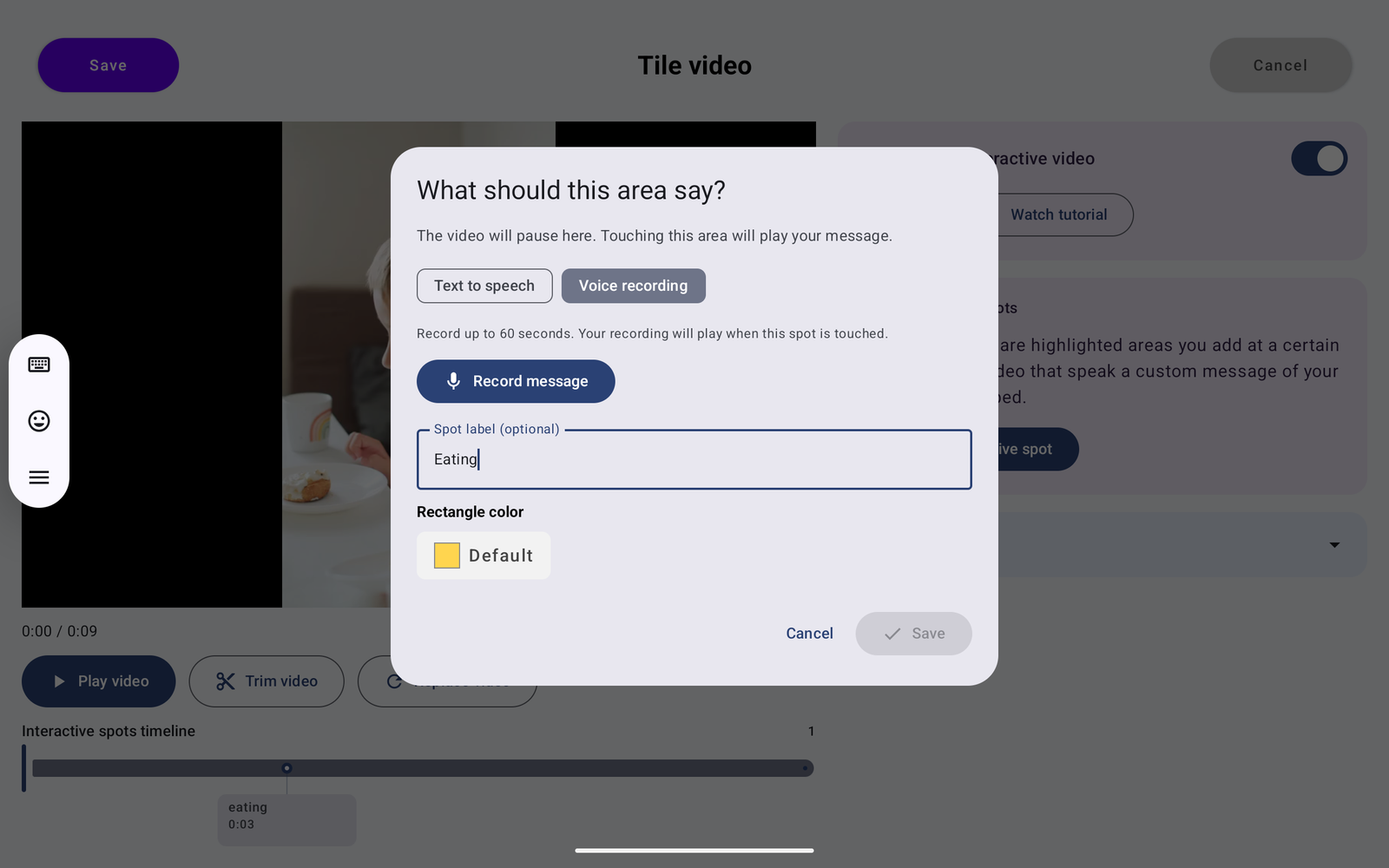
- Select Voice recording.
- Tap Record message and record what you want the spot to say. Follow the recording controls to finish. Recordings can be up to 60 seconds.
- Add a Spot label if you want a visible name for the spot. This is optional.
- Choose the rectangle color if needed, then tap Save inside the message window once your recording is ready.
5. Save the video changes #
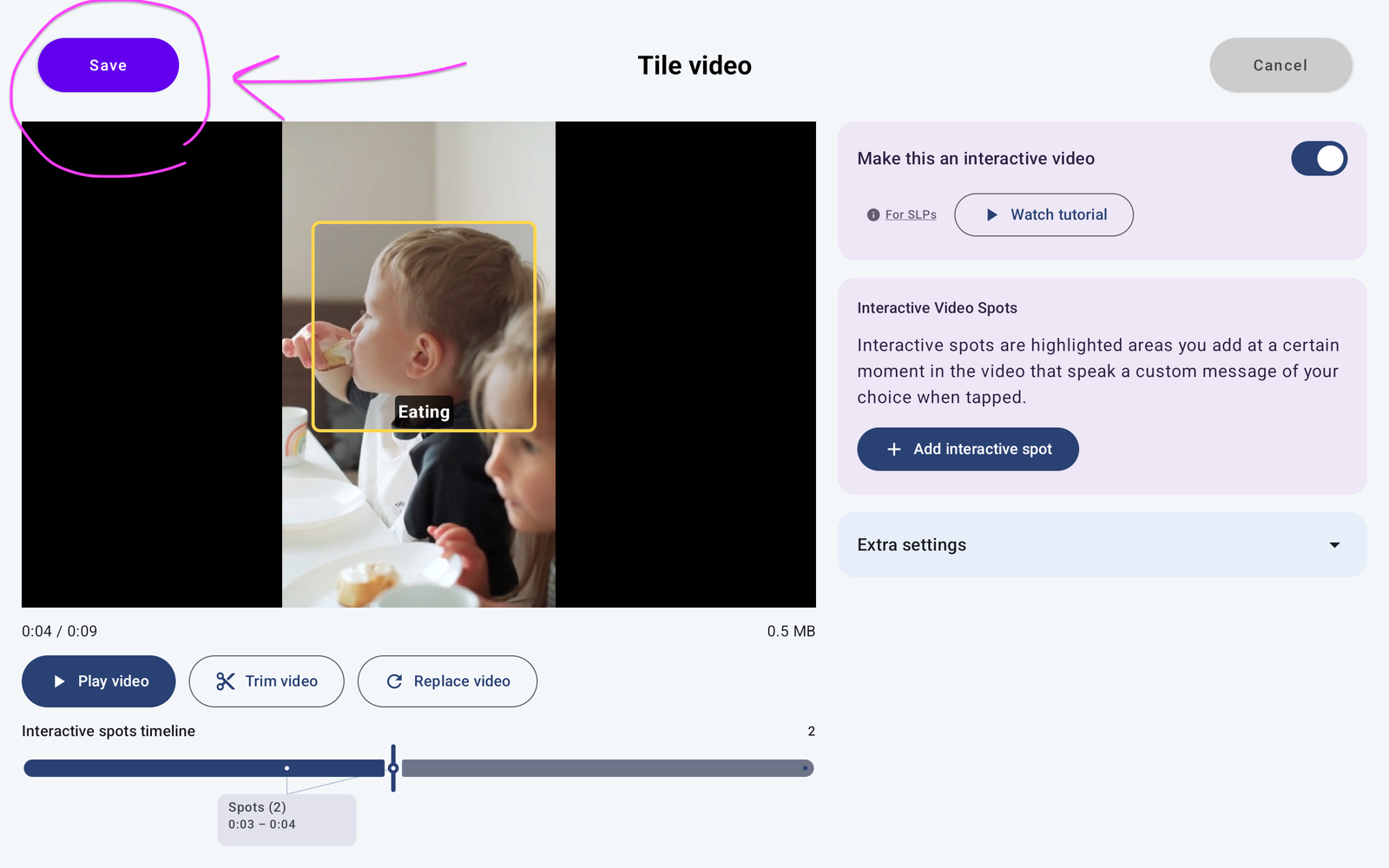
After saving the spot, check that its highlighted box appears in the video preview and that it is listed on the Interactive spots timeline. To create more spots, use + Add interactive spot again and repeat the steps.
Tap the purple Save at the top left of the Tile video editor. This is a separate Save from the one in the spot’s message window. If you return to Add Tile or Edit Tile, tap Save there too to finish saving the tile.
6. Test it from the board #
- Return to the communication board and tap the video tile.
- Watch until the video pauses at your chosen moment.
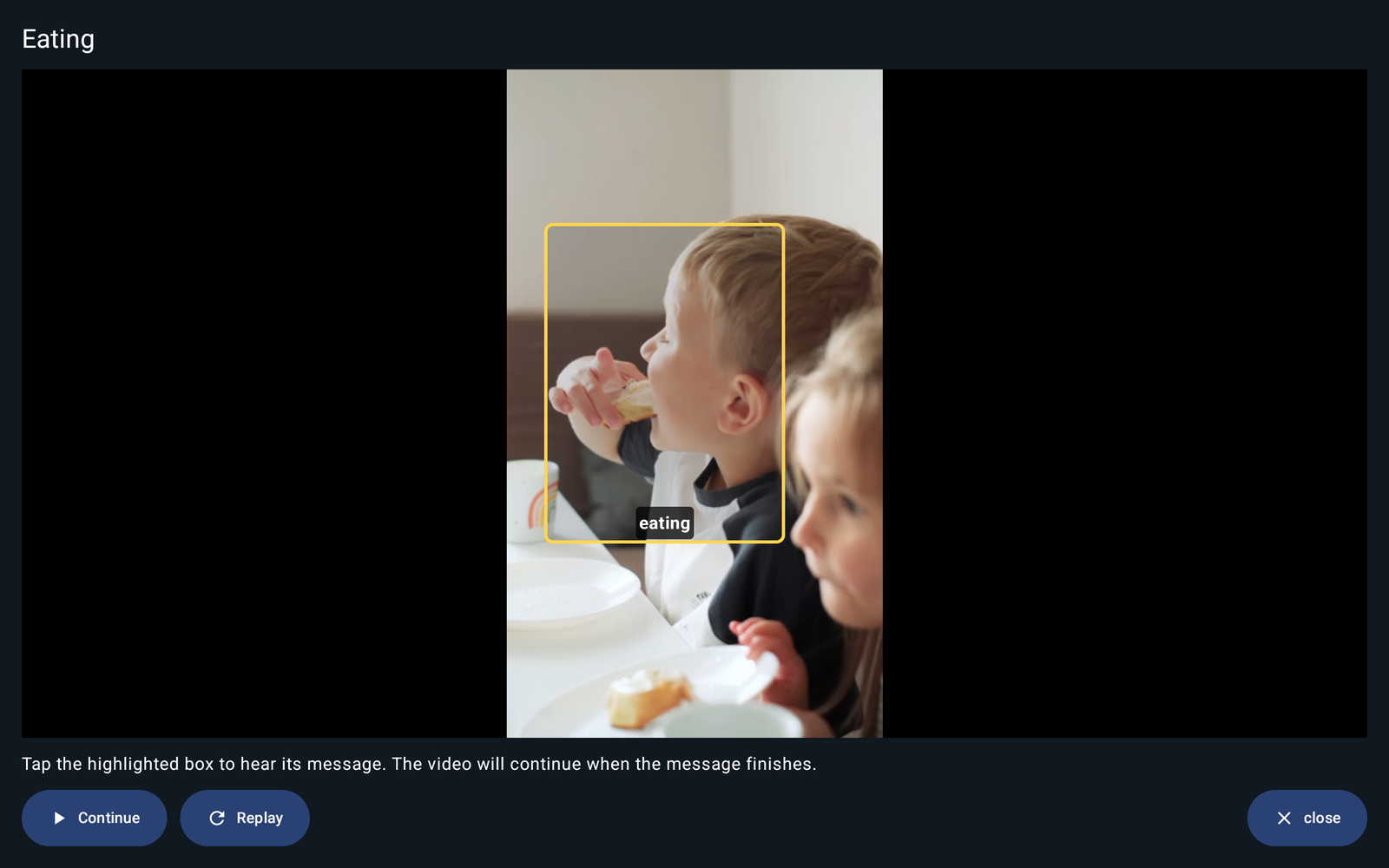
- Tap the highlighted box. Confirm that it speaks the message you intended.
- Wait for the message to finish; the video continues. Use Replay to try again.
If something is missing #
- No highlighted spot? Confirm interactive video is on, that the spot was saved, and that you reached its chosen moment.
- No recorded message? Record the message in Voice recording; entering a Spot label only adds a label.
- Changes disappeared? Save inside the spot window, then save the Tile video editor, and save the tile if you return to its editor.
- The spot is hard to tap? When creating it, choose a clear frame and draw a box large enough to select comfortably.
For ideas about choosing useful messages, read What Are Interactive Spots?. For the introduction and included starter videos, see What Are Interactive Videos?.
Explore Interactive Videos #
- What Are Interactive Videos?
- How to Add a Video
- What Are Interactive Spots?
- How to Add Interactive Spots (you are here)


