
Click here for older generations manual
Generation 5 manual — the previous device guide.
TalkingTiles AAC · Generation 6 User Guide
More ways to say what matters. Follow this guide to set up your device, choose vocabulary, customize tiles, and keep your words safe.
Getting started #
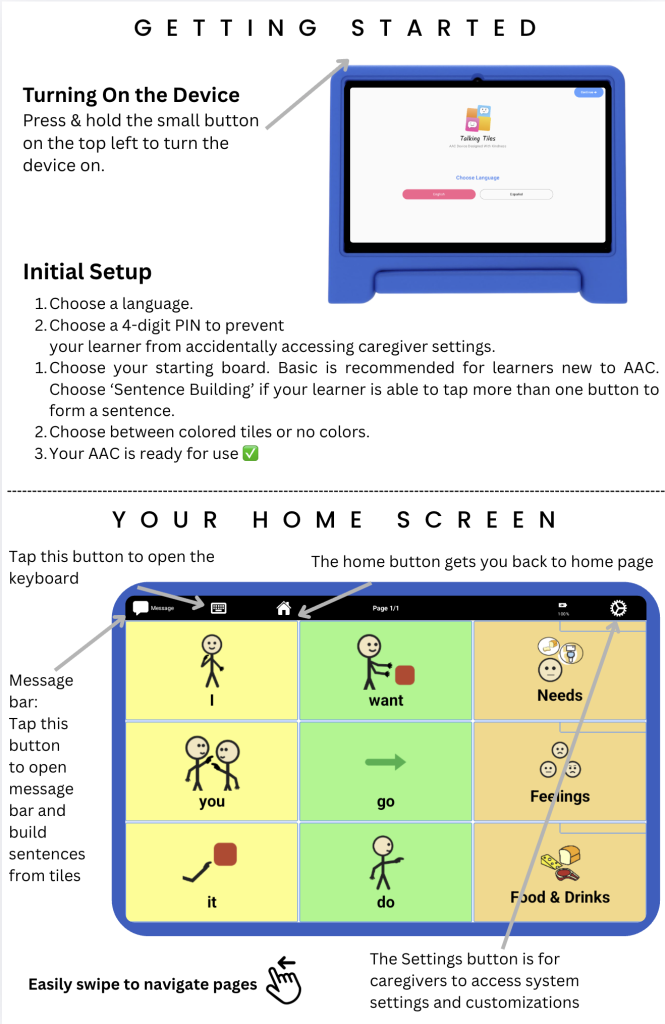
1. Turn on the device #
Press and hold the small power button on the top left.
2. Complete setup #
- Choose a language.
- Choose a 4-digit PIN.
- Choose your starting board. Basic is recommended for learners new to AAC. Choose Sentence Building if your learner is able to tap more than one button to form a sentence.
- Choose between colored tiles or no colors.
- Your AAC is ready for use.
3. Explore your home screen #
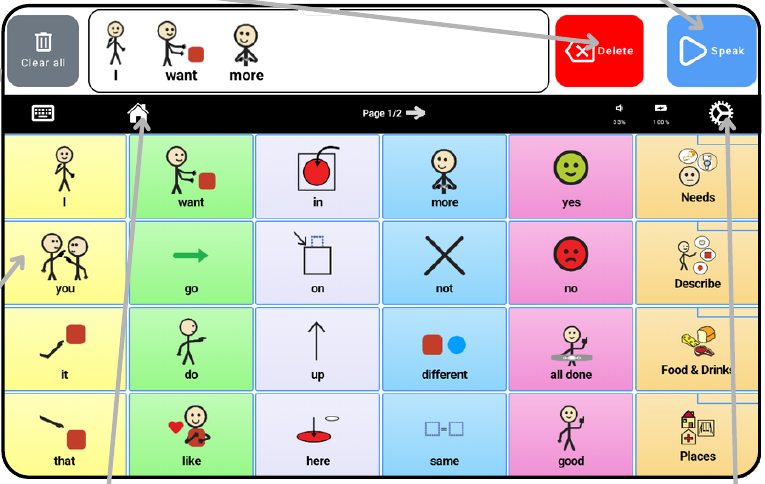
- Speak a word: tap a tile to speak its label.
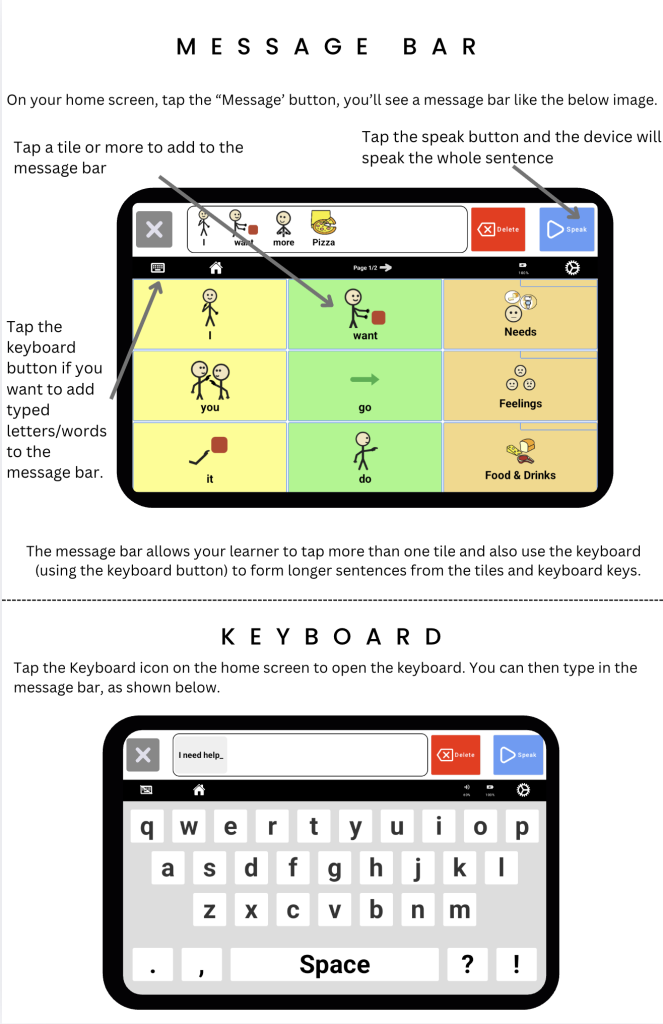
- Build a message: tap tiles to build a message, then tap Speak.
- Delete: removes the last tile or typed character.
- Clear all: starts a new message.
- Home: gets you back to the home page quickly.
- Navigate: swipe to move between pages.
- Settings: lets caregivers access system settings and customizations.
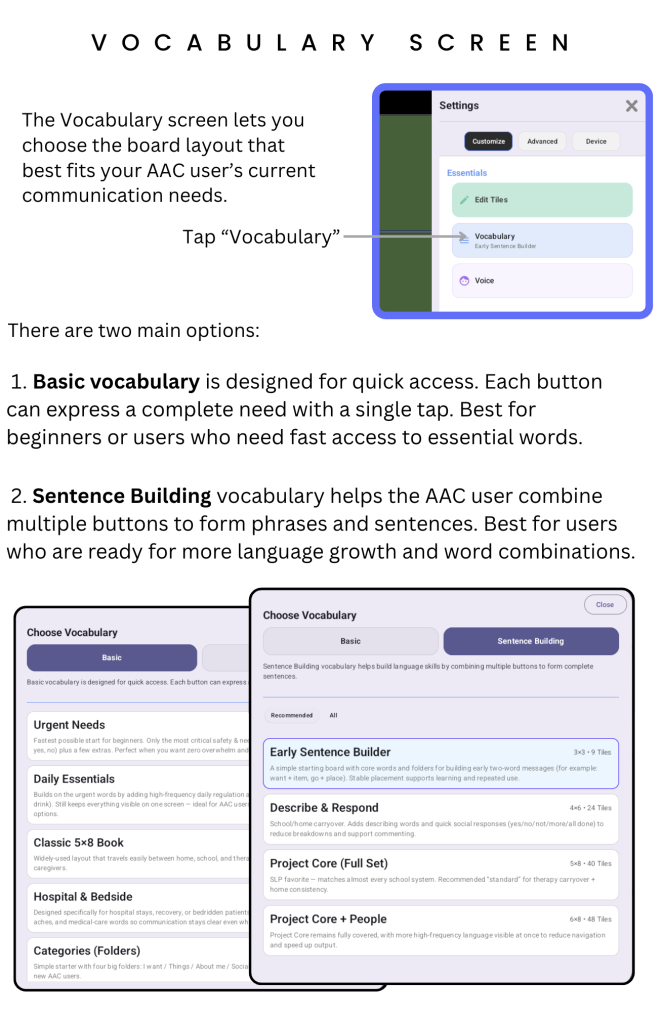
Choose your vocabulary #
Open Settings → Customize → Vocabulary. Choose the board layout that best fits your AAC user’s current communication needs.
- Basic vocabulary: designed for quick access. Each button can express a complete need with a single tap. Best for beginners or users who need fast access to essential words.
- Sentence Building vocabulary: helps the AAC user combine multiple buttons into phrases and sentences. Best for users ready for more language growth and word combinations.
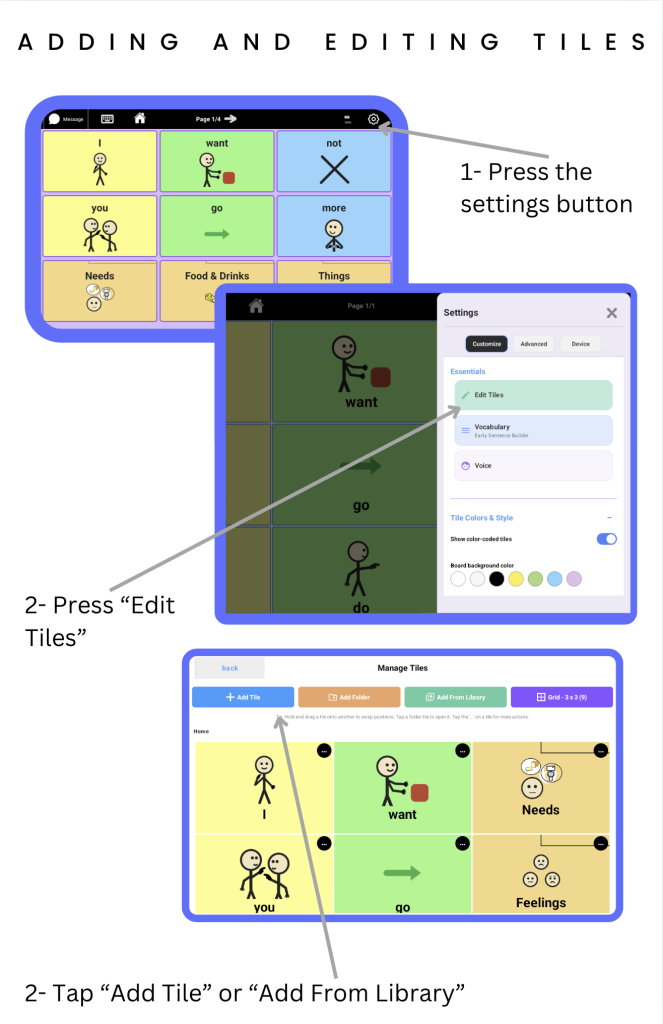
Edit and organize tiles #
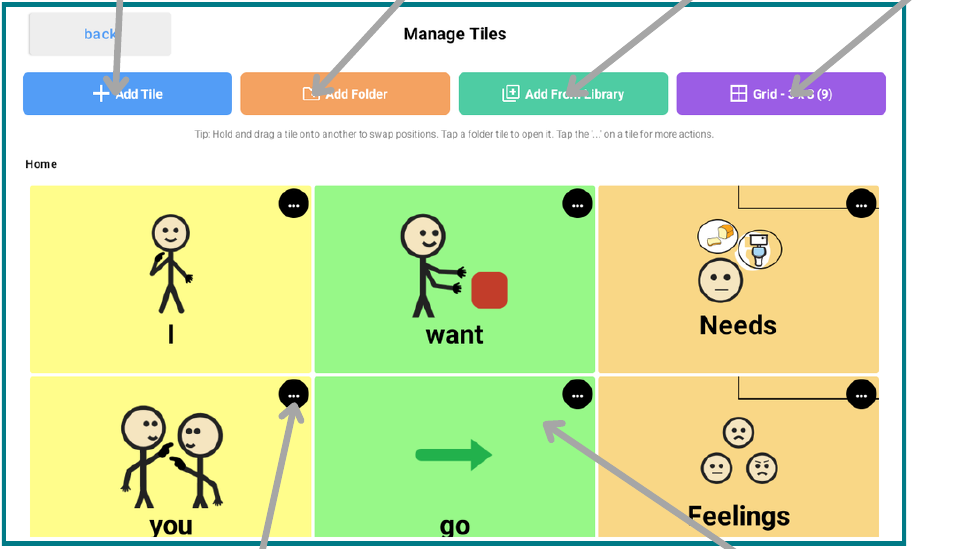
Tap Settings in the top right corner, then choose Customize → Edit Tiles.
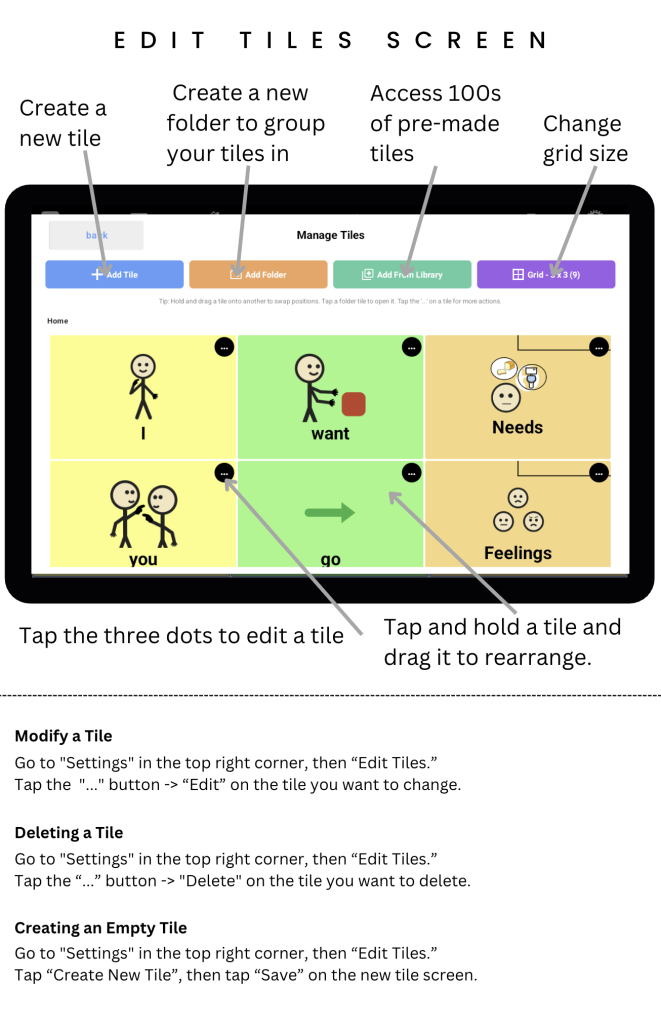
Add and organize content #
- Add Tile: create a new tile.
- Add Folder: create a folder to group your tiles.
- Add From Library: access hundreds of pre-made tiles.
- Grid: change the grid size.
- Rearrange: tap and hold a tile, then drag it to a new position.
Modify a tile #
In Edit Tiles, tap the … button on the tile you want to change, then choose Edit.
Delete a tile #
In Edit Tiles, tap the … button on the tile you want to remove, then choose Delete.
Create an empty tile #
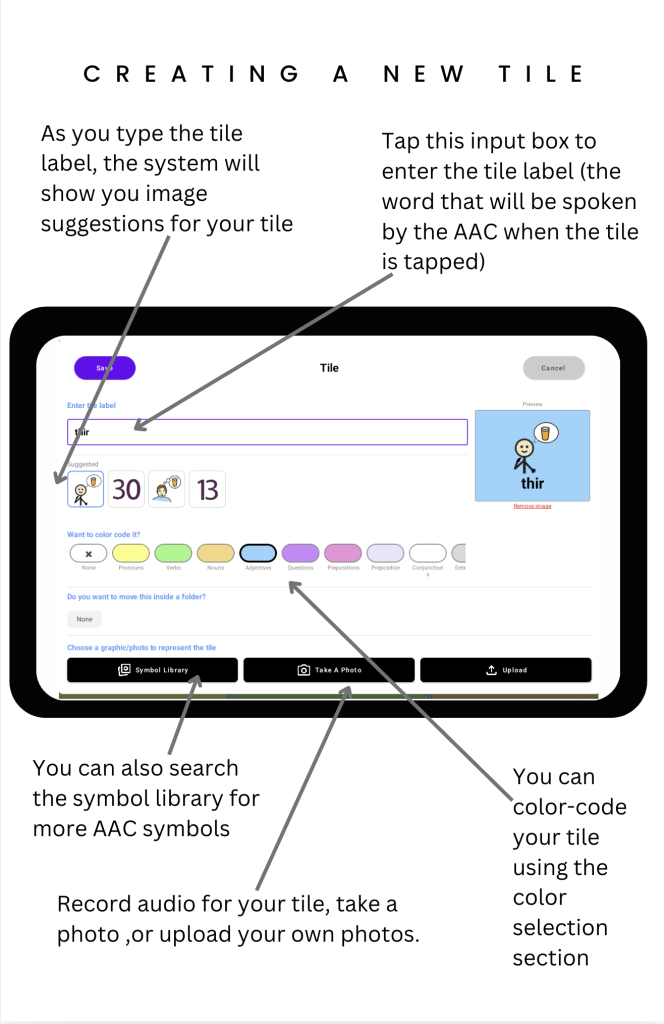
In Edit Tiles, choose Create New Tile / Add Tile, then tap Save on the new tile screen.
Keyboard and My phrases #
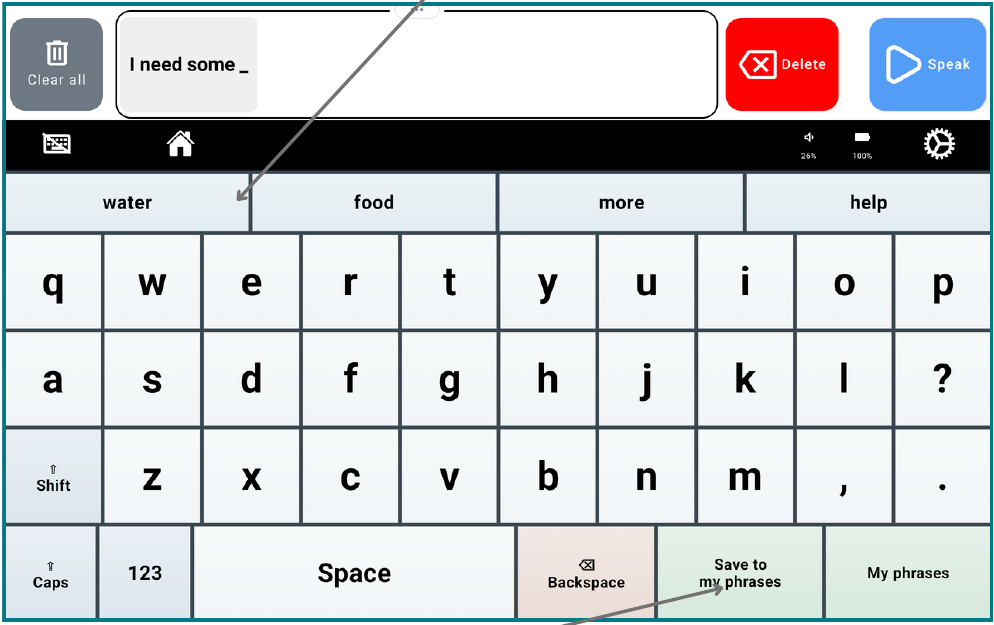
Use the keyboard to type your own message. Choose a suggested word when it matches what you want to say.
Save a message you use often #
- Type your message.
- Choose Save to my phrases.
- Next time, open My phrases.
- Choose a phrase to speak it and add it to the Message Bar.
Hold a saved phrase to edit or delete it. In Keyboard Settings, you can require a PIN for these changes.
Pictures, recordings, and video #
Go to Settings → Customize → Edit Tiles → Add Tile.
Give the tile a label and picture #
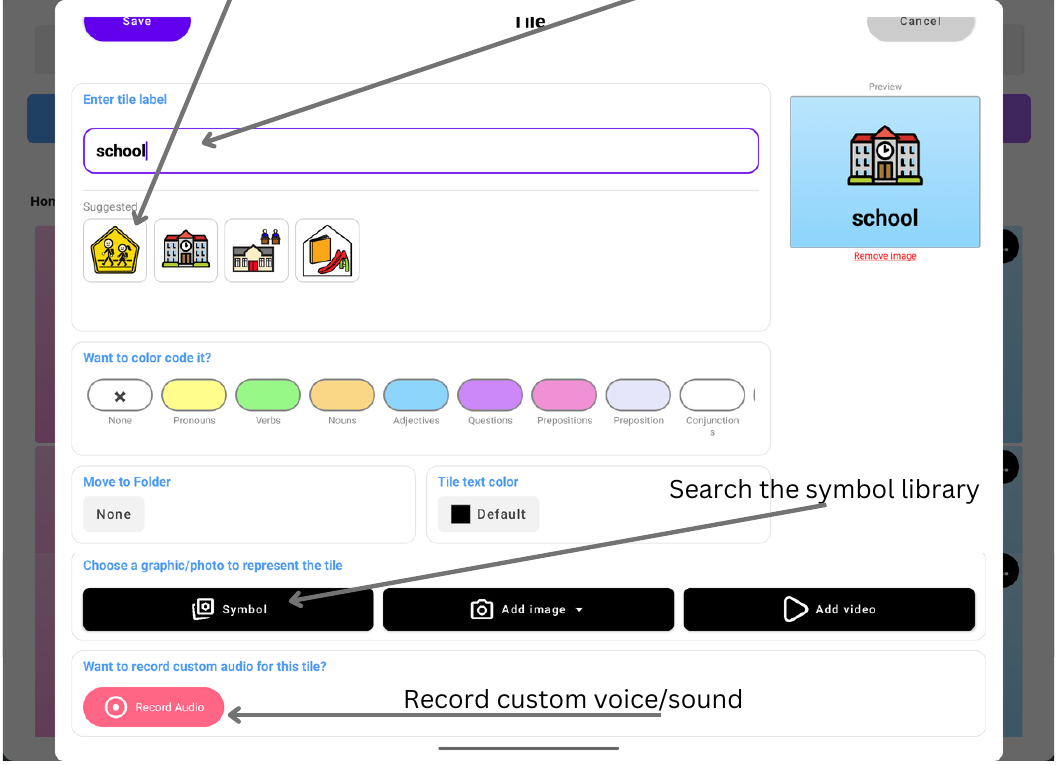
Enter the tile label: this is the word spoken when the tile is tapped. As you type, the device shows image suggestions. Choose a suggestion or use Symbol to search the symbol library.
Upload your own photos #
Tap Add Image → Upload Image to upload images from your phone onto the device.
Record a custom voice or sound #
Use Record Audio to record a custom voice or sound for the tile.
Add a video #
Tap Add video on the new tile to upload, edit, and save your video. You can also add interactive hotspots inside the video that play audio names when learners tap them. Find more help in the TalkingTiles Help Center.
Touch, scanning, and word variations #
Scanning #
Open Settings → Advanced → Touch & Scanning. Scanning offers another way to make a selection for learners with severe motor impairment.
The device highlights the tiles on the board in sequence. Your learner can touch any part of the screen to speak the highlighted button. Scanning also works with the TalkingTiles Assistive Switch, so your learner can tap the switch’s button to make a selection. See the TalkingTiles shop.
Select by lifting a finger #
In Settings → Advanced → Touch & Scanning, your learner can use the lifting-a-finger option. They can rest their hand or fingers on the screen while searching for the desired button, then lift a finger to make a selection.
Word variations #
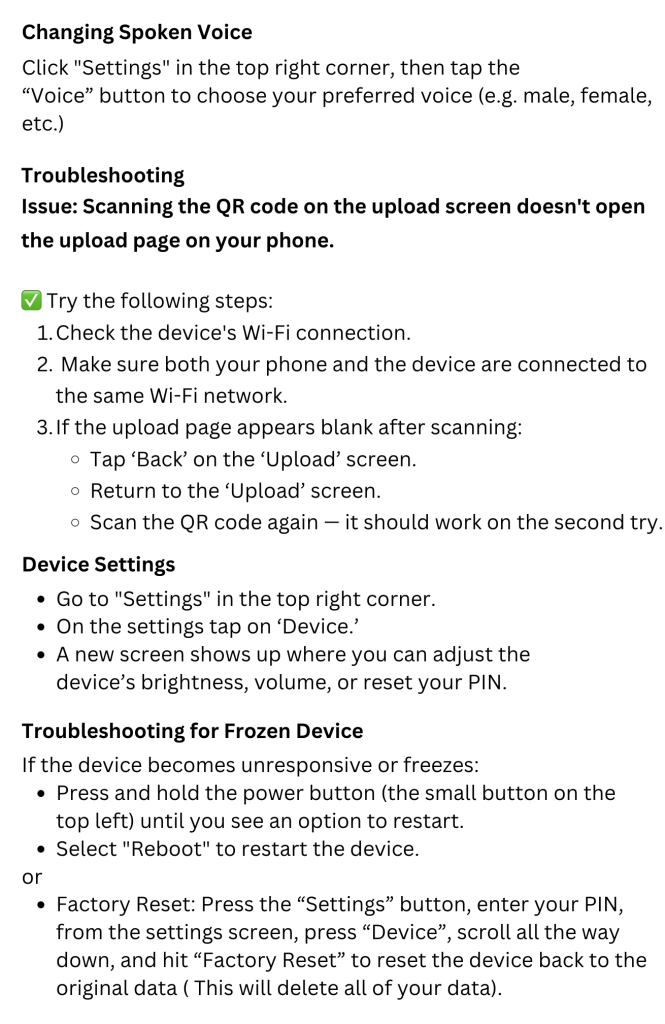
Open Settings → Advanced → Word Variations and enable Word Variations. A list below the Message Bar lets you choose a supported variation, such as “liked” instead of “like.”
Caregiver reference #
Screen and voice #
In Settings → Customize:
- Choose Voice to hear and select a voice.
- Use Message Bar Look & Size to adjust Speaking speed.
- Choose Tile Colors & Style for Soft, Bold, or No colors.
- Use Top bar controls to enlarge the buttons.
Sound and connections #
In Settings → Device, adjust volume and brightness or choose Connect Bluetooth audio. If speech is quiet, check the volume and whether sound is going to a Bluetooth device.
If an upload will not open #
- Keep your phone and tablet on the same Wi-Fi.
- Close the upload screen on the tablet, reopen it, and scan the new QR code.
- Keep both screens open until the upload finishes.
Keep your words safe #
Use Settings → Device → Backup & Restore after important changes. Keep your Restore ID somewhere safe so you can recover your tiles and media.
If the device freezes, hold the power button and choose Restart or Reboot.
Before a factory reset: make a backup. Factory Reset deletes your data.
Caregiver PIN recovery #
Master PIN: 593059
For more help articles and tips, visit the TalkingTiles Help Center.


