
For TalkingTiles AAC Generation 6. Use the keyboard to write your own messages, choose suggested words, and save phrases you want to use again.
Open or hide the keyboard #
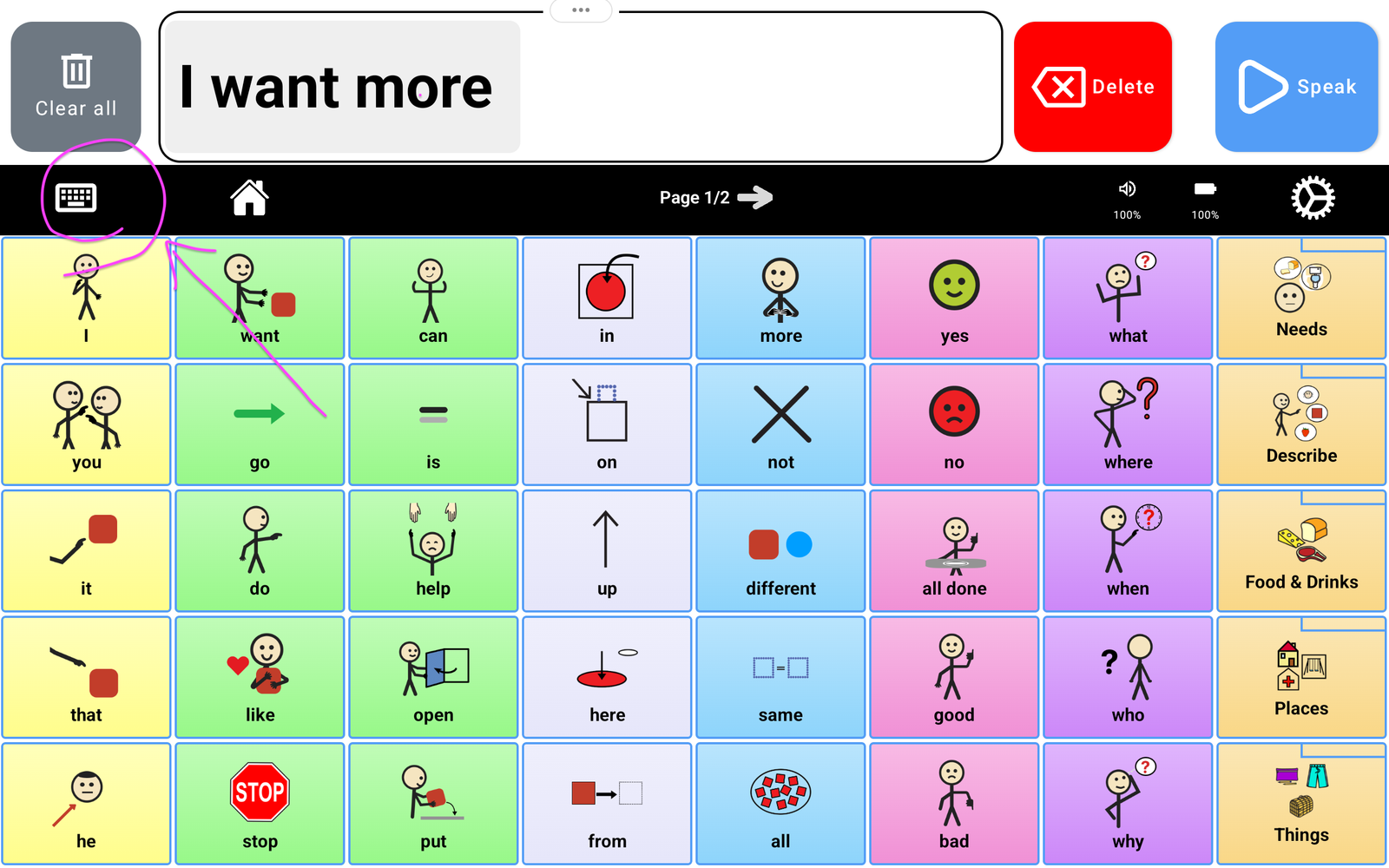
- On the communication board, tap the keyboard icon at the left of the black top bar, just below the Message Bar.
- The letter keyboard replaces the tile board. Type your message, then tap Speak to read it aloud.
- To return to tiles, tap the keyboard icon again. While the keyboard is open, the icon appears crossed out.
Type and speak a message #
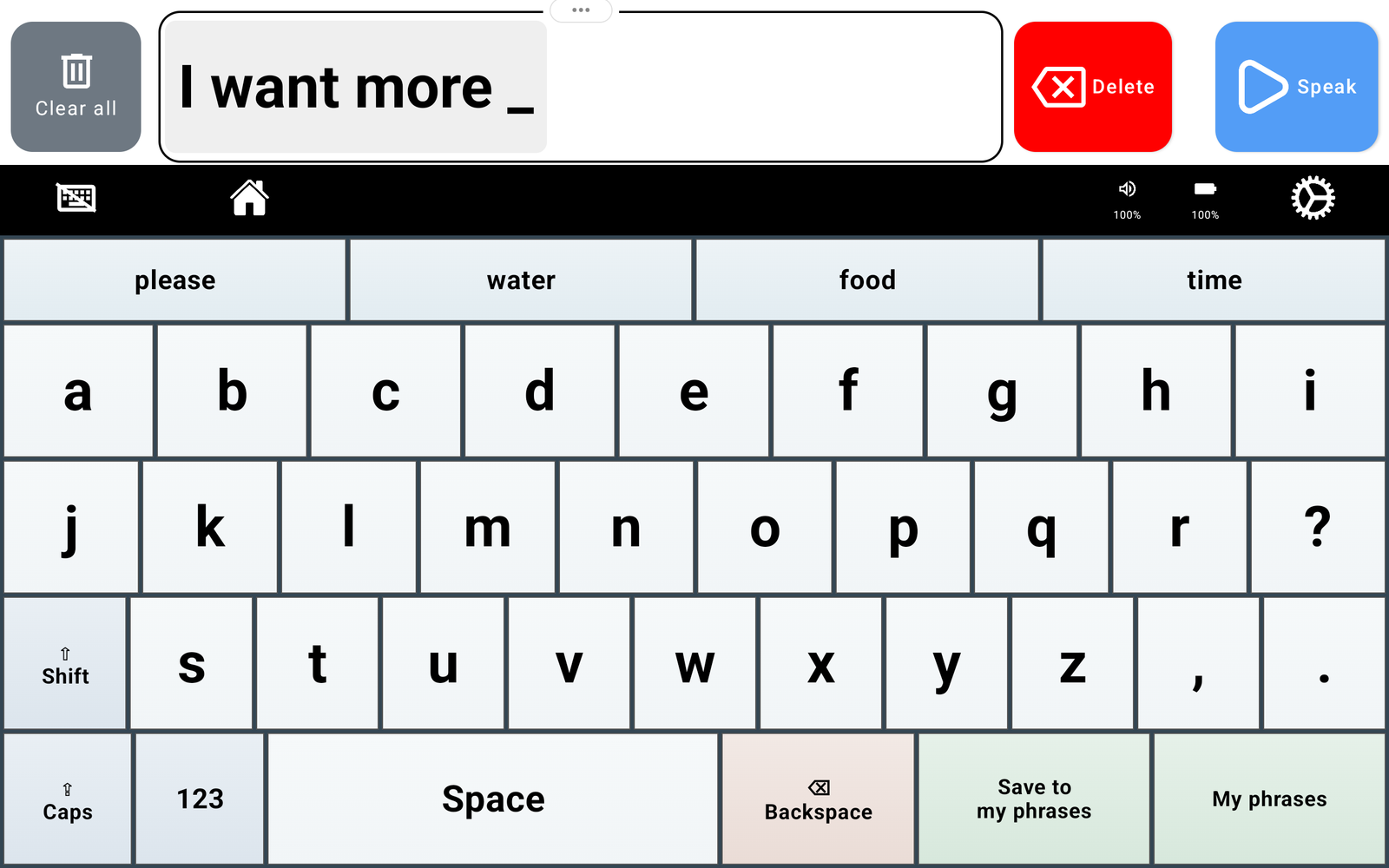
Tap letter keys to build your message in the Message Bar at the top. You can type the whole message yourself or use the suggestion row above the letters to reduce the number of taps.
- Space: add a space between words.
- Shift: use an uppercase letter. Caps lets you type in capitals.
- 123: switch to numbers and symbols.
- Backspace: remove the previous typed character. The top Delete button also removes the last typed character or tile.
- Clear all: clear the Message Bar and start a new message.
- Speak: speak the message you have built.
Use word suggestions #
With Show word prediction turned on, suggested words appear in the row above the letter keys as you type. Tap a suggestion when it matches the word you want, rather than typing every letter. If none of the suggestions fits, keep typing your own word.
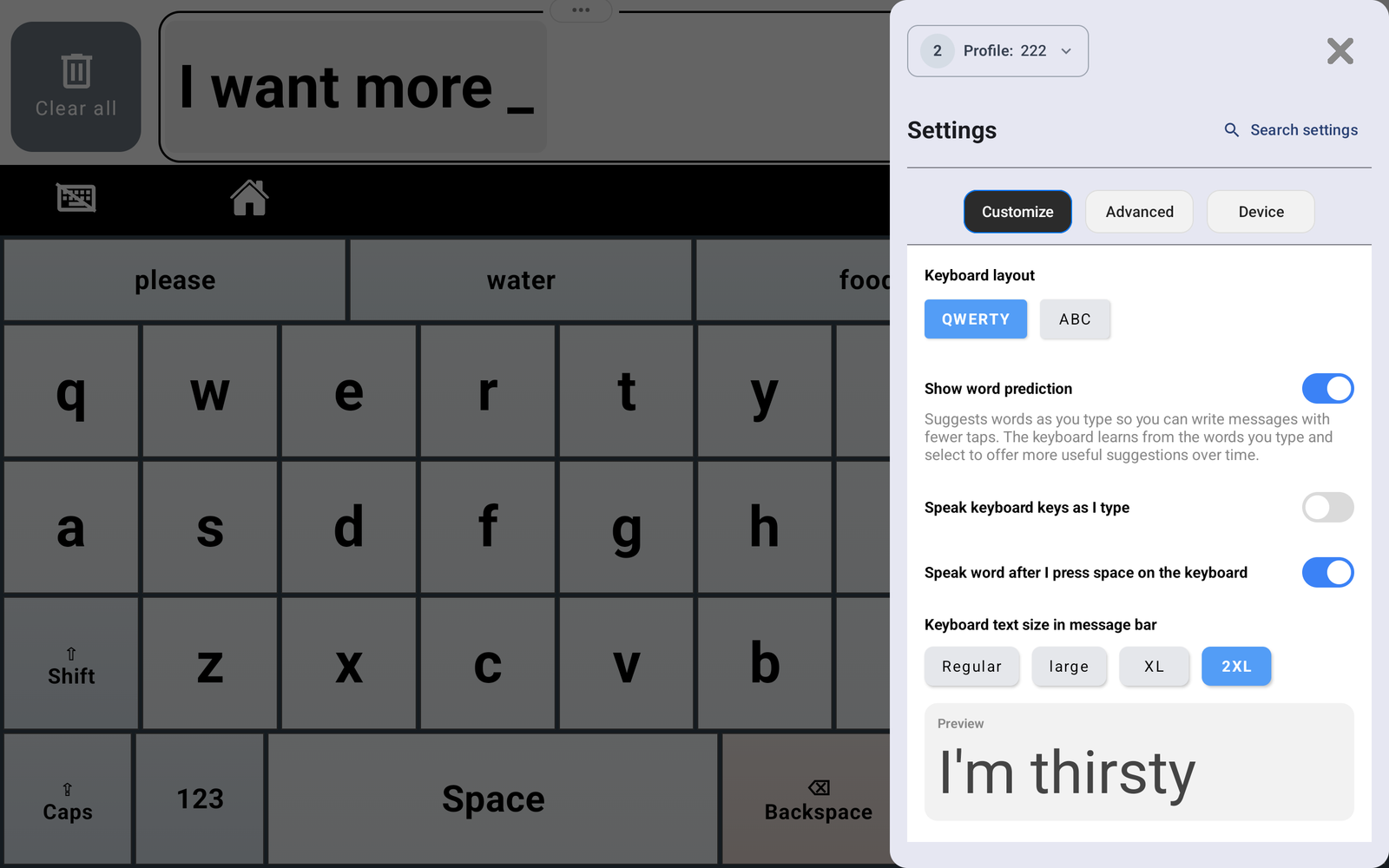
Suggestions can also help you continue a message. In the example above, after “I want more,” the row offers words such as “please,” “water,” “food,” and “time.” Choose the word that expresses what you mean; you do not have to use a suggestion.
How suggestions learn #
The keyboard learns from the words you type and select, so it can offer more useful suggestions over time. Keep using the words that matter to you in everyday messages. Suggestions may change as you type and use the keyboard.
To show or hide the suggestion row, open Settings → Customize → Keyboard Settings and change Show word prediction.
Save and reuse a phrase #
Save messages you use often so you can say them again without retyping. For example, save “I want more,” “Please give me a little more time,” or another phrase that is useful to you.
- Type the message you want to keep in the Message Bar.
- Tap Save to my phrases at the bottom of the keyboard.
- When you want to use it again, tap My phrases.
- Tap a saved phrase to speak it and add it to the Message Bar.
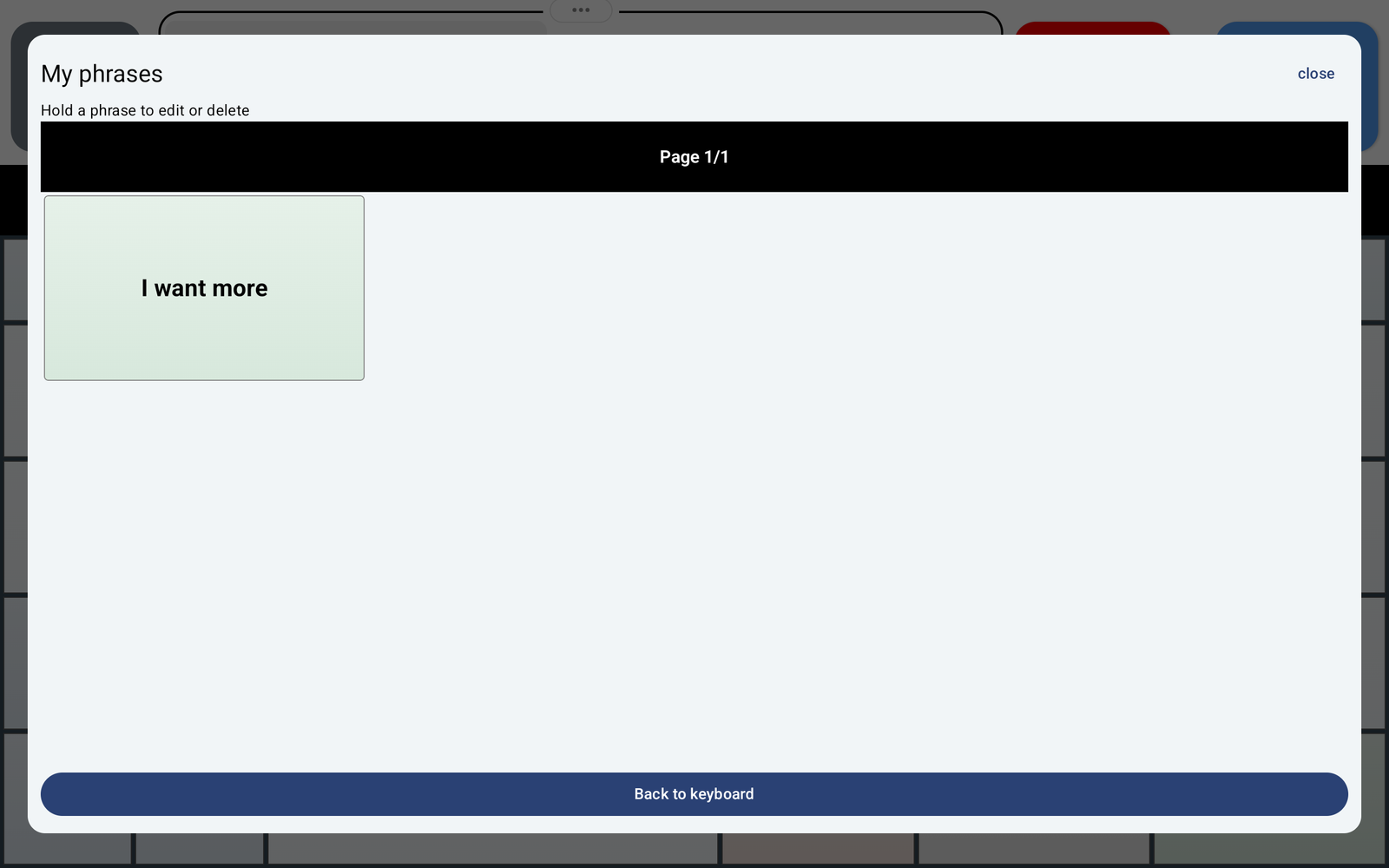
Tap Back to keyboard to return to typing. You can also close the My phrases window using close at the top right.
Edit or delete a saved phrase #
Open My phrases, then press and hold a phrase to edit or delete it. The Allow editing saved phrases without PIN setting controls whether a PIN is required for these changes.
If the phrase buttons are missing #
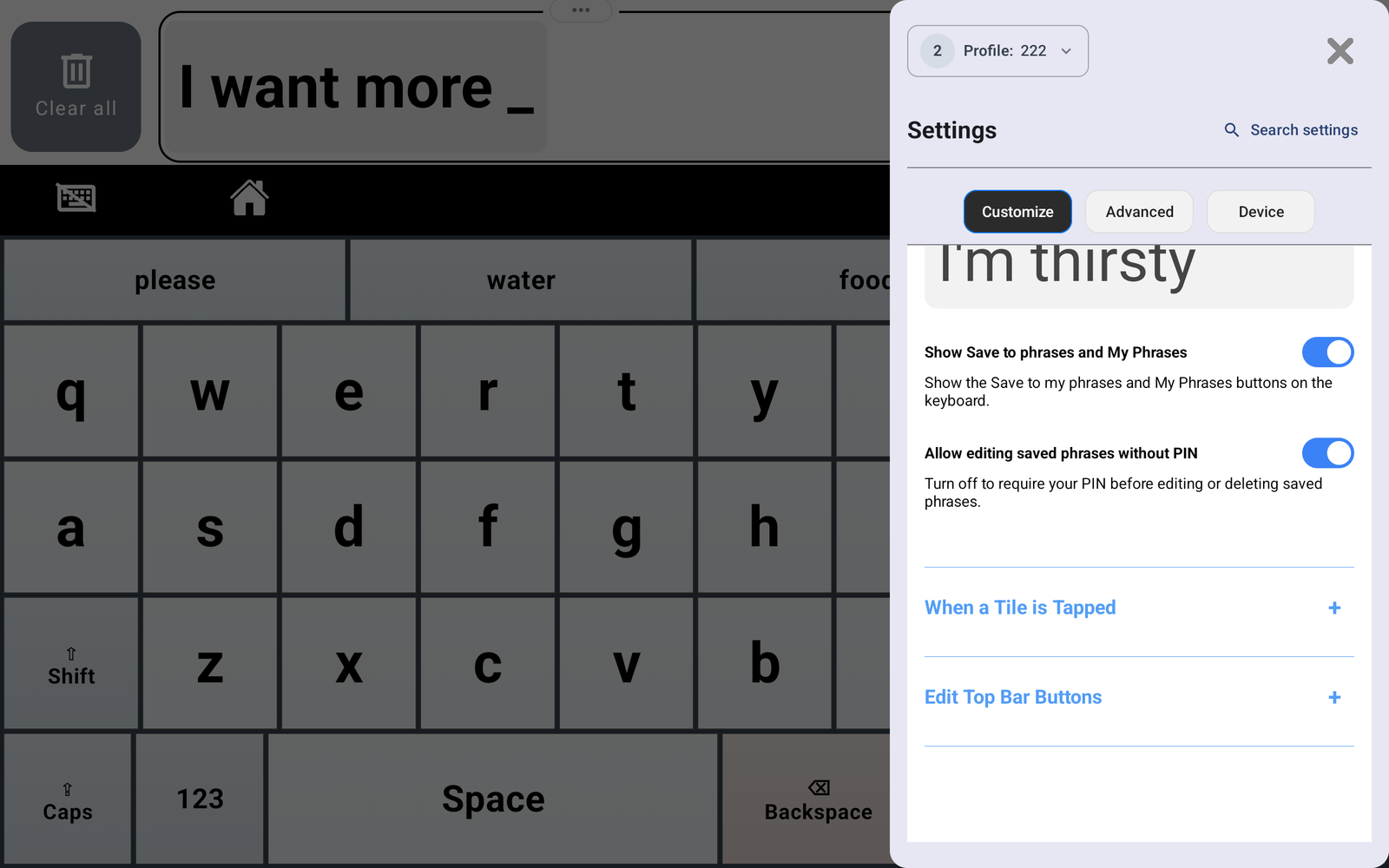
Go to Settings → Customize → Keyboard Settings and turn on Show Save to phrases and My Phrases. This displays both the Save to my phrases and My phrases buttons on the keyboard.
Switch between QWERTY and ABC #
- Tap the Settings gear at the right of the top bar. Enter your caregiver PIN if requested.
- Choose Customize and expand Keyboard Settings.
- Under Keyboard layout, tap QWERTY or ABC.
- Close Settings with the X and use the keyboard in your chosen layout.
QWERTY uses the familiar keyboard arrangement beginning Q, W, E, R, T, Y. ABC arranges the letters alphabetically. Choose the layout that is easiest for the person using the device to find and select letters.
Keyboard settings explained #
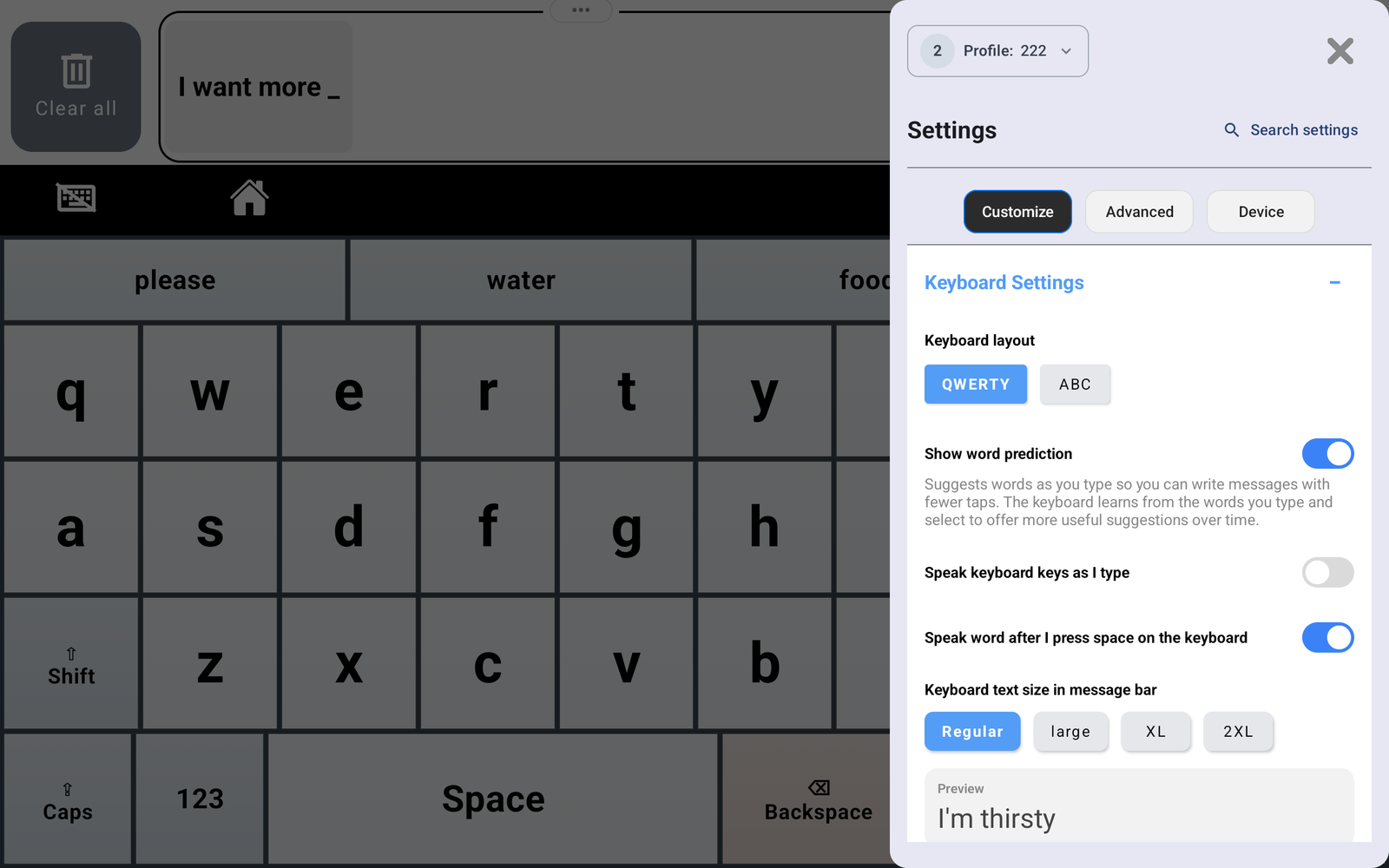
Open Settings → Customize → Keyboard Settings. Scroll within the Settings panel to see the options below.
| Setting | What it does |
|---|---|
| Keyboard layout | Choose QWERTY or ABC to change the arrangement of the letter keys. |
| Show word prediction | Show or hide the suggested-word row. When enabled, it suggests words as you type and learns from words you type and select. |
| Speak keyboard keys as I type | Turn on spoken feedback for the keyboard keys you tap. |
| Speak word after I press space on the keyboard | Turn on to speak a word when you finish it by pressing Space. You can still use Speak at the top to read your message. |
| Keyboard text size in message bar | Choose Regular, Large, XL, or 2XL. This adjusts the typed text in the Message Bar; check the preview to choose a readable size. |
| Show Save to phrases and My Phrases | Show or hide the two saved-phrase buttons on the keyboard. |
| Allow editing saved phrases without PIN | When on, saved phrases can be edited or deleted without entering a PIN. Turn it off to require your PIN before editing or deleting a saved phrase. |
Quick checks #
- No suggestions? Turn on Show word prediction in Keyboard Settings.
- No saved-phrase buttons? Turn on Show Save to phrases and My Phrases.
- Typing speaks aloud unexpectedly? Check Speak keyboard keys as I type and Speak word after I press space on the keyboard.
- Typed text is hard to read? Increase Keyboard text size in message bar.
- Need caregiver control over phrase changes? Turn off Allow editing saved phrases without PIN.
For the complete device guide, see the Generation 6 Device Manual.


