
For TalkingTiles AAC Generation 6. Word Variations gives a learner other ways to say a word without searching for a separate tile. When they add a supported word to the Message Bar, they can choose a different form or a related word from the variations below it.
This can reduce extra taps and searching when a learner knows what they want to say but needs a different version of the word. Having the choices close to the message may also reduce the frustration of finding the right word and help them express their meaning more precisely.
- Word forms: “like” → “liked.”
- Short forms: “I” → “I’m.”
- Negatives: “do” → “don’t.”
- Similar words: “good” → “awesome.”
Available choices depend on the supported word. Word Variations includes related alternatives as well as grammatical forms; not every choice means exactly the same thing. Let the learner choose the one that fits their message.
What Word Variations looks like #
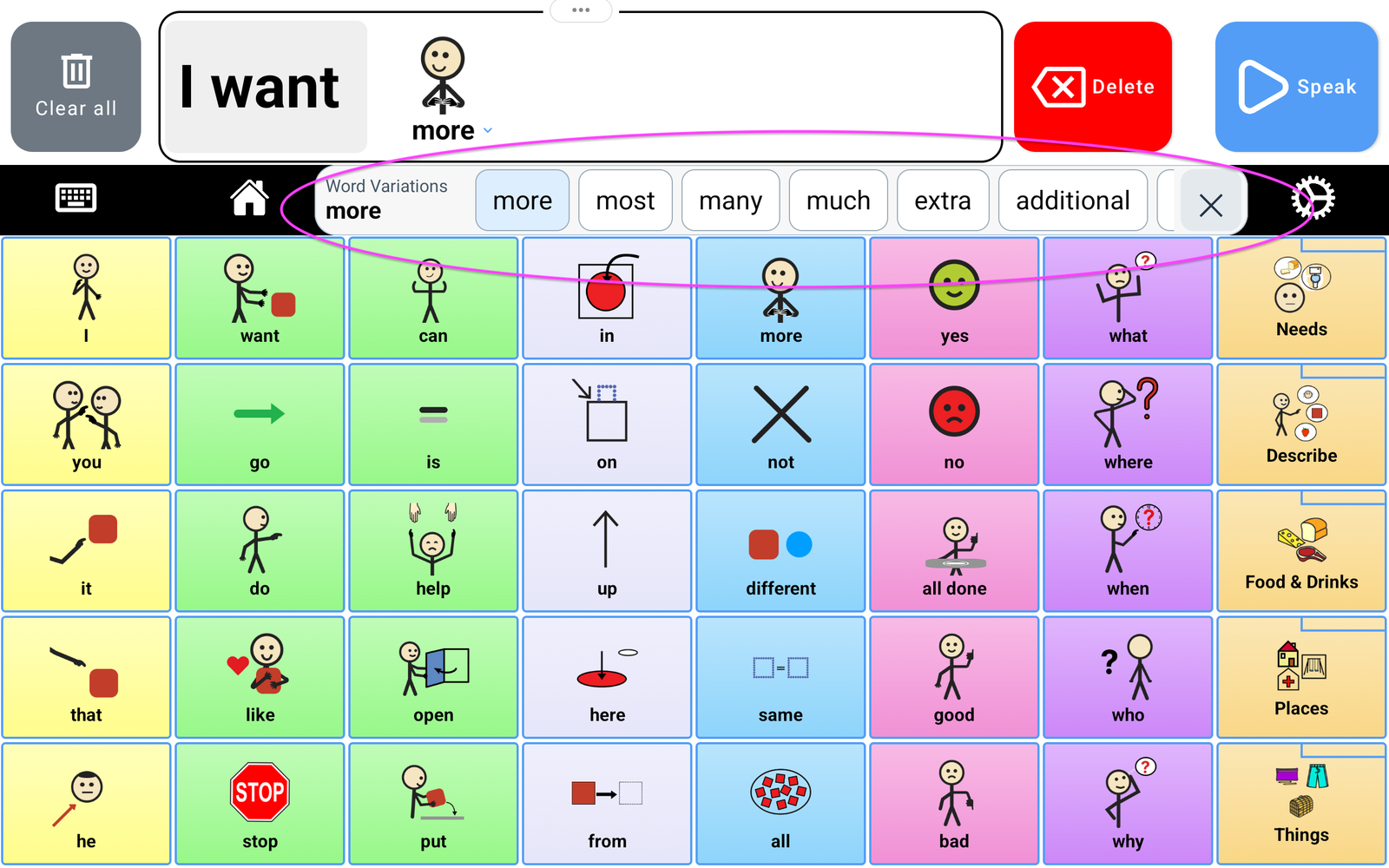
When you open the choices #
With Word Variations enabled, add a supported word to the Message Bar. Use the small arrow beside the word to open its variations, then tap the option you want to use. Tap X to close the choices.
When the variations bar stays visible #
With Always show variations bar turned on, the variations stay in a row below the Message Bar. In this example, “more” offers choices including “most,” “many,” “much,” “extra,” “additional,” “another,” and “again.”
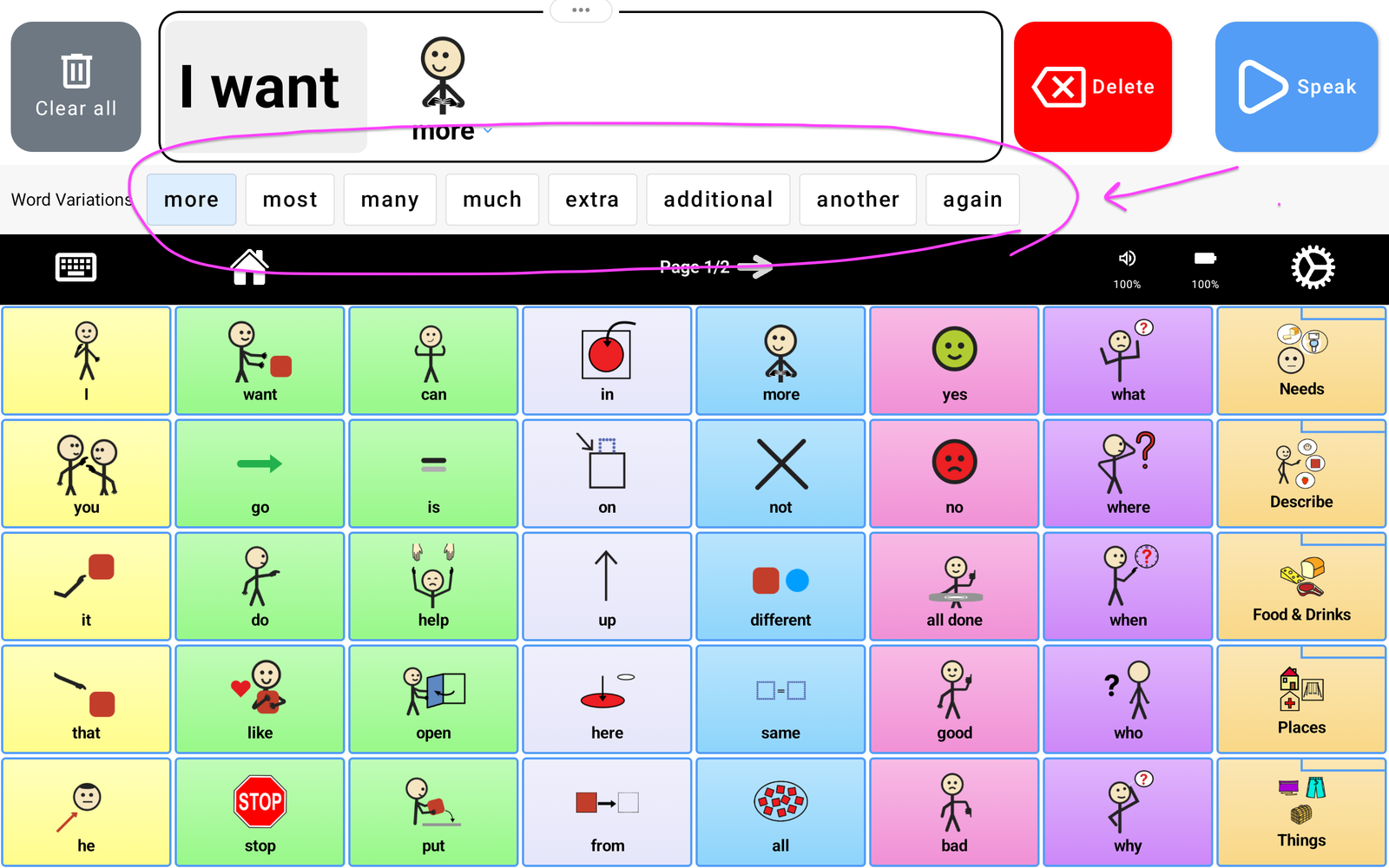
For example, a learner building “I want more” may be looking for “another.” The nearby choices give them a way to find that alternative while they are building the message. Choose the word that expresses their intention, then continue building the message and tap Speak.
How to turn Word Variations on #
- Choose a Sentence Building board in Settings → Customize → Vocabulary.
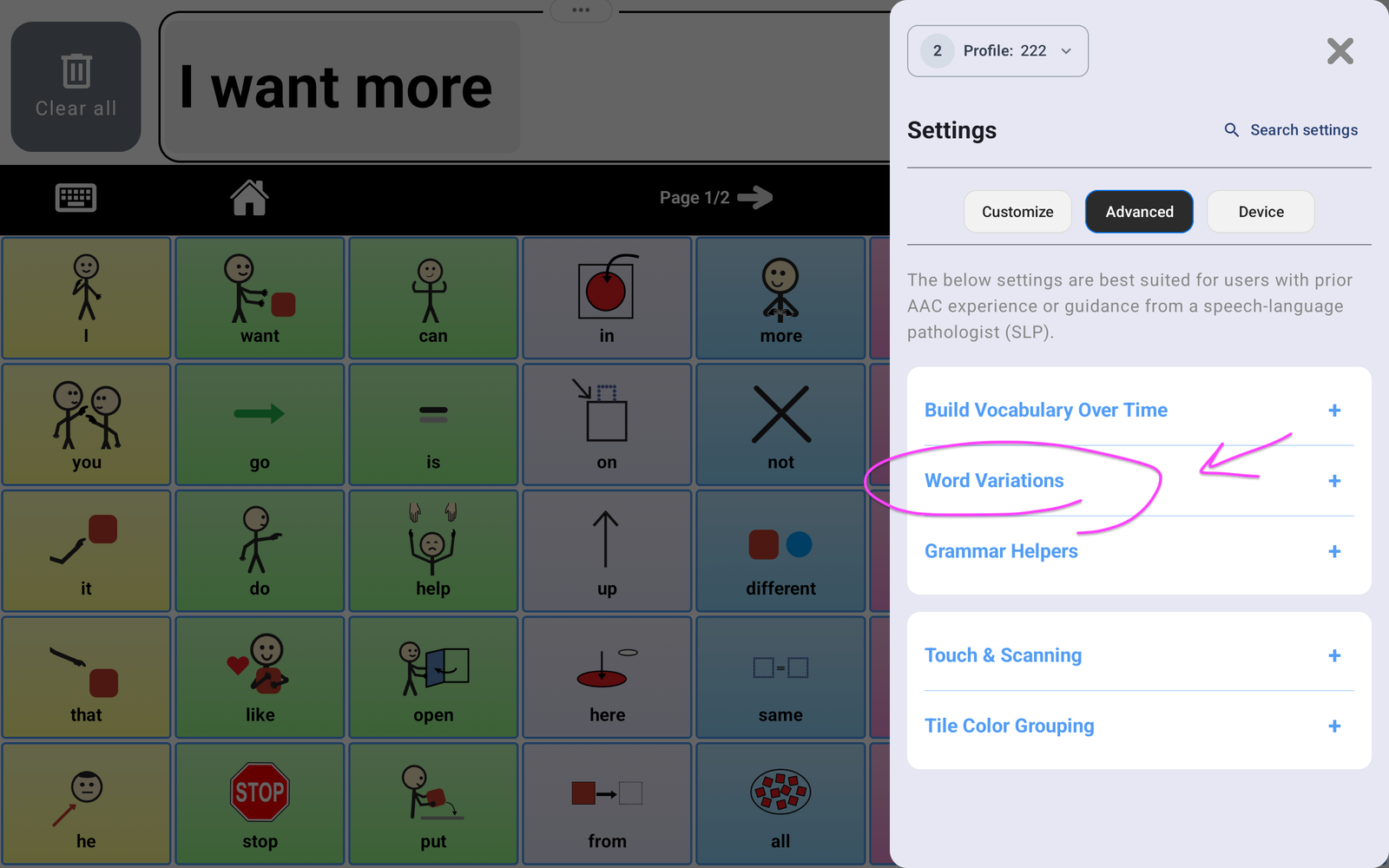
- Tap the Settings gear and choose Advanced. Enter the caregiver PIN if requested.
- Expand Word Variations.
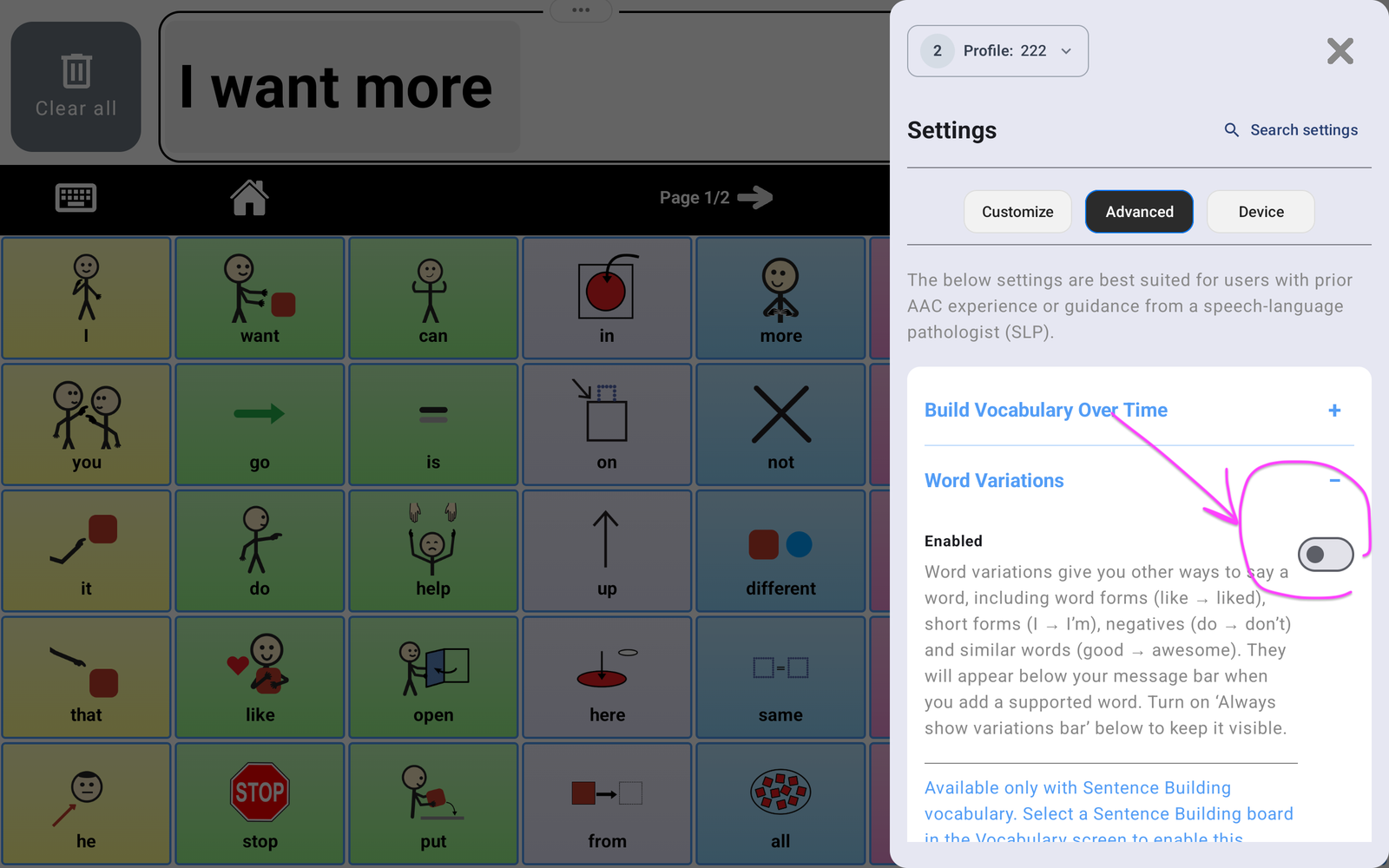
- Turn on Enabled.
- Close Settings with the X. Add a supported word to the Message Bar to try its variations.
Keep the variations bar visible #
In Settings → Advanced → Word Variations, first turn on Enabled. Then turn on Always show variations bar to keep the bar visible below the Message Bar.
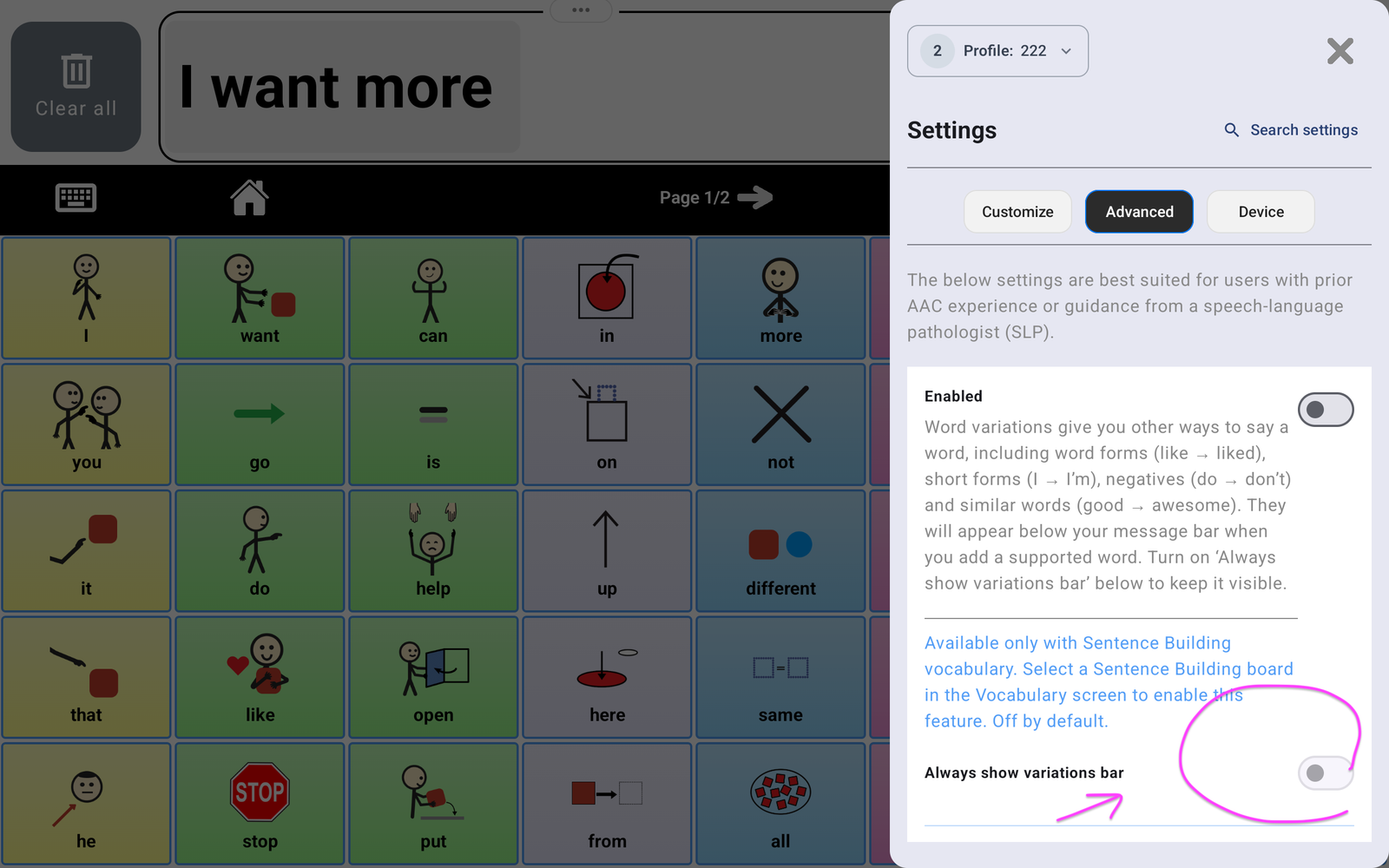
What the two settings control #
- Enabled: turns the Word Variations feature on or off. It requires Sentence Building vocabulary.
- Always show variations bar: keeps the variations bar visible when the feature is enabled. Turn it off if you prefer opening the choices when needed.
Choose the display that makes it easiest for your learner to find alternatives. A visible bar keeps them in view; opening choices only when needed leaves more of the board unobstructed.
If variations are not appearing #
- Confirm that the current vocabulary is a Sentence Building board.
- Check that Enabled is on under Settings → Advanced → Word Variations.
- Add a supported word to the Message Bar. Different words can have different choices; some words may not offer variations.
- To keep the row visible, turn on Always show variations bar as well.
For more ways to build messages, see the Generation 6 Device Manual and Keyboard and My Phrases.


