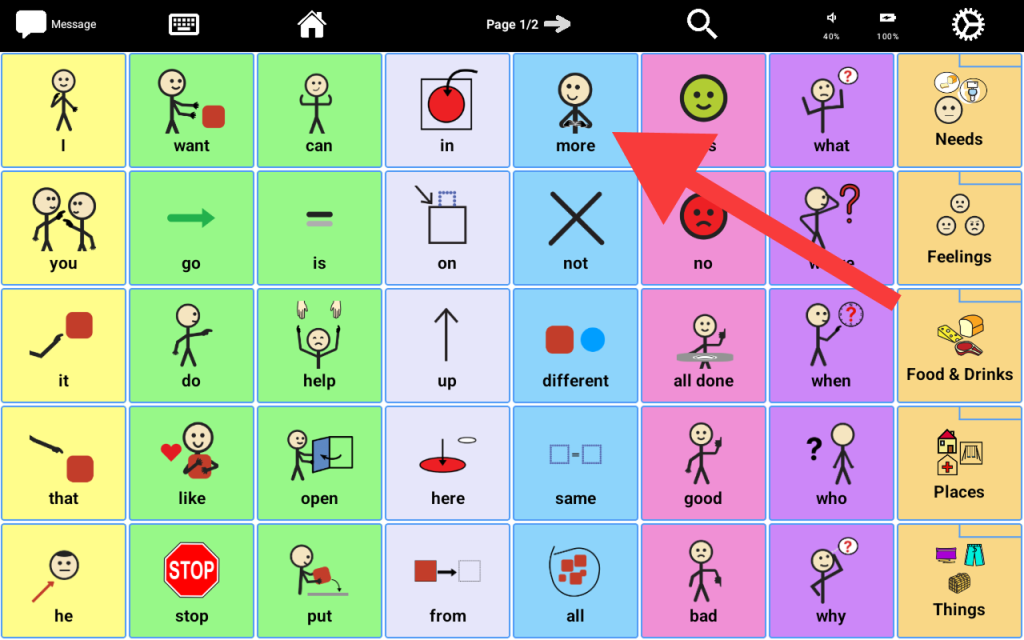
There are two ways you can make a tile open a folder:
Editing a tile to be a folder #
- The easiest is to make the tile a folder and then add the tiles you want to open inside the folder. To do so:
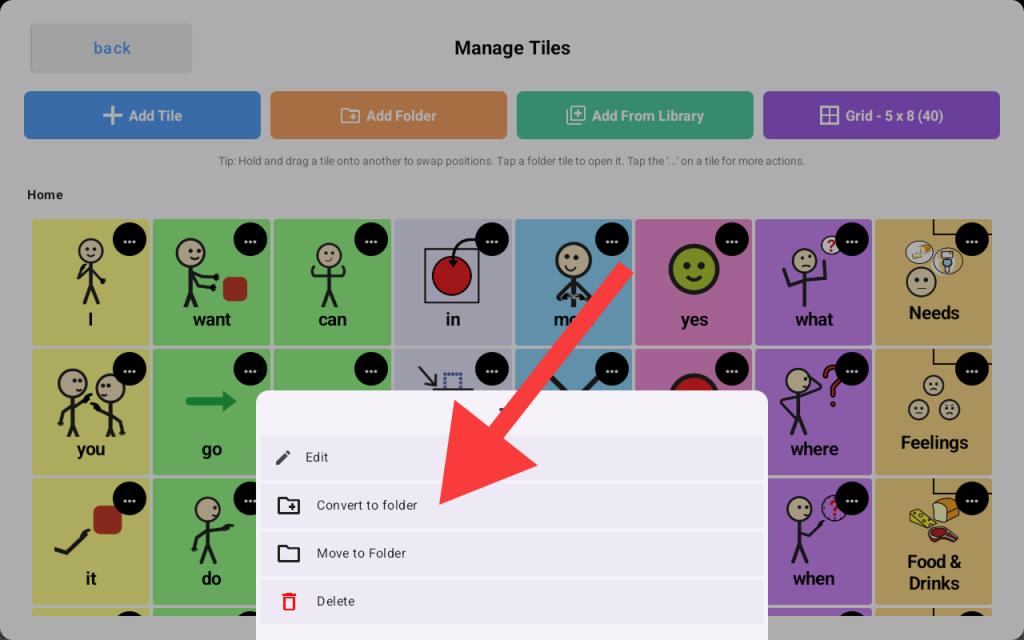
- Go to the tile you want to convert to a folder, tap the “…” button, then tap “Convert to folder.”
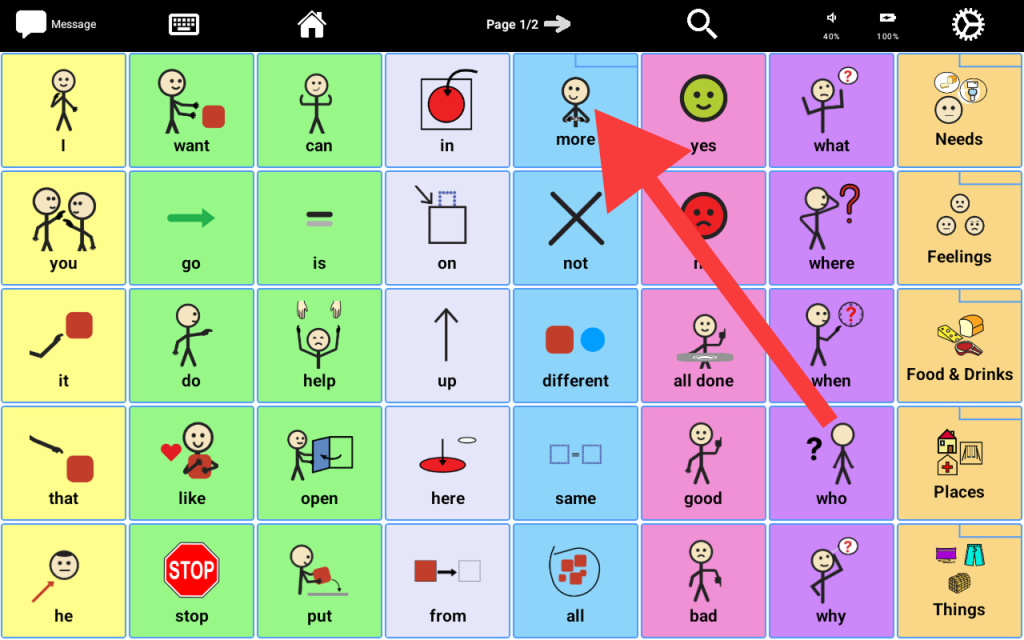
The tile will convert to a folder, and it shows in its appearance
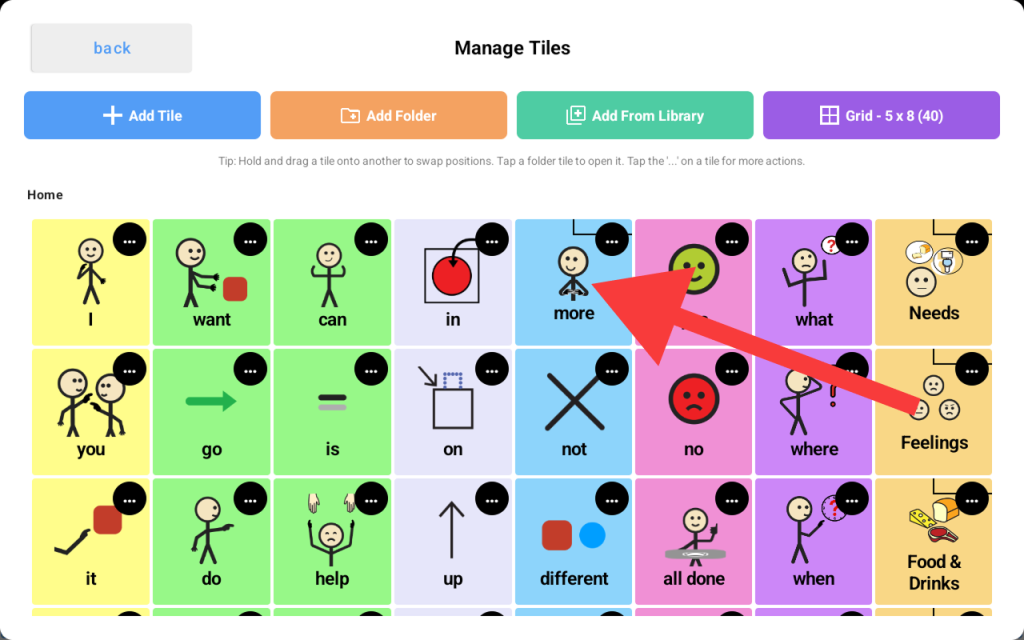
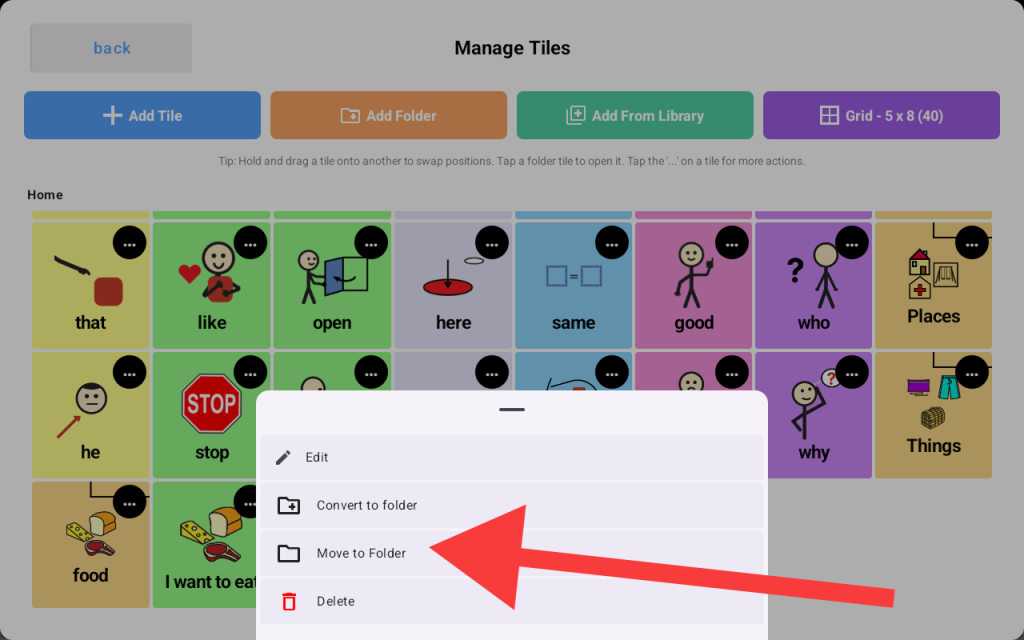
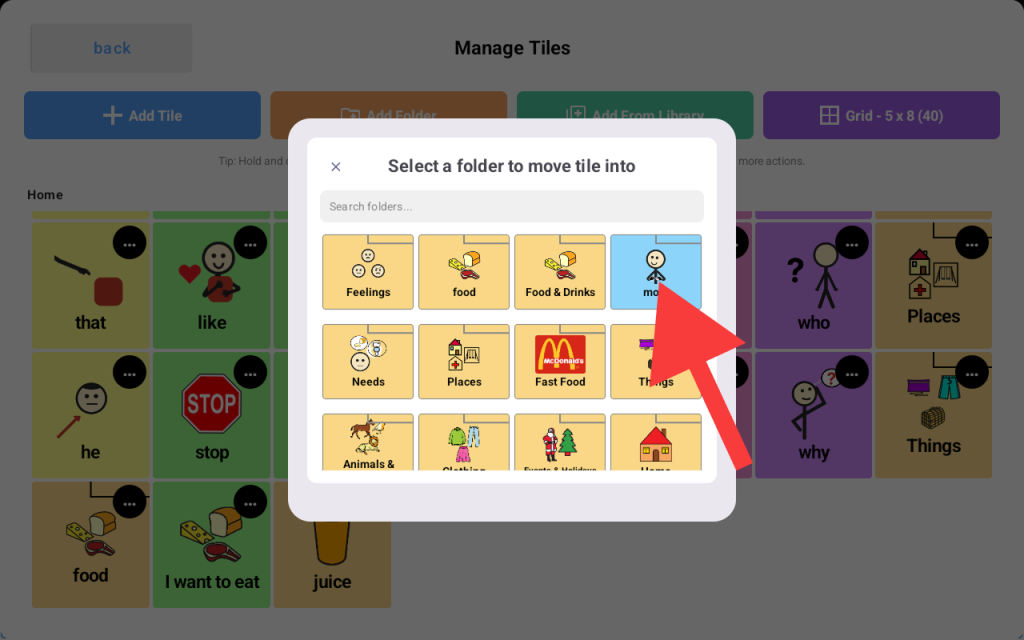
Now you can move any tile to the newly created folder by tapping the “…” on the desired tile and selecting “Move to Folder”, then selecting the newly converted tile (in this case, we converted “more” to a folder)
Now go back to your board and tap the new folder tile
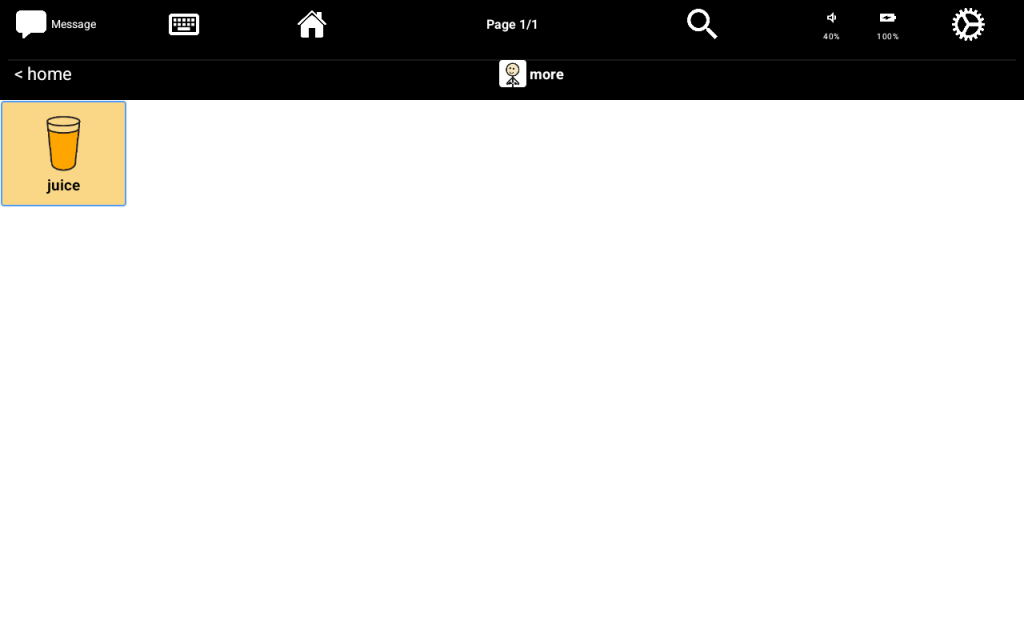
It should open as a folder, and you will see the tile we just moved inside of it
Adding a tile action to make a tile open a folder #
The other way to make a tile open a folder is to assign a tile action to it.
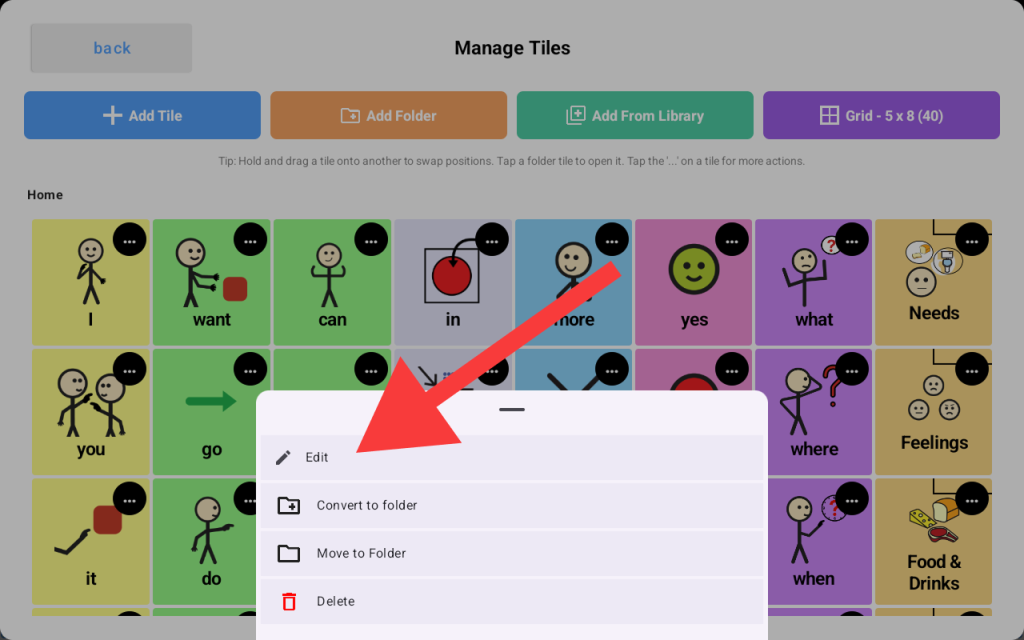
Go to the “Edit Tiles” screen and tap the “…” button on the tile you want to assign the “open folder” action to, tap the “…” button on the tile, and select Edit from the pop-up menu:
A “edit tile” screen will show up, scroll down to the “Advanced” section, and tap “Tile actions.” Then ap “Add Action” under the “on tap” section:
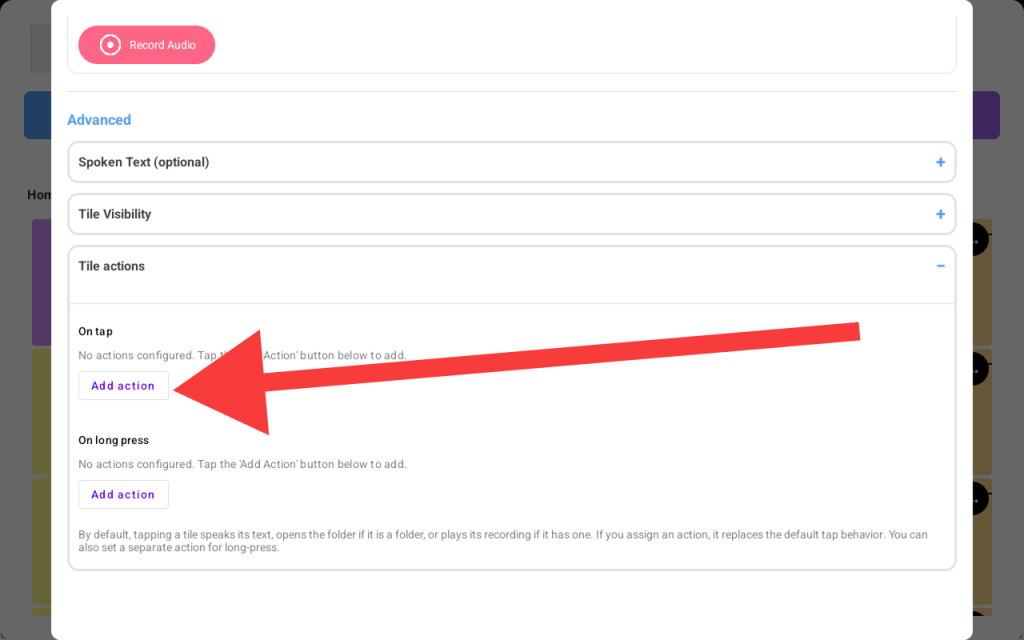
- A menu of available actions will show up, scroll down to the “Navigation” section of that menu, and select “Open linked folder.”
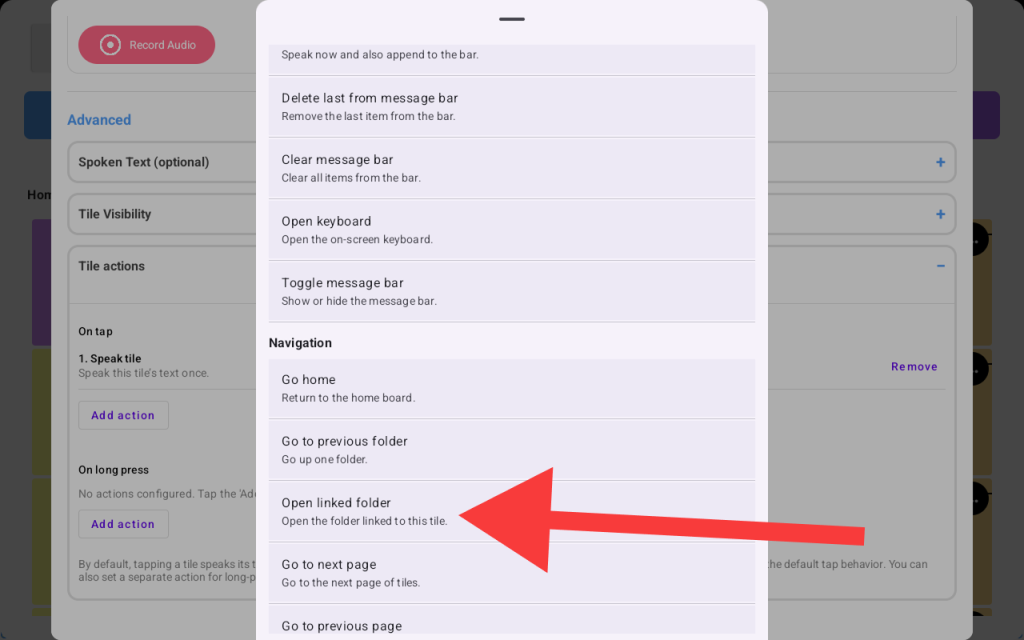
- A folder menu will appear. Choose your desired folder; in this case, we’re going to choose “Food & Drinks.”
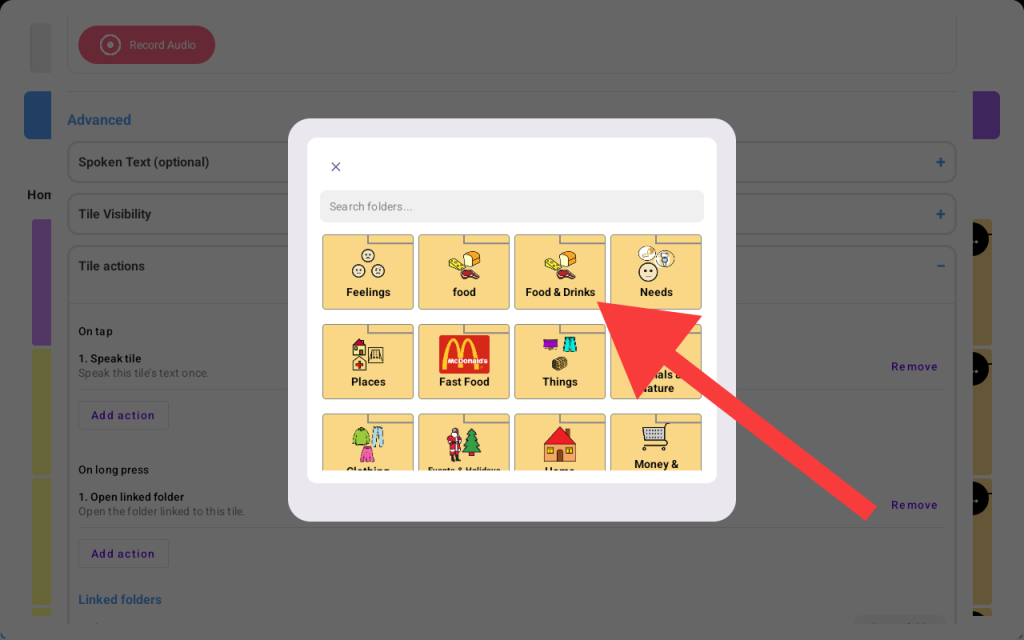
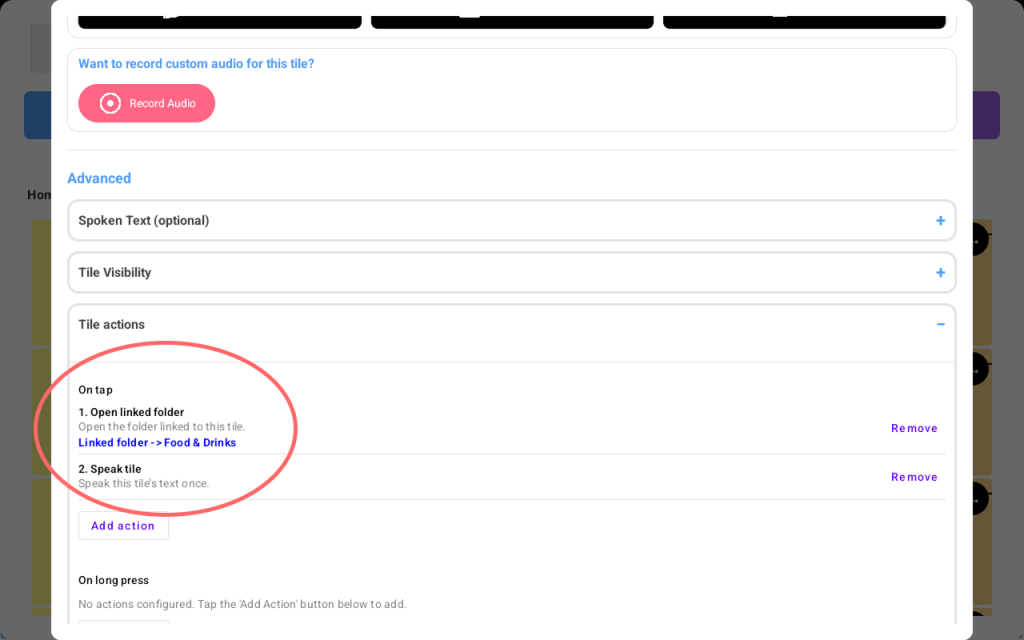
- If you still want the tile to speak the label and open the folder at the same time, tap the “Add action” button under the “On tap” section again and select the first option “Speak Tile.”
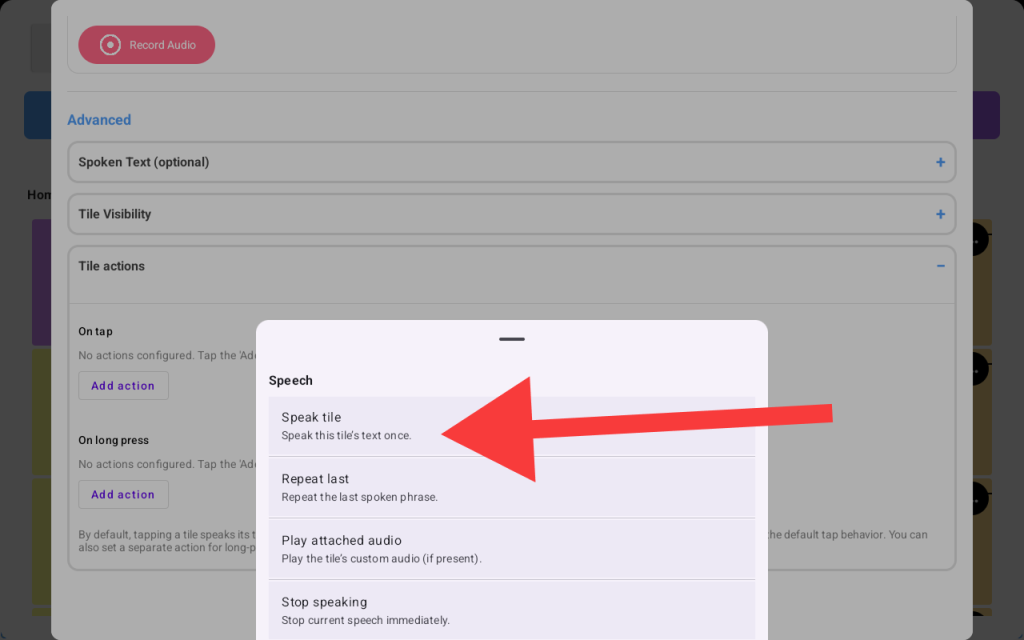
- Now your “On tap” section should have two actions “speak tile” and “open linked folder” like below
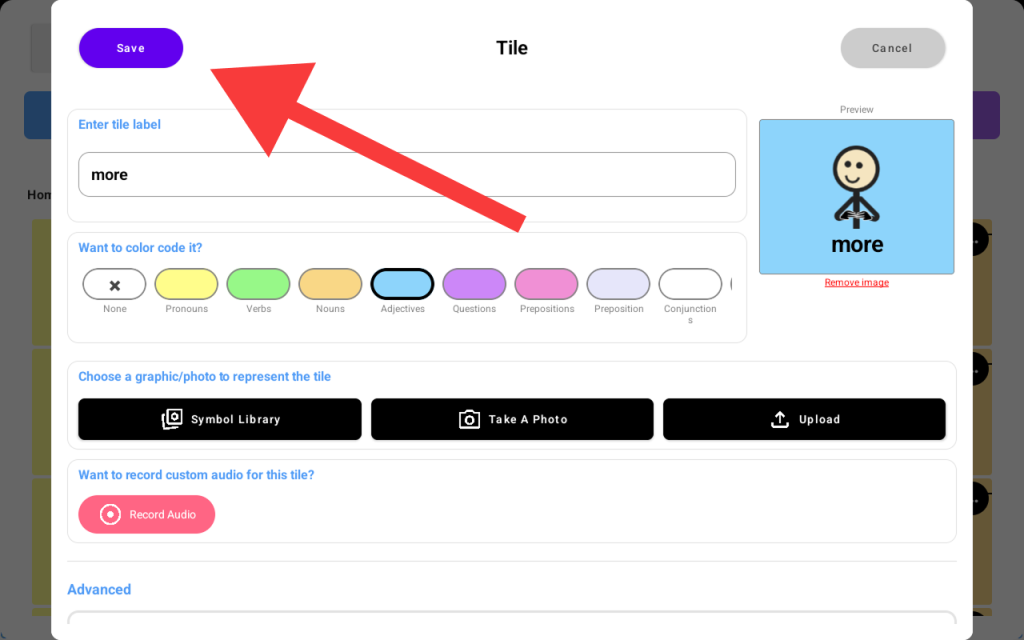
- Scroll all the way up and hit “Save” on the top left corner to save the new actions you added
Now go back to your board and tap the tile we just edited, In this case “more”, it should speak “more” and open the “Food & Drinks” folder on tap.