
For TalkingTiles AAC Generation 6. Choosing by lifting a finger lets the learner keep contact with the screen, slide to a choice, and lift a finger to select it. This may help when a precise tap is difficult or when the learner needs to rest fingers on the board while finding a choice.
How it differs from default tapping #
- Tap a tile (default): tap and lift on the same tile to choose it.
- Choose when lifting a finger: slide across the tiles to find a choice, then lift a finger to select.
There are two ways to decide which finger makes the selection. The difference is clearest in the demonstration videos below.
1. Open the touch settings #
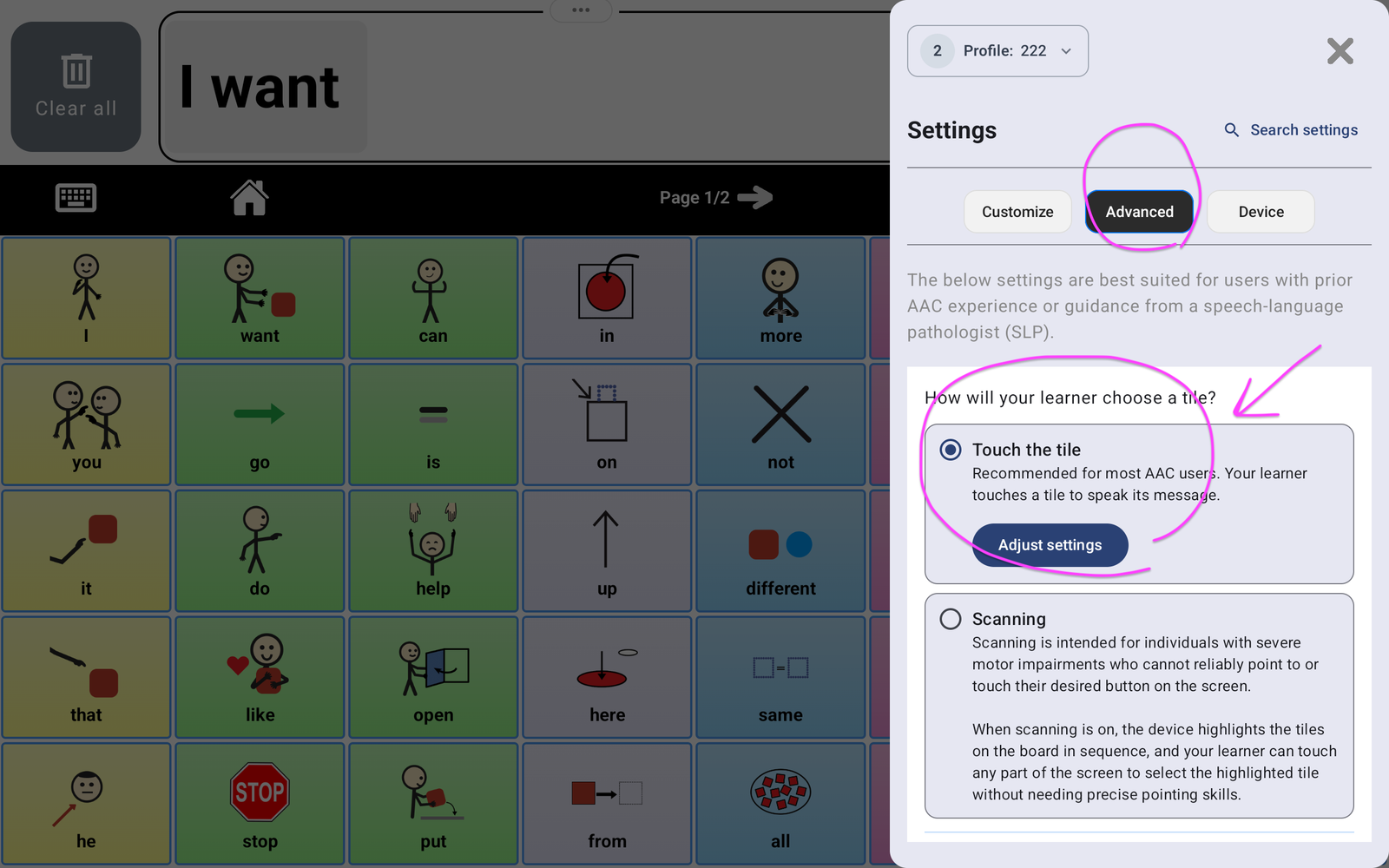
- Tap the Settings gear and enter the caregiver PIN if requested.
- Choose Advanced → Touch & Scanning.
- Keep Touch the tile selected.
- Tap Adjust settings to open Touch the screen settings.
2. Choose when lifting a finger #
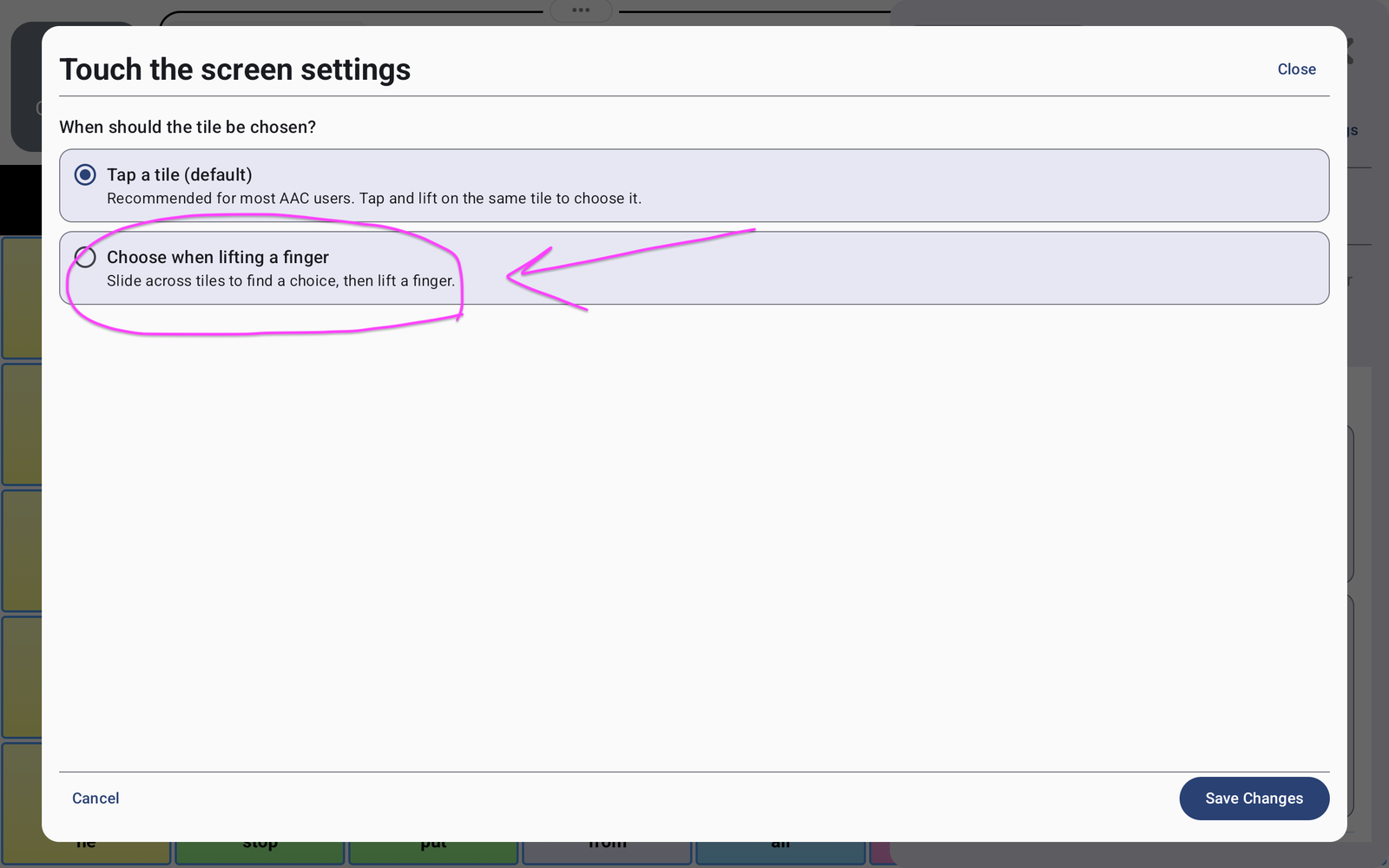
Under When should the tile be chosen?, select Choose when lifting a finger. The screenshot points to the option while default tapping is still selected.
3. Choose which finger should select #
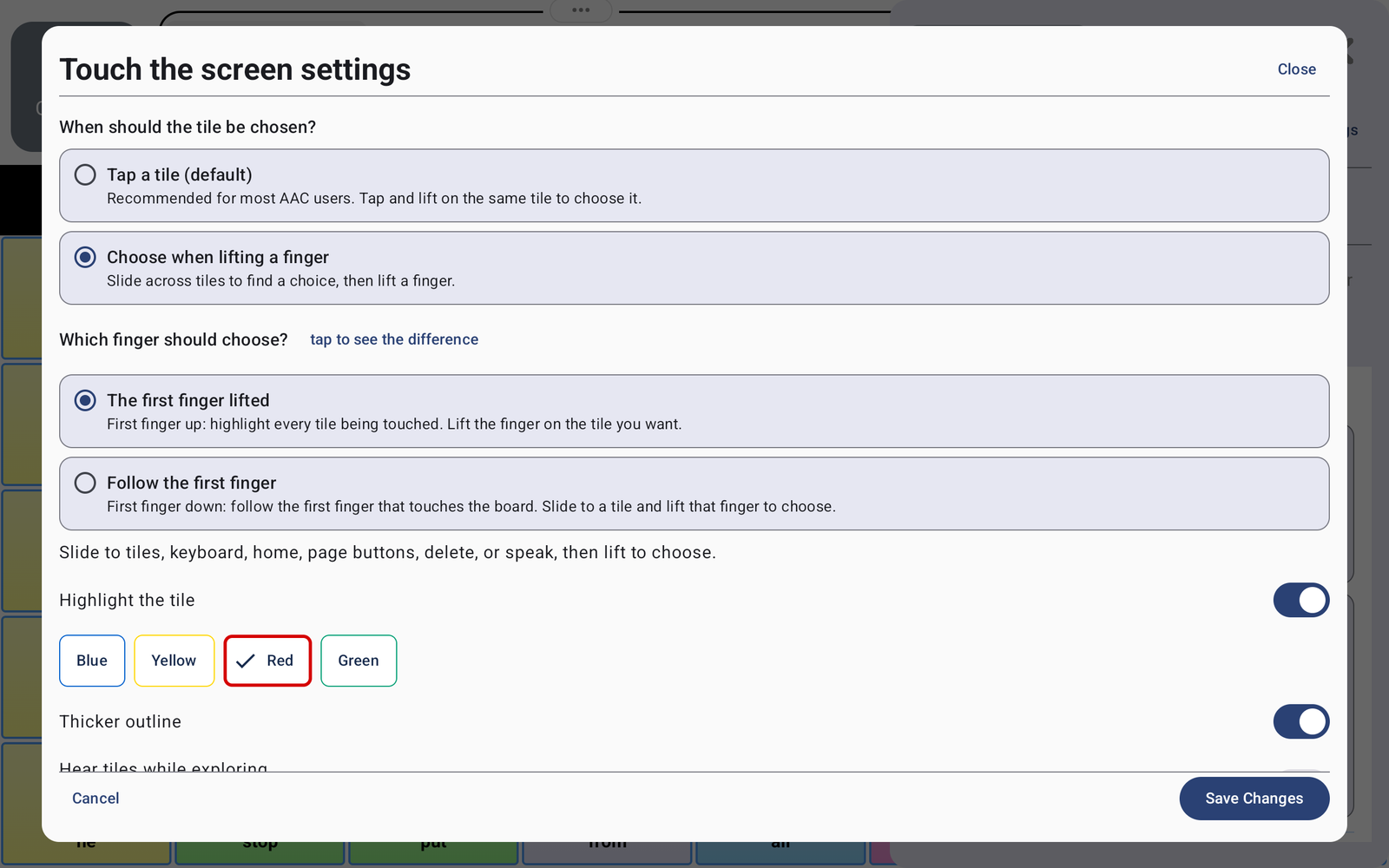
The first finger lifted #
The board highlights each tile being touched. The first finger you lift makes the selection. If several fingers are resting on different tiles, lift the finger on the tile you want.
This is useful to try when the learner rests several fingers on the screen and can deliberately lift one of them. Watch which finger lifts first in the demonstration.
Follow the first finger #
The board follows the first finger that touches it. Slide that finger to the intended tile, then lift that same finger to choose. The selection follows that finger’s movement rather than choosing whichever finger lifts first.
This is useful to try when the learner can guide one finger across the board to find a choice. Watch the first finger move and lift in the demonstration.
4. Make the highlight easy to follow #
In the same window, use Highlight the tile to show the touched choice. Pick Blue, Yellow, Red, or Green. Turn on Thicker outline if a stronger border helps the learner see the highlighted choice.
The window also includes Hear tiles while exploring. Review that option if spoken feedback would help the learner identify choices as they move across the board.
5. Save and practise #
- Tap Save Changes at the bottom right of Touch the screen settings.
- Close Settings and try a few familiar choices on the board.
- For The first finger lifted, place fingers on choices and deliberately lift the finger on the intended tile first.
- For Follow the first finger, touch with the finger you want to control the selection, slide to the intended tile, then lift that finger.
The settings also support sliding to controls such as keyboard, Home, page buttons, Delete, and Speak, then lifting to choose. Test those controls as well as the tiles so the learner can navigate and build messages.
Change back to default tapping #
Go back to Settings → Advanced → Touch & Scanning → Touch the tile → Adjust settings. Select Tap a tile (default), then tap Save Changes.
If reaching a particular tile remains difficult, read Scanning for choosing with a moving highlight, screen taps, or a connected switch.


