
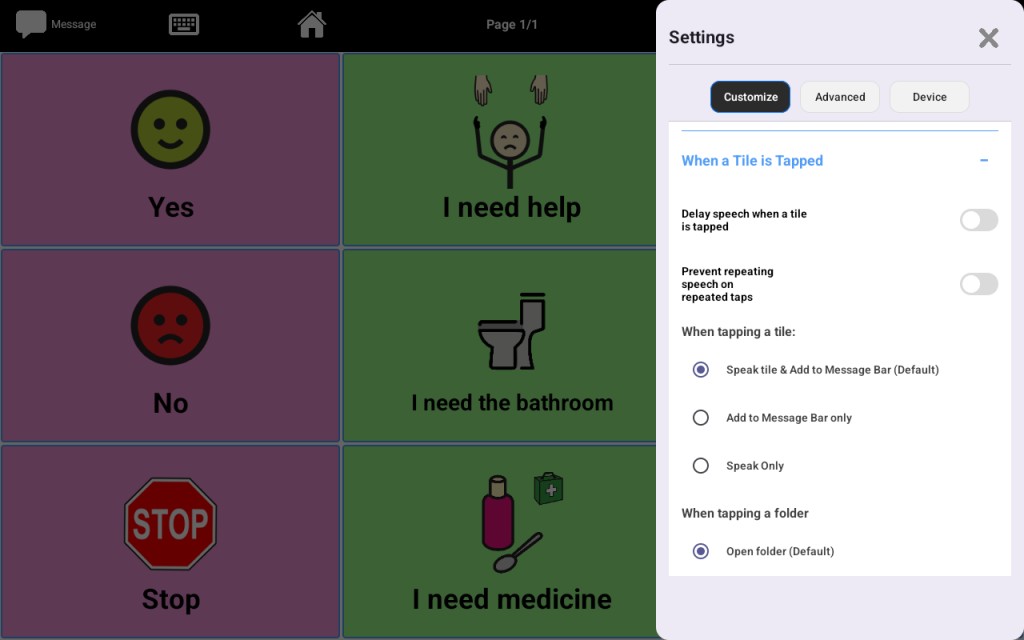
Talking Tiles includes accessibility settings that help you adjust how the device responds during use. These settings can make communication easier for learners who need a slower pace, more predictable feedback, or fewer accidental repeated activations.
Delay speech when a tile is tapped #
This setting adds a short delay before speech plays after a tile is pressed. It can be helpful for learners who may tap accidentally or who benefit from a little extra time before the device speaks.
Prevent repeating speech on repeated taps #
This setting helps reduce accidental repeated speech if the same tile is tapped multiple times in a row. It can be especially useful for learners who may press repeatedly out of habit, excitement, or motor difficulty.
Choose what happens when a tile is tapped #
Talking Tiles lets you choose how the device responds when a vocabulary tile is pressed.
Options include:
- Speak tile and add to the message bar
- Add to the message bar only
- Speak only
This makes it easier to match the device to the learner’s communication style and current goals.
Choose what happens when a folder is tapped #
You can also choose how folders behave when selected.
Options include:
- Open folder
- Speak folder label and open
This can provide extra audio feedback and help reinforce navigation for some users.
Adjust the device to fit the learner #
Accessibility settings are not one-size-fits-all. Some learners do best with faster responses, while others benefit from more controlled and predictable interactions. These settings allow parents, caregivers, and professionals to tailor the experience to the user’s needs.
Helpful tips #
- Use delayed speech if the learner benefits from a slower response
- Turn on repeat prevention to reduce accidental repeated activations
- Choose tile actions based on how the learner builds messages
- Use spoken folder labels if audio feedback helps with navigation
- Revisit settings over time as the learner’s needs change


