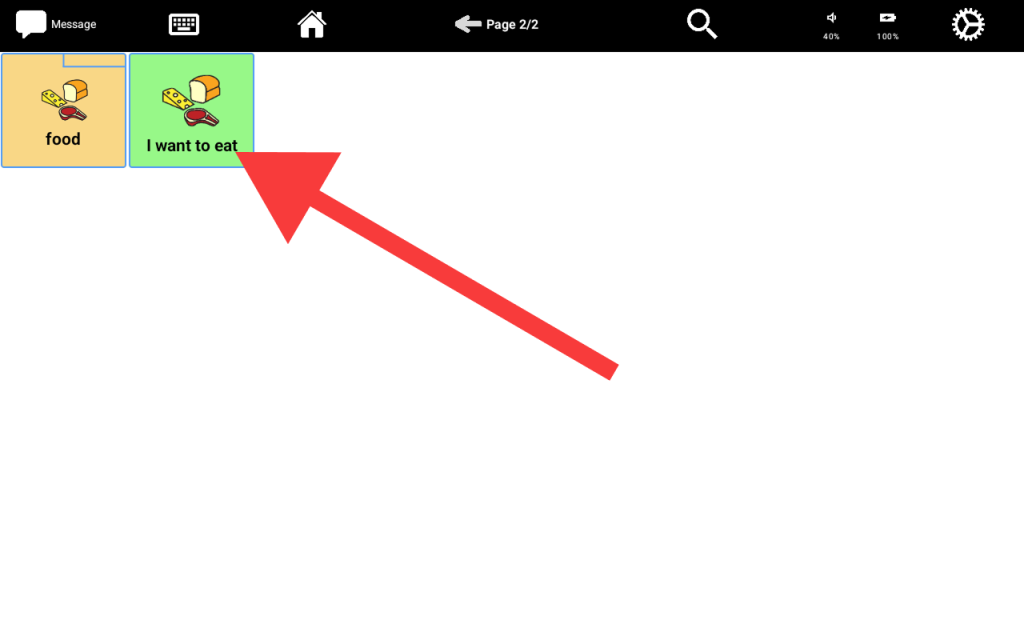
Sometimes, you may need to make a tile or do more than speak the label. For example, you can create a tile that will speak the label and open a folder. Or you can create tiles that enable your learner to adjust the volume or brightness of the device.
You can assign one or more tile actions using the “Advanced” section of the “Add Tile” screen.
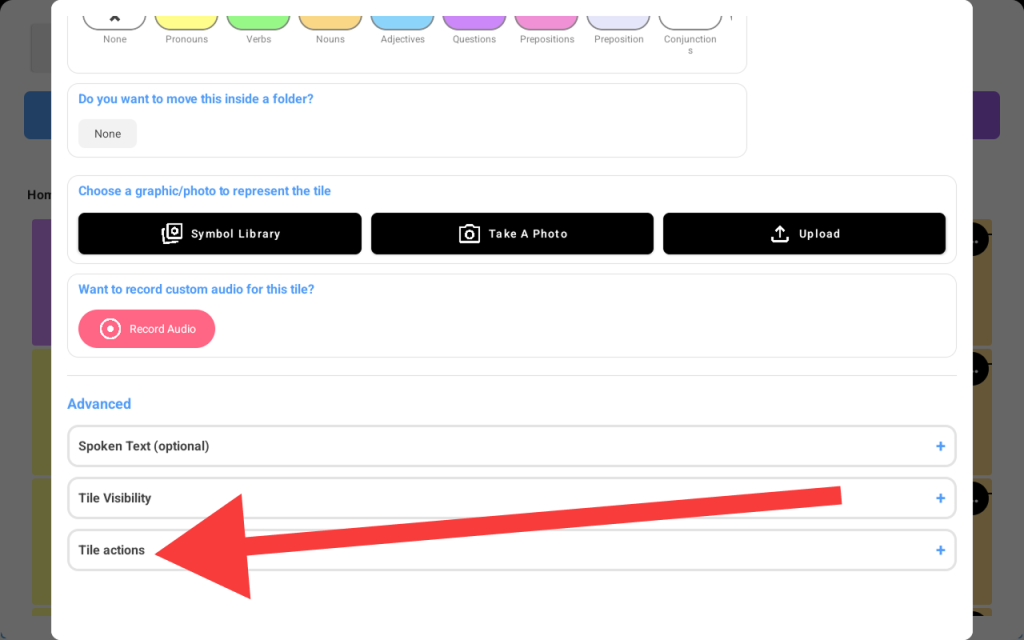
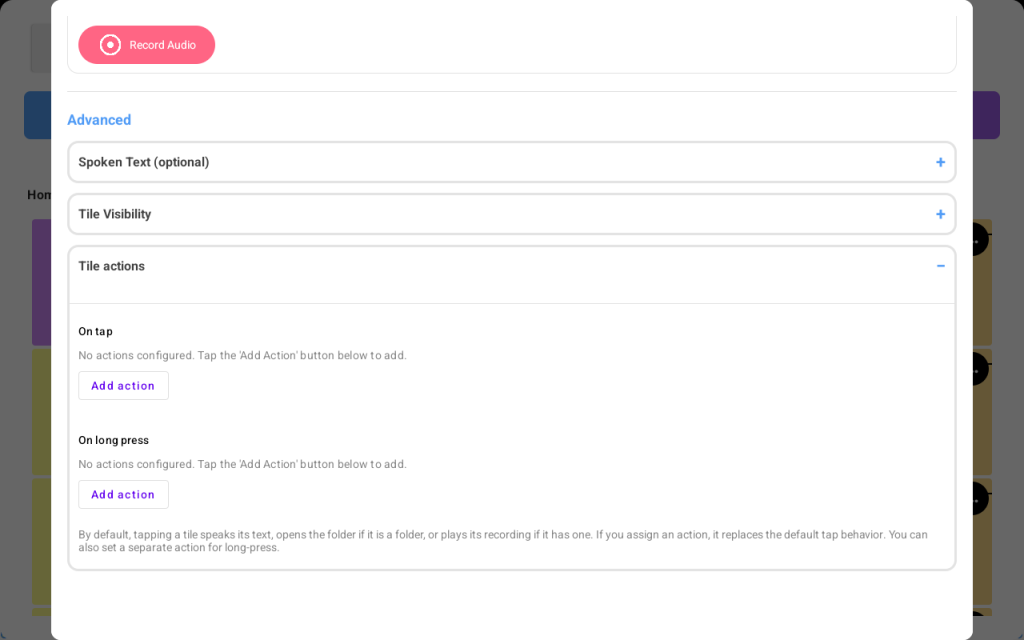
When you tap the “Tile actions” section, it’ll exapnd to this section:
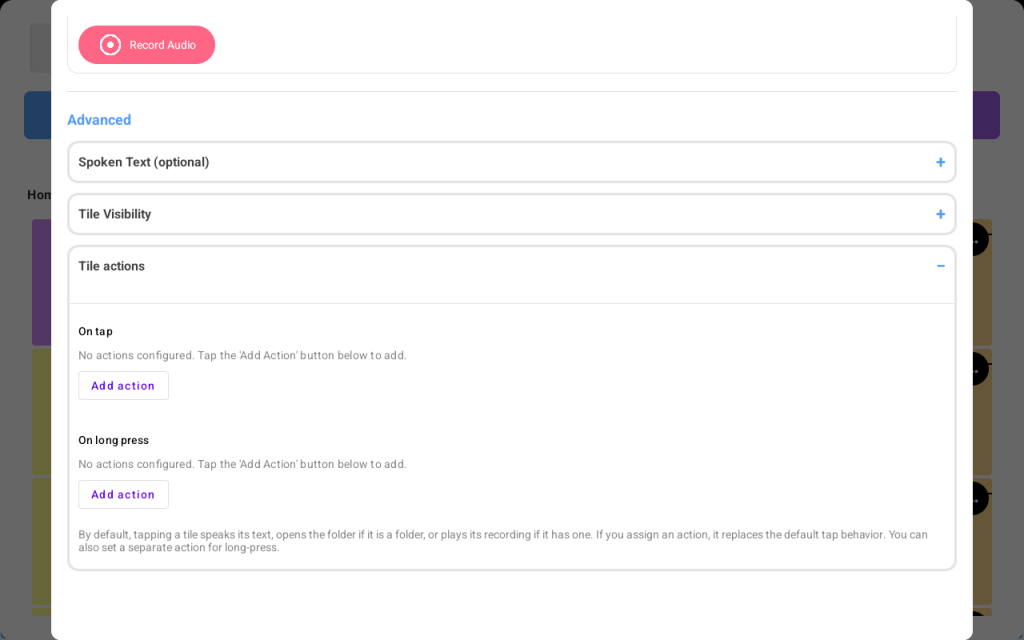
There are two types of actions:
- On tap: the action(s) happen when your learner taps a tile
- On long press: the action (s) happen when your learner presses the tile for more than 1/2 second
Let’s create a tile with an on-tap action being “speak tile” and the long press being “open folder”. Let’s call the tile “I want to eat.”
- Enter the tile label as below
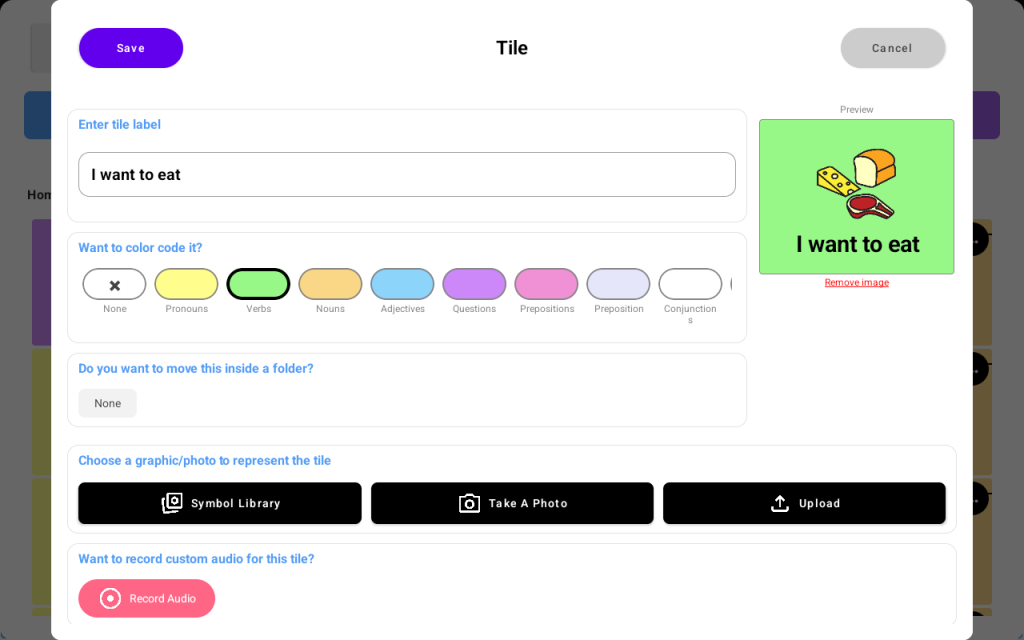
- Scroll down the actions section
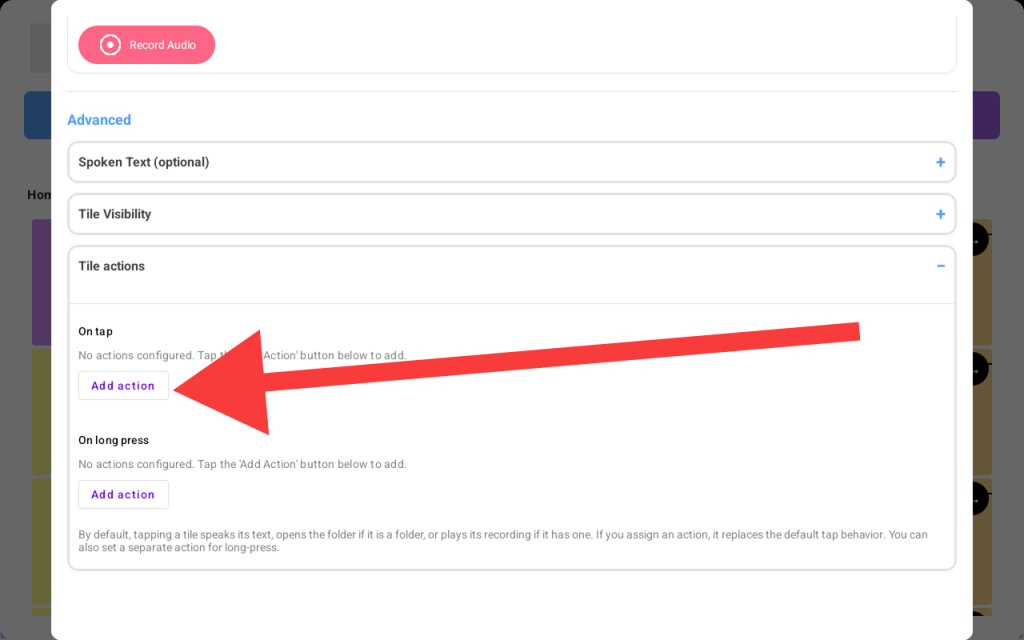
- Tap the “Add action” in the on tap section
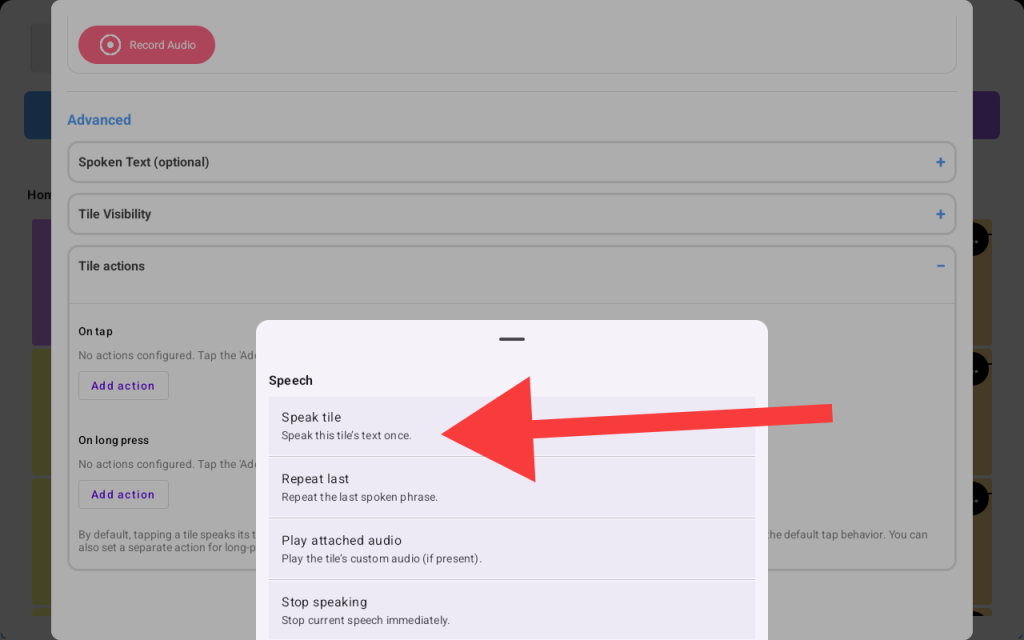
- A list of available actions will show up, select “Speak tile.”
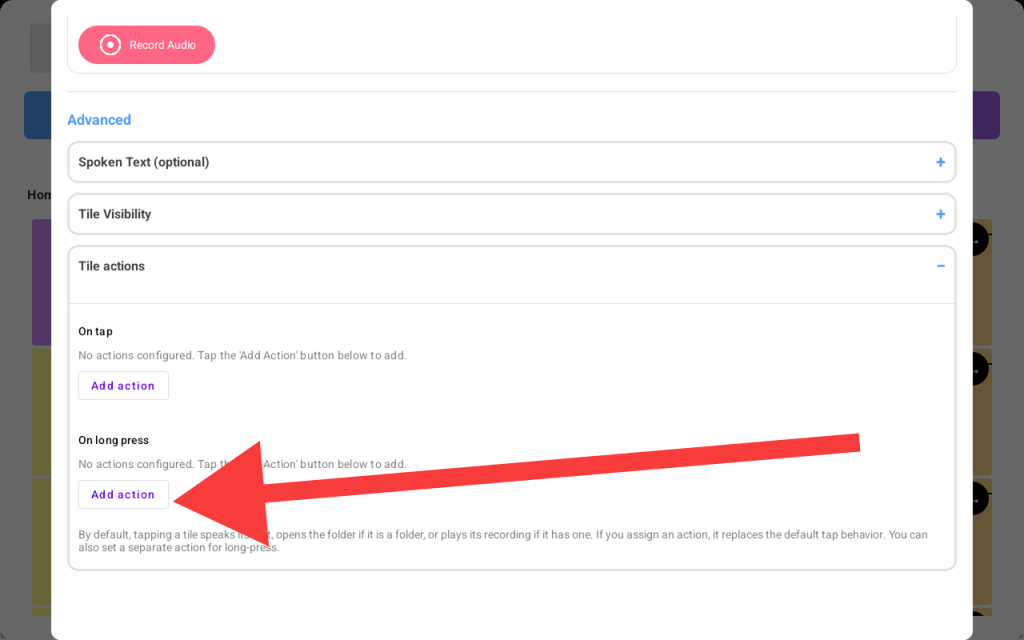
- Now tap the “Add action” button inside the “On long press” section
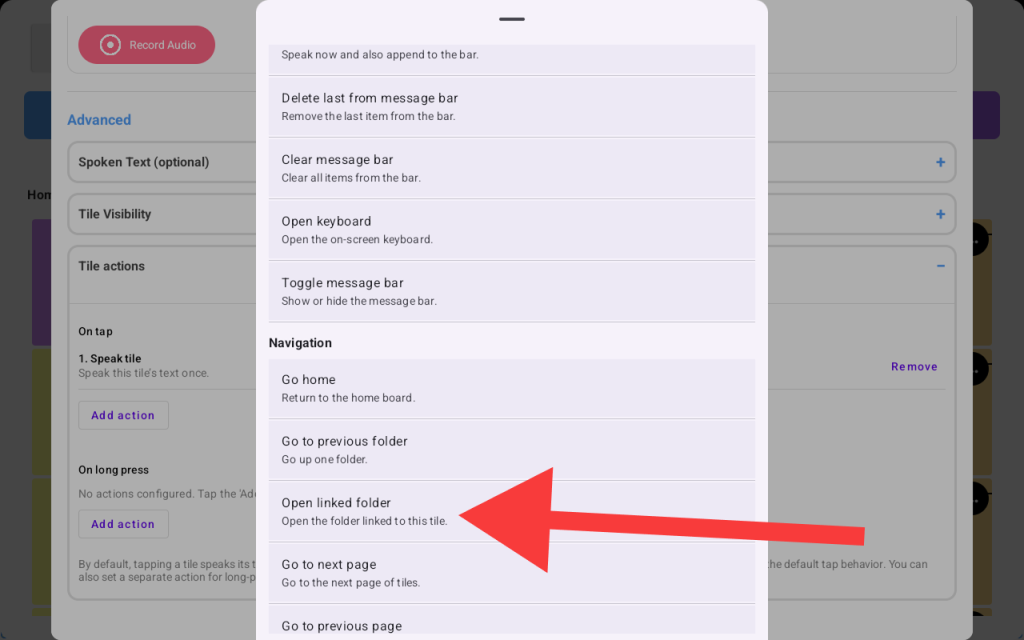
- Scroll down to the “Navigation” section and choose “Open linked folder.”
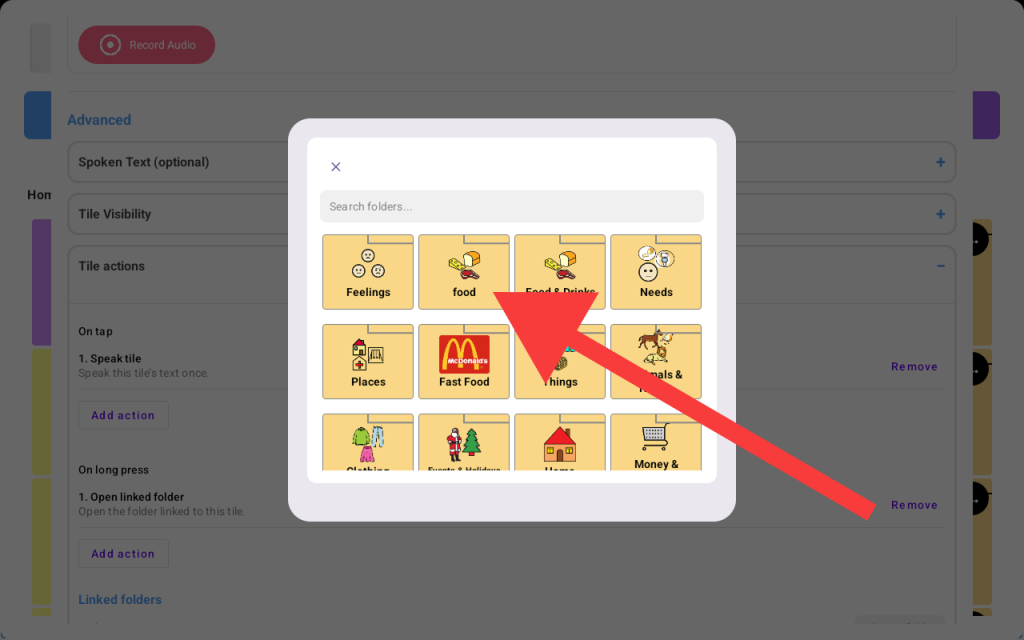
- A list of folders will appear to choose from. We’ll select the “Food” folder since we named the tile “I’m hungry” that way, there is a strong utility correlation between the tile and the action
- Go ahead and scroll all the way up and tap “Save”
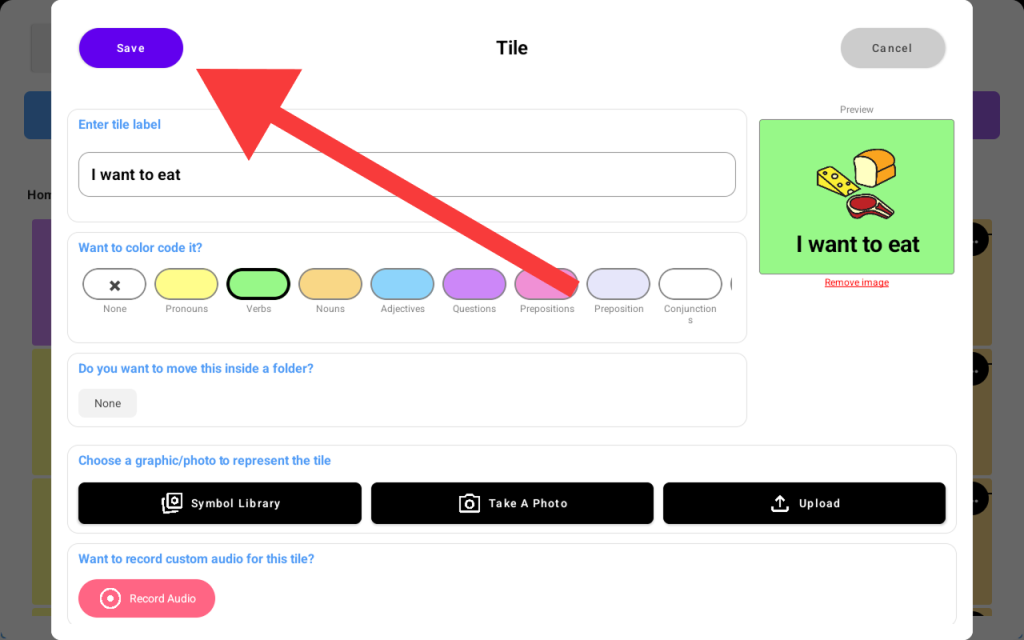
- Now go back to your board and the new tile now speaks “I want to eat” on tap, and on long press it’ll open the food folder.”