• Home
  • Buy Now
  • Why
  • About
  • Research
  • Help Center
  • Home
  • Buy Now
  • Why
  • About
  • Research
  • Help Center
  • Home
  • Buy Now
  • Why
  • About
  • Research
  • Help Center
Buy Now

Getting started

3
  • Quick start guide
  • Device Manual
  • Troubleshooting

Customization guides

6
  • Editing buttons/tiles
  • Organizing vocabulary
  • Customizing Folders and Pages
  • Accessibility settings
  • Backup & Restore
  • Setting Up for a Specific Learner

For SLPs & School Staff

5
  • Implementation Guide for SLPs and School Teams
  • Classroom Setup Tips
  • Modeling Tips
  • Vocabulary Consistency Tips
  • Caregiver/Staff Handoff Sheet

Best-practice setup examples

4
  • Recommended Starter Boards
  • School-Aged Student Setup Examples
  • How to Keep Vocabulary Consistent Between Home and School
  • How to Train Paraprofessionals, Teachers, and Family Members

How to tips

8
  • How to Create a New Tile Button in TalkingTiles AAC
  • How to Add a Picture to Your Tiles/Button
  • How to Upload a Custom Image to Your AAC
  • How to record custom voice/audio and save it onto a tile
  • How to Add a Folder (Category) to Your AAC Device
  • How to make a tile open a folder
  • How to change the grid size for your AAC board
  • How to coach your learner on the location of a certain button on your AAC board

Advanced Editing Tips

7
  • How to hide a tile on your AAC board
  • How to move and rearrange buttons in TalkingTiles AAC
  • Tile Actions: How to make a button do more than just speaking
  • Enabling Gammatical Support For Core Buttons
  • Build Vocabulary Over Time
  • Adding a long sentence to a tile
  • How to adjust keyboard layout in your AAC board
View Categories

Tile Actions: How to make a button do more than just speaking

1 min read

Sometimes, you may need to make a tile or do more than speak the label. For example, you can create a tile that will speak the label and open a folder. Or you can create tiles that enable your learner to adjust the volume or brightness of the device.

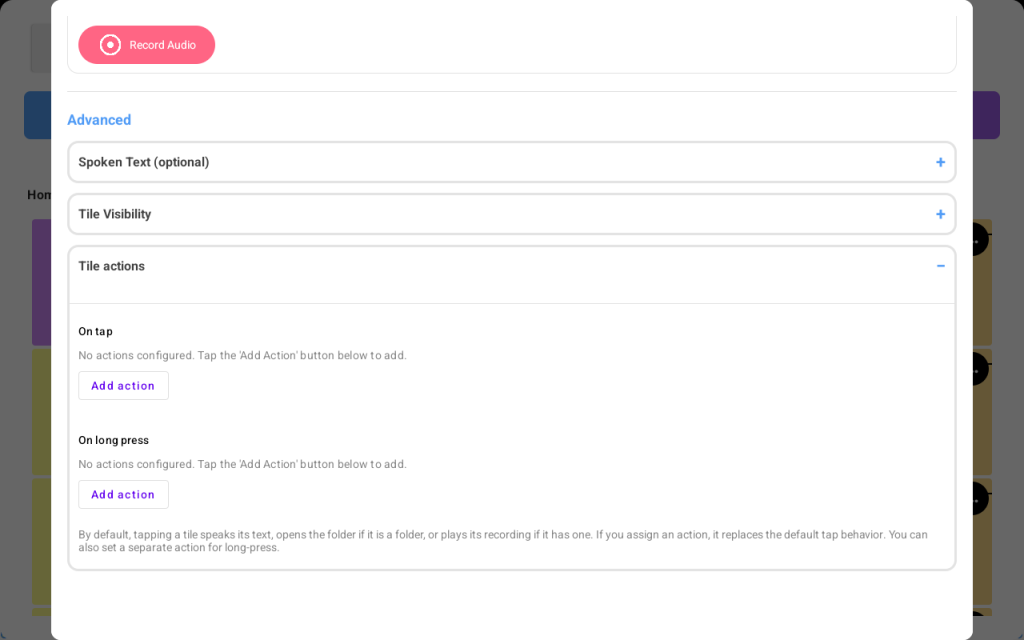
You can assign one or more tile actions using the “Advanced” section of the “Add Tile” screen.
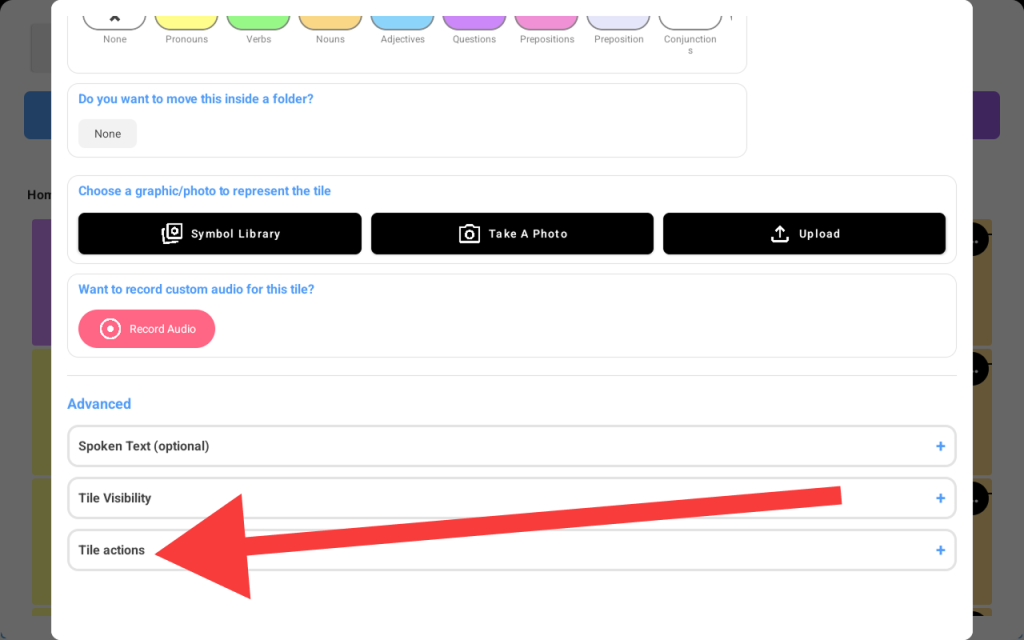
When you tap the “Tile actions” section, it’ll exapnd to this section:
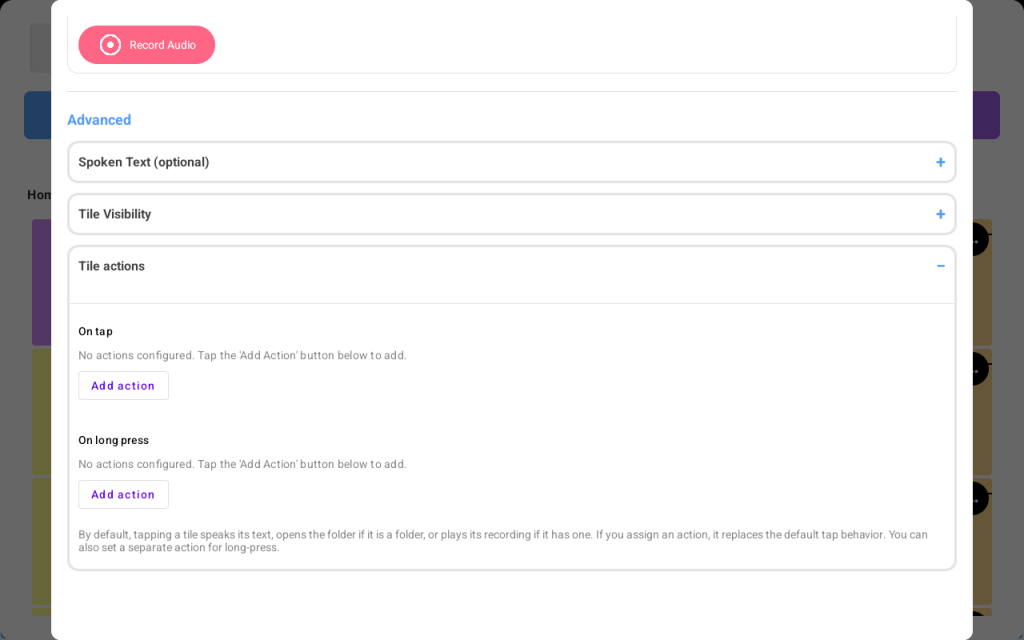
There are two types of actions:

  • On tap: the action(s) happen when your learner taps a tile
  • On long press: the action (s) happen when your learner presses the tile for more than 1/2 second

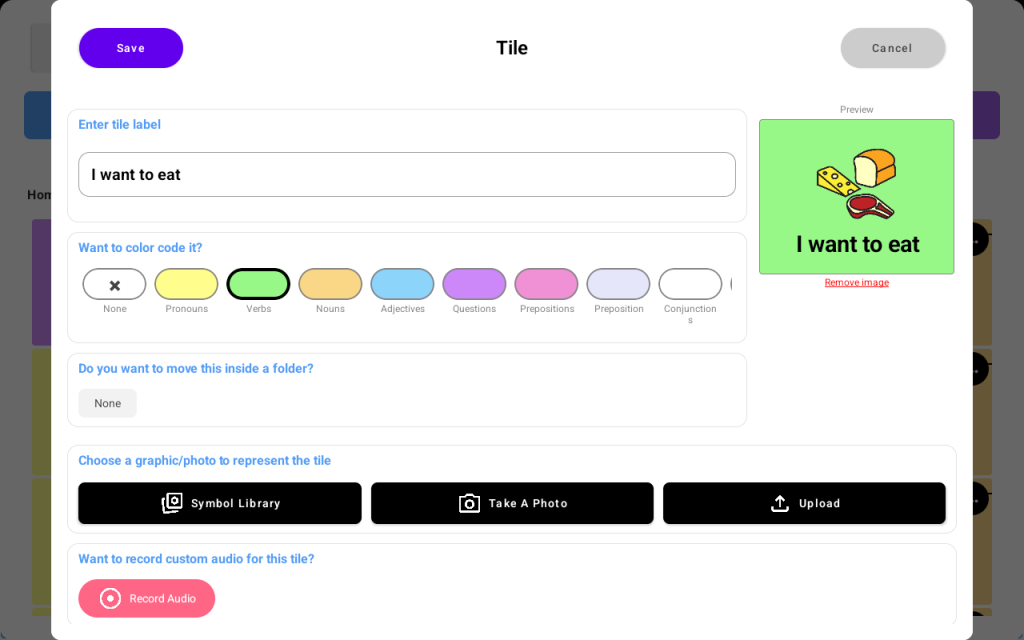
Let’s create a tile with an on-tap action being “speak tile” and the long press being “open folder”. Let’s call the tile “I want to eat.”

  • Enter the tile label as below
  • Scroll down the actions section
  • Tap the “Add action” in the on tap section
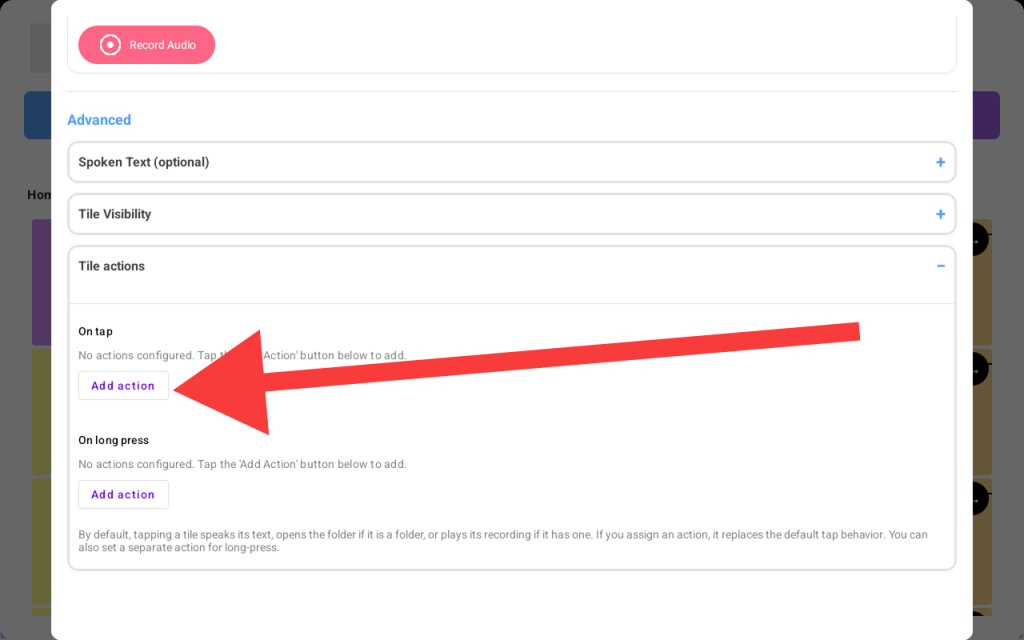
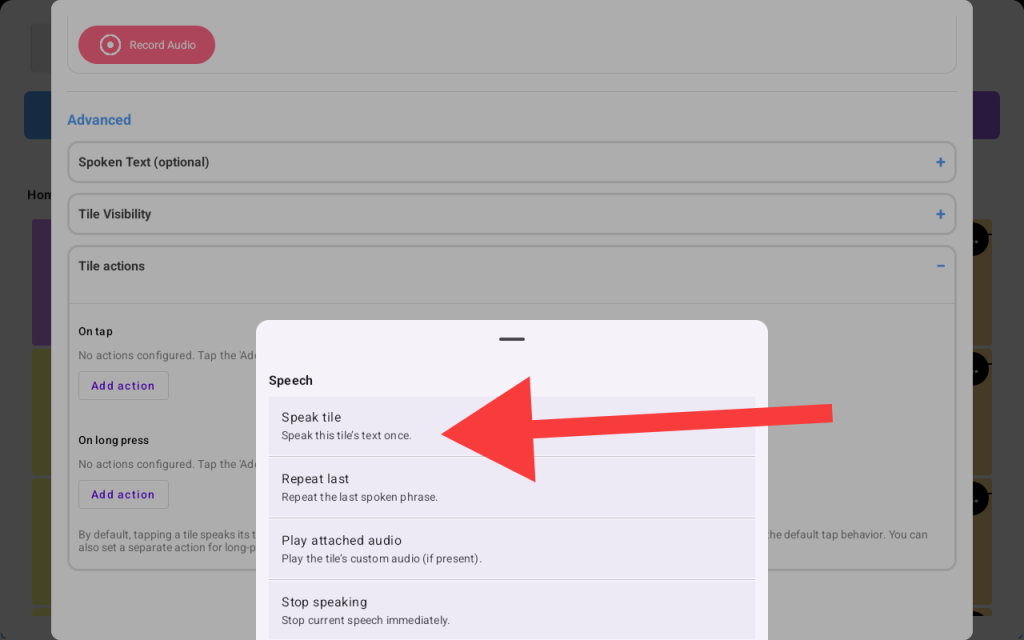
  • A list of available actions will show up, select “Speak tile.”
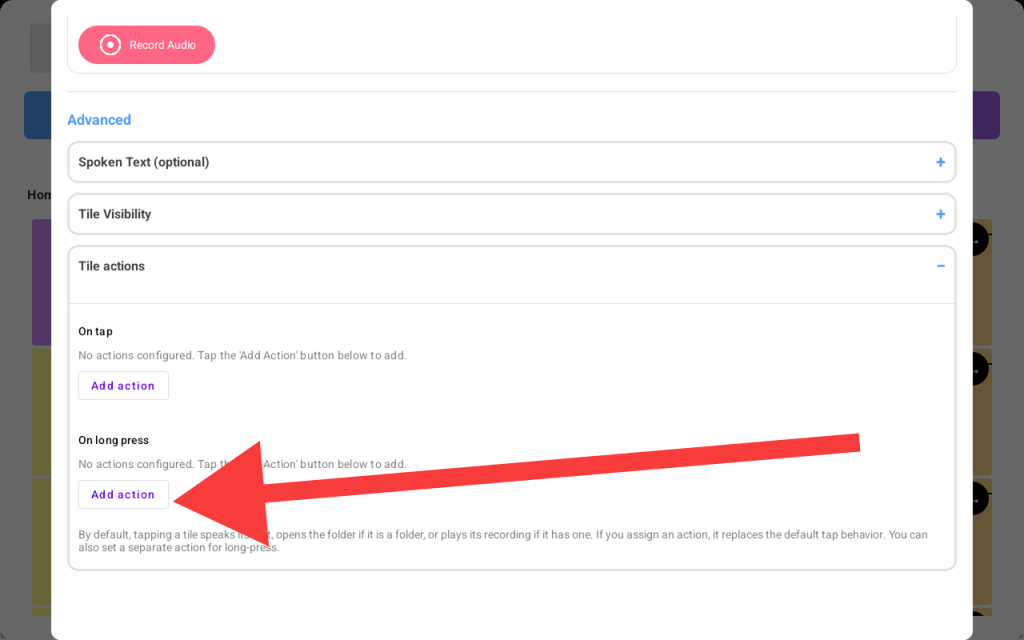
  • Now tap the “Add action” button inside the “On long press” section
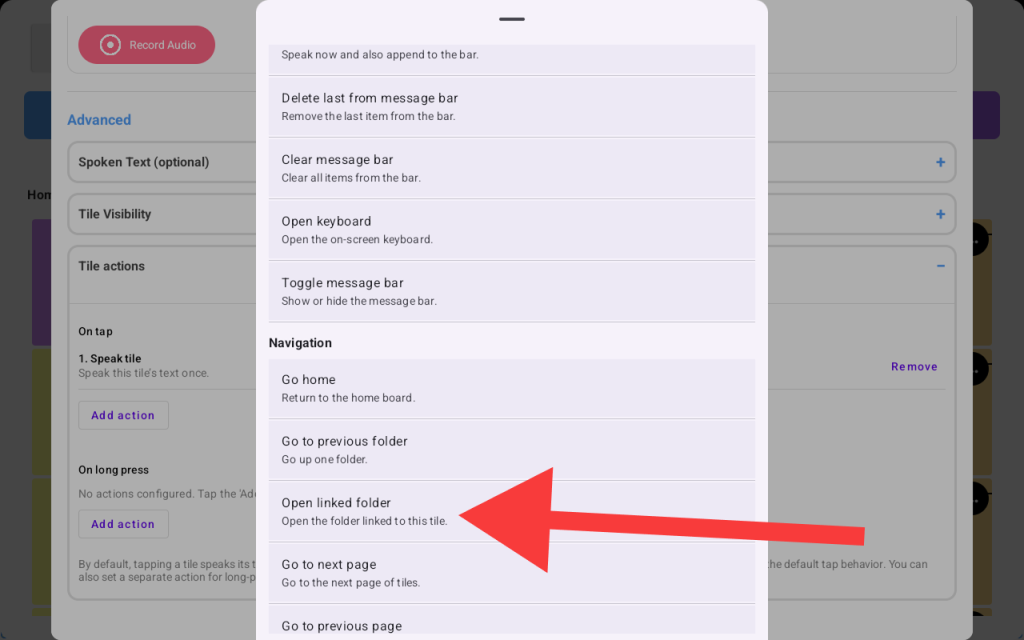
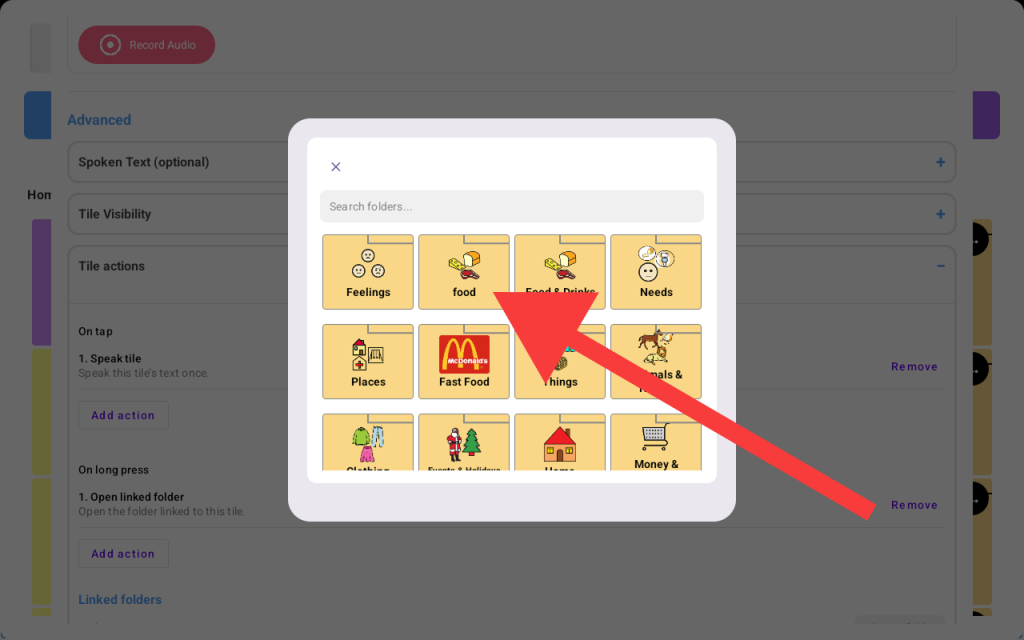
  • Scroll down to the “Navigation” section and choose “Open linked folder.”
  • A list of folders will appear to choose from. We’ll select the “Food” folder since we named the tile “I’m hungry” that way, there is a strong utility correlation between the tile and the action
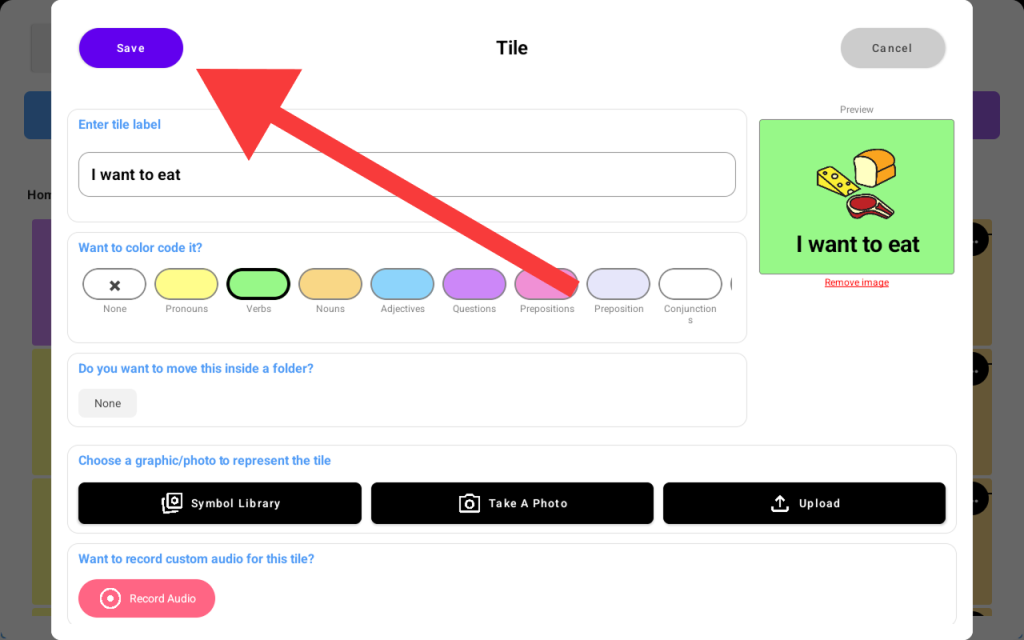
  • Go ahead and scroll all the way up and tap “Save”
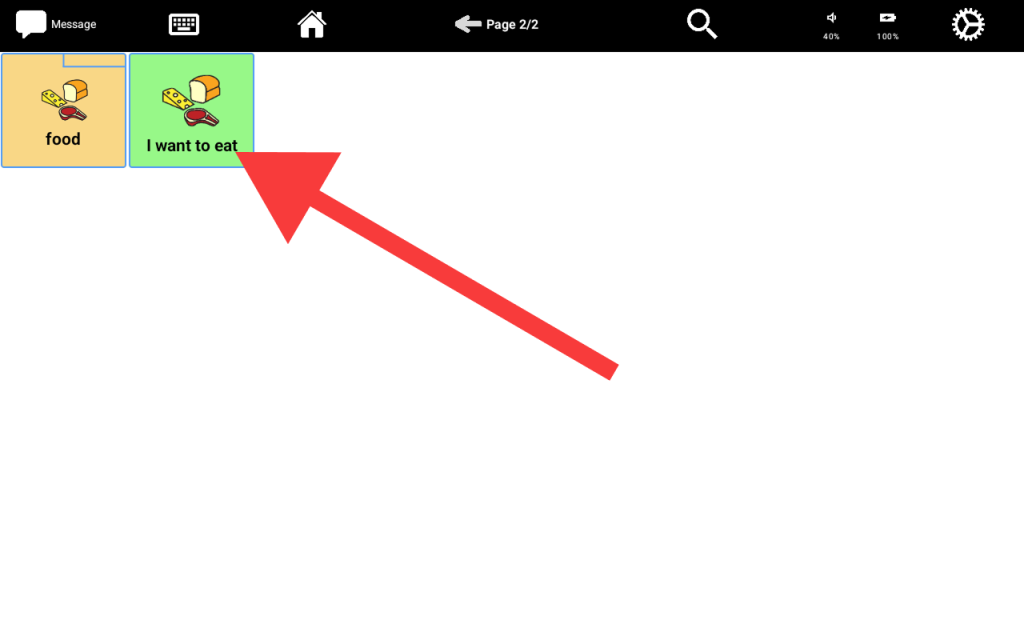
  • Now go back to your board and the new tile now speaks “I want to eat” on tap, and on long press it’ll open the food folder.”
Share This Article :

  • Facebook
  • X
  • LinkedIn
  • Pinterest

Start Communicating Today

Get Your AAC Now

Contact us

support@talking-tiles.com

  • Home
  • Buy Now
  • Why
  • About
  • Research
  • Help Center

Copyright © 2025 TalkingTiles AAC

Meet TalkingTiles: an Augmentative and Alternative Communication (AAC) tablet designed to help children with speech and communication challenges express themselves.

Facebook-f Tiktok Youtube